

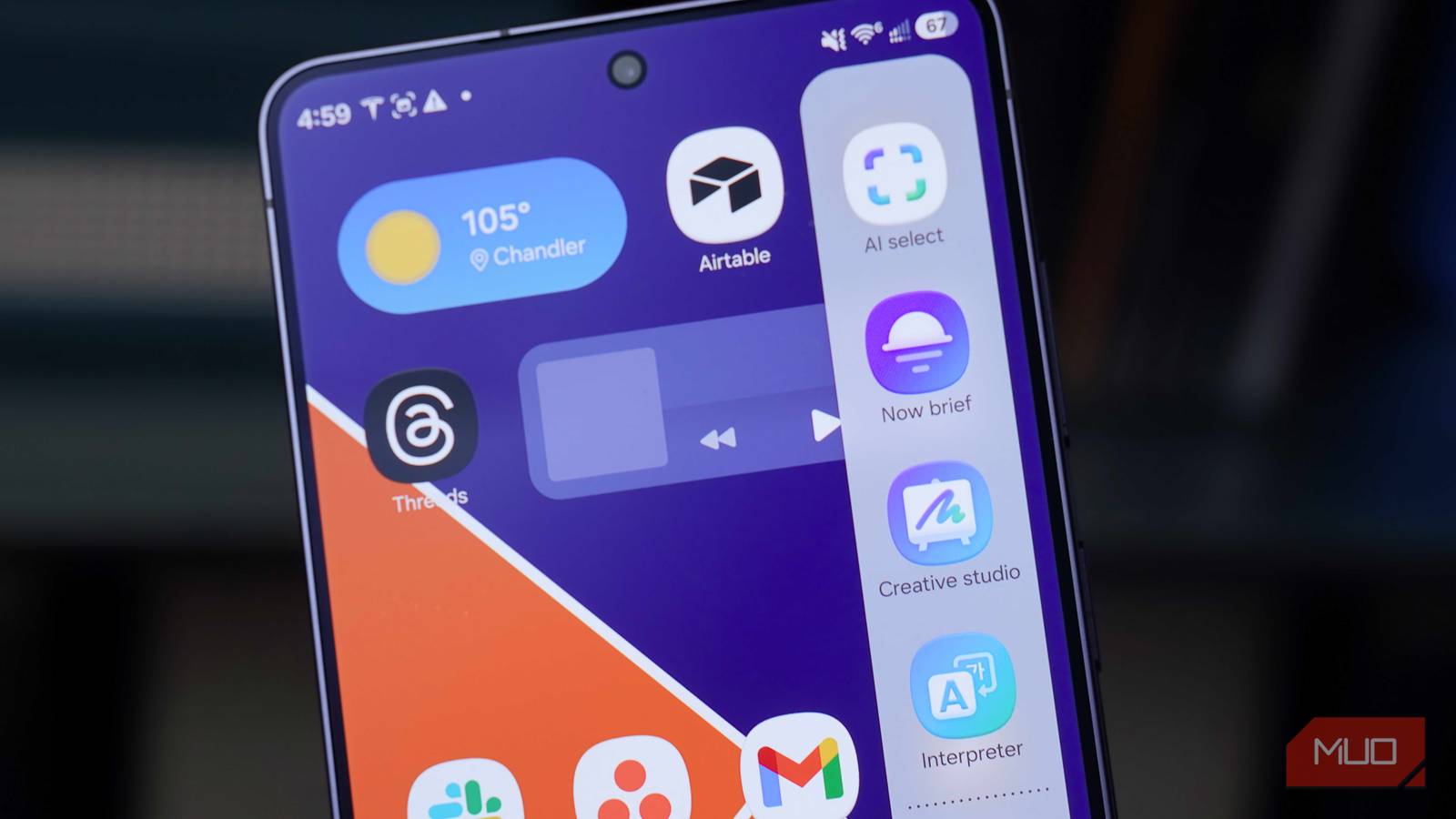
Persistent docks, taskbars, and toolbars are staples of apps and operating systems. It’s not hard to see the reason why — people like being able to access their most-used apps and features from anywhere. For some reason, though, docks and taskbars aren’t as common on smartphones. You’ll find them on Android tablets and foldables, but not traditional slab-style handsets. That is, unless you use a Samsung Galaxy phone.
There’s a small bar that appears on the side of a Galaxy phone running One UI, right around where the volume rocker usually lives. It’s called the Edge panel, and it’s like an app dock or taskbar for your smartphone. Most people completely ignore it, only encountering it accidentally. I fell into that camp for far too long, but now I’ve come around to loving it. The customization and personalization options can speed up workflows and help you use Galaxy AI features you would otherwise miss. If you take the time to master it, the Edge panel will quickly become one of your favorite One UI perks.

I dismissed these 3 Samsung features as gimmicks but now I use them everyday
These 3 Samsung features are truly useful—if you use them right.
I customized the Edge panel, and it made all the difference
Using the default selection of apps and features isn’t enough
The default options in the Edge panel aren’t great, and Samsung could do a better job of explaining to users how it works and can be customized in the One UI 8.5 onboarding process. Swiping left on the Edge panel “handle” — the small gray tab peeking out of the side of your screen — opens the pre-set app tray. You’ll see stock Galaxy AI features, including AI Select, Now Brief, Interpreter, and Creative Studio, as well as recent apps. If you stick with this basic combination, you probably won’t get much utility out of the Edge panel. Instead, you should tap the pencil icon to edit the Edge panel’s offerings.
We all spend time carefully choosing the few dock apps that fit on our Android home screens, and it’s beneficial to do the same for the Edge panel. You can add up to 22 of your favorite apps to an Edge panel for easy access. I went with six, as that’s the number that fits on my Galaxy S26 Ultra’s Edge panel without scrolling. There’s no need to add everything to an Edge panel, because you can access your full system app drawer from the panel itself. Having your most-used apps ready and waiting on the side of your screen makes app switching, multitasking, and split-screen app management so much easier.
In my case, I added Chrome, Messages, Maps, Apple Music, Mail, and Slack to the Edge panel. Those are the six apps I switch between most throughout the day, and being able to launch them from anywhere speeds up my workflows. I no longer need to use the app switcher or go to my home screen to find the core apps I know I’m going to need frequently.

The customization doesn’t stop there. By default, you have one Edge panel dedicated to Galaxy AI and recent apps, but there are actually seven total panels you can add to the side of your phone. To manage them, open the Settings app and go to Display → Edge panels and tap the panel types you want to use.
There are panels for Apps, People, Tasks, Weather, Tools, Clipboard, and Reminder. You should only use the ones you really need for simplicity and convenience. I like having access to my most-used apps and my clipboard history in the Edge panel, but personally don’t get much use out of the others. That’s the beauty of this feature — it’s best when you make it your own.
AI Select and Finder are secret weapons
Use them to launch apps, find files, save photos, create GIFs, and more
If you give the Galaxy AI features in the Edge panel a chance, you might actually find utility out of them. Truthfully, I can’t find four Galaxy AI apps worth keeping in my Edge panel, so I’ve trimmed the default selections down to just two: AI Select and Finder.
The second one doesn’t need much of an introduction — it’s another way to access the Samsung Finder, which is the central search bar you can already use in the app drawer. With it, you can search across your apps, contacts, calenders, media, and plenty more sources. It’s easier to use the Finder to open an app that isn’t in your Edge panel than by tapping the app drawer itself, and that’s why I keep it around.
The better tool is AI Select, and I think it’s just as good (if not better) than Circle to Search. It’s incredibly easy to activate. Yes, you can tap the AI Select app in the Edge panel, but you can also hold down the Edge panel handle to launch the feature without opening it. You can then tap something on your screen to identify it. From there, you can access other Galaxy AI features like Creative studio or Photo assist to edit photos on the fly. The reason why AI Select is so useful is that you can edit, save, or modify content before saving it to your device.
I use AI Select for this frequently when I need to save photos or videos to my device, and don’t want to waste time with a .webp file or a screen recording. Instead, I select the image on my screen and can crop or save it with AI Select instantly. For videos, there’s a Create GIF option that completely removes the hassle of video conversions. AI Select will record the video on your screen frame-by-frame, saving it as a GIF on your Galaxy phone. These two AI Select use cases save me so much time editing screenshots and screen recordings — I hardly open the cropping tool or video trimmer in Google Photos anymore.

5 Handy Ways I Use the Edge Panel on My Samsung Phone
If you’re not using the Edge Panel, you’re missing out on pure convenience!
Maximize the Edge panel, or just turn it off
If you’re not making the most of it, it’s simply a waste of space

I’ve come to love using the Edge panel on my Samsung Galaxy phone, but it’s only as good as you make it. Without taking the time to declutter the unnecessary Galaxy AI apps and replace them with your own favorites, you probably won’t get much utility out of it. Not everyone will enjoy the Edge panel. I can see how it might be distracting to have a small gray tab poking out of the side of your Galaxy phone screen all the time.
That’s why if you don’t use the Edge panel, or can’t find a workflow that you feel is valuable, you should just turn it off. Luckily, you can disable the panels entirely by navigating to Settings → Display → Edge panel and flipping the toggle off. With that being said, you should probably give it a shot. Just like the persistent docks and taskbars on foldables, tablets, and PCs, Samsung’s Edge panel has the potential to make you more productive and keep your favorite apps in close reach.
