

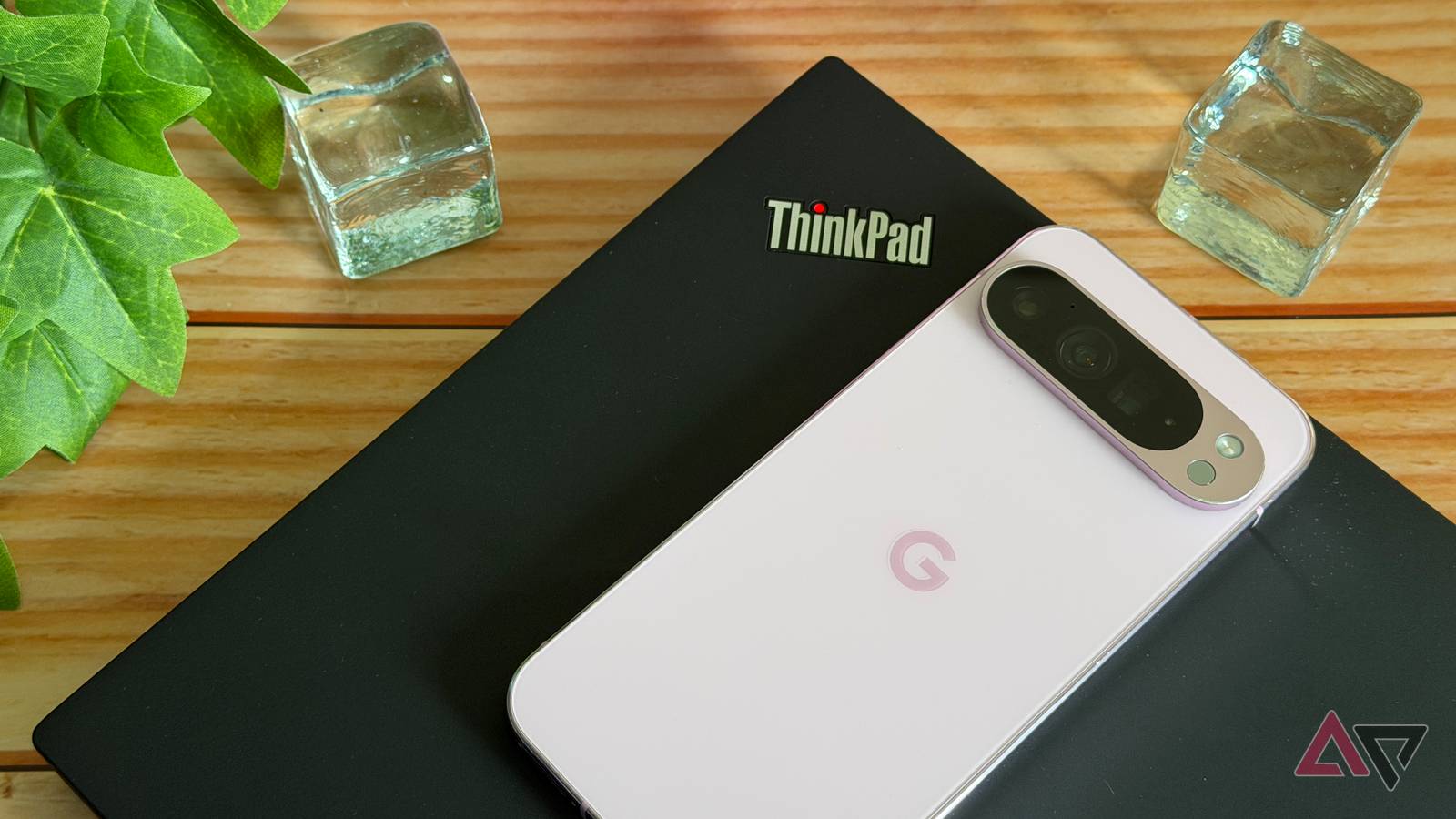
There is nothing more frustrating than watching your Google Pixel’s battery percentage tick down while it’s just sitting in your pocket.
I love the camera and the software, but for a while, the sudden battery drain was making me consider switching back to my Samsung Galaxy phone.
After some trial and error (and a lot of digging through system menus), I discovered a handful of default settings that were hammering my battery life. After I flipped these switches, the difference was massive.
If your Pixel is draining faster than it can charge, these are the essential tweaks you need to make right now.

My Google Pixel felt slow until I changed these settings
Stop ignoring these Pixel settings
Switch to the LTE network


I love fast internet speeds as much as the next person, but unless you are sitting directly under a 5G tower, your Pixel is likely working overtime to maintain that connection.
In my experience, the modem constantly finds a 5G signal, which generates heat and affects the battery. I made the controversial choice to switch my Preferred Network type to LTE.
I didn’t notice a difference in my daily scrolling or YouTube Music streaming, but my battery stopped falling off a cliff.
You can head to Settings > Network & internet > SIMs > Preferred network type and select LTE from the following menu.
I also disabled adaptive connectivity so that my Pixel doesn’t switch from Wi-Fi to mobile data due to poor wireless connectivity. The standby drain (the battery lost while the phone is just sitting on my desk) improved massively.
Disable AOD


The Pixel’s Always On Display (AOD) is basic at best. It’s just a dim clock and some notification icons staring at you all day.
Even on an OLED screen of my Pixel 8, keeping those pixels fired up can account for about 1% of my battery drain every single hour.
Instead of having my screen burning power 24/7, I switched to the Lift to check phone and Tap to check phone gestures.
Now, my screen stays completely black and saves energy until I actually need to see something.
The second I pick up my phone or pull it out of my pocket, the screen wakes up instantly. It gives me the exact same info I would get from an AOD.
It’s snappy, intuitive, and saves a massive chunk of capacity throughout a busy workday.
Turn off Now Playing


Another feature I finally decided to axe was Now Playing.
Don’t get me wrong – the idea of my phone automatically identifying every song playing in a coffee shop or a car is cool in theory.
But it means my microphones are essentially always on, and the processor is constantly listening and matching audio patterns against a local database.
It’s a neat party trick, but the Pixel’s version of it is pretty basic at best. Half the time, it doesn’t catch the song anyway, or it identifies something I already know.
Instead of letting my phone listen 24/7, I switched to using the Google Song search tile in the Quick Settings panel. Now, if I actually hear something I like, I just swipe down and tap that tile. It’s essentially a manual Shazam built right into the OS.
It listens for a few seconds, does a quick Google search, and gives me the artist and track immediately.
Automate dark mode


We all know Dark Mode is the gold standard for OLED screens because, unlike traditional LCDs, an OLED panel turns off individual pixels to show black.
But I found that I actually prefer the Light mode aesthetic during the day when I’m out in the sun and need that extra visibility.
I stopped manually toggling it and put it on a strict automatic schedule. I have set my Pixel to automatically flip into Dark Mode at 7 PM and switch back at 7 AM.
It might seem like a small tweak, but over those 12 hours, the energy saved from not lighting up millions of white pixels adds up.

My phone felt due for an upgrade until I changed these settings
I didn’t realize how much these features were affecting my phone
Keep a close eye on the battery usage chart


Finally, I had to stop guessing and start looking at the actual data. The battery usage chart became my best friend during this process. It’s the only way to know if a single app is affecting your progress.
After all, the tricks above won’t work if a specific app or game is eating up all the device resources in the background.
When you go into Battery > Battery usage menu, make sure to check the breakdown by apps and system.
You can force close such rogue apps and reset their power consumption.
Stop charging twice a day
The Google Pixel is an incredible phone, but it shouldn’t require a portable power bank just to get through a standard workday.
By taking five minutes to audit these specific settings, I finally reclaimed the ‘all-day’ battery life Google promised.
So, what are you waiting for? Don’t settle for a phone that gives up before you do. Spend a few minutes in the settings menu and fix the drain for good.
While you are at it, tweak these camera settings to get the best out of your Pixel lens.
