

One of the trickiest problems I have faced with Windows is running out of storage without any clear culprits. When this happened to me, downloads were fine, and I didn’t have any large apps consuming space. When I found the cause, it was an unexpected system file using up space, and I don’t remember enabling it.
Removing it was as simple as using one command, and instantly, I regained a lot of gigabytes. But before you hurry to disable it as I did, you’ll want to consider the trade-offs because this file affects how the OS handles startups and shutdowns. Still, it’s an easy way to reclaim space when you don’t want to uninstall anything.
How much space hibernation uses on your PC
It scales with RAM, and high-memory systems lose the most space

The file that you have to delete is called hiberfil.sys, but it’s not obvious. This file is protected by Windows and also made invisible by default. So, to locate it, you must first take the following steps:
- Press Windows + E to open File Explorer and navigate to your C drive.
- Now, click the ellipsis (…) in File Explorer and select Options to open the Folder Options window.
- Navigate to the View tab, then select Show hidden files, folders, and drives, then scroll down and uncheck Hide protected operating system files (Recommended).
Once you follow these steps and return to the C drive, you will see a new file called hiberfil.sys. On one of my systems, this file was 12GB, while on another, it was just 6GB.
The impact of hiberfil.sys depends on your setup and the size of the available space. On my 1TB SSD, it was 12GB, and I could afford to overlook it, but on an already full 256GB SSD, 12GB may be too much to overlook. The size of this file isn’t always constant and depends on your RAM size. So, it’s likely to be larger on more powerful systems.

I disabled one Windows 11 service I’d never heard of and freed up nearly 1GB of idle RAM
A sneaky service that can take gigabytes of memory.
The command that deletes it and frees up space
What actually happens when you run it
To delete this file, turn off hibernation using a command prompt that has administrator privileges. Here is the command to run:
powercfg /hibernate off
Running this command causes Windows to automatically delete the file and free up the storage it occupied. The command executes instantly without any kind of confirmation or warning.
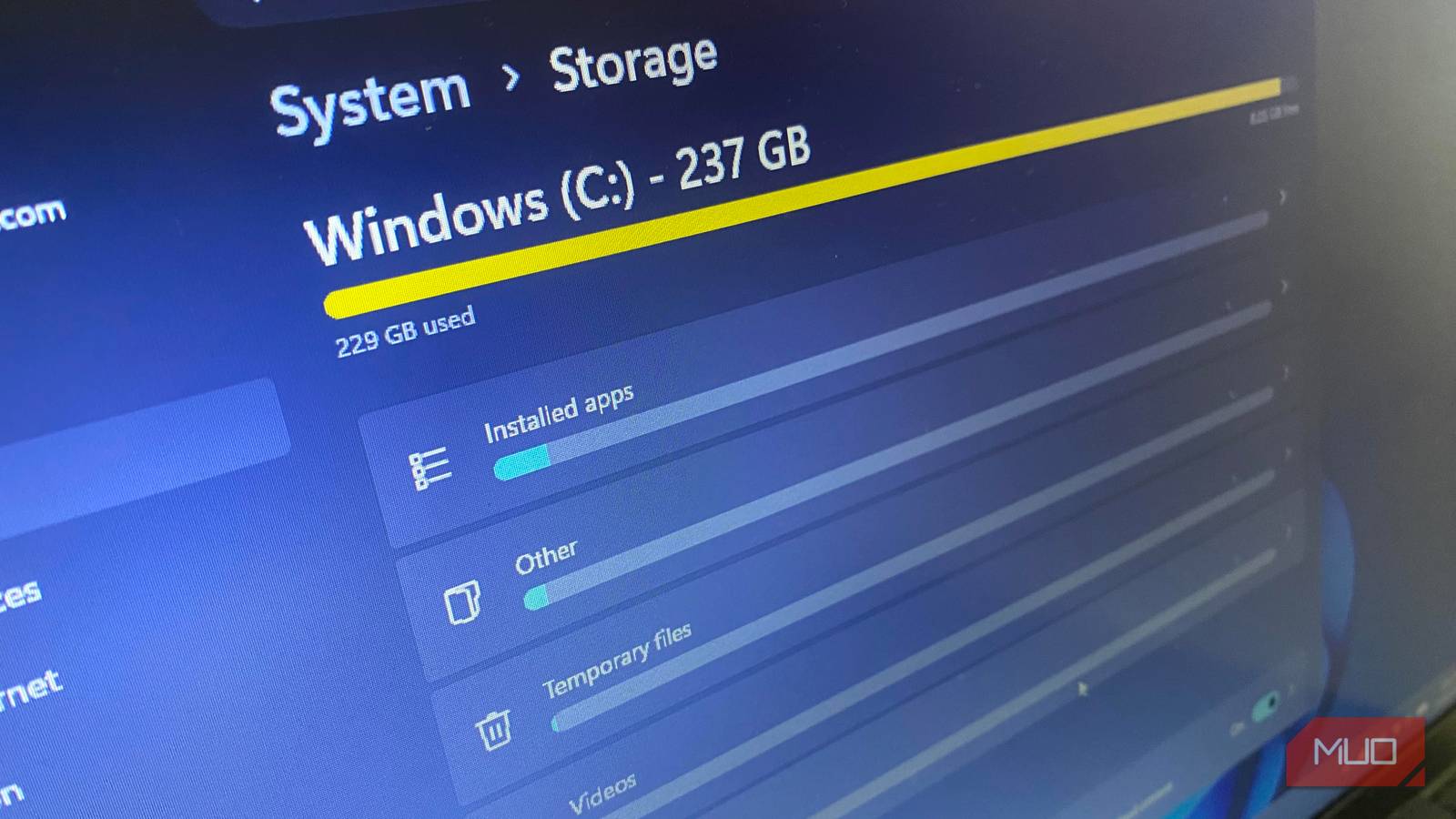
Before I deleted it, I opened Settings and navigated to System -> Storage. I had 8.17GB of free storage. After deleting it and checking back, I had 14.4GB of free storage.
Although the command runs instantly, Windows may not free space immediately, especially when you’ve just recently used the feature. In such cases, you need a restart to force Windows to release all parts of the file it’s holding onto.
If you delete the file in error or want it back, you can run this command: powercfg /hibernate on
What changes after disabling hibernation
Fast Startup is removed, and boot behavior becomes more traditional

One thing you should know is that running that command isn’t simply deleting hiberfil.sys; it also changes how Windows starts up. It reverts your computer to a more traditional startup because Fast Startup is automatically disabled.
There are advantages to disabling Fast Startup. For instance, since I dual-boot Windows and Linux, turning off Fast Startup ensures Windows releases parts of my hard drive partition that were locked. So I don’t see deleting hiberfil.sys as a huge compromise. Because Fast Startup prevents a full shutdown, it shortens boot times—so you lose that speed benefit when you disable hibernation.
The difference Fast Startup makes depends on the hardware you have. Startup time on an NVMe SSD with and without Fast Startup is just a few seconds apart, which is negligible. On older SATA SSDs or HDDs, the boot time gap is more pronounced.
You, however, have the real advantage of not carrying over inconsistent or unexpected states between sessions because the system goes through a complete shutdown process.
If you needed this space, there are a few more places to check
On most of my systems, I freed an initial chunk of space by deleting this hibernation file. But it only made me curious about other ways to free space, especially on my smaller-capacity devices. I tried a few, and here were the ones that gave me the most success:
|
Feature |
What it does |
What you can do |
|---|---|---|
|
pagefile.sys |
Virtual memory |
Manually reduce its size or allow Windows to manage it |
|
System Restore |
Saves system snapshots |
Limit disk usage or delete older restore points |
|
Delivery Optimization |
Stores update cache |
Clear cache in Storage settings |
One difference between hibernation and some of these other features is that they are more actively used. So, for instance, I would not entirely disable the page file. System Restore is needed; I only ensure older restore points are deleted by capping the space it can use. This way, I don’t have to totally disable the feature. The least consequential is Delivery Optimization, and I can clear the cache without affecting system stability.
There are a few other approaches to regaining storage on Windows: you may disable reserved storage or use the built-in Windows Disk Cleanup tool.
