

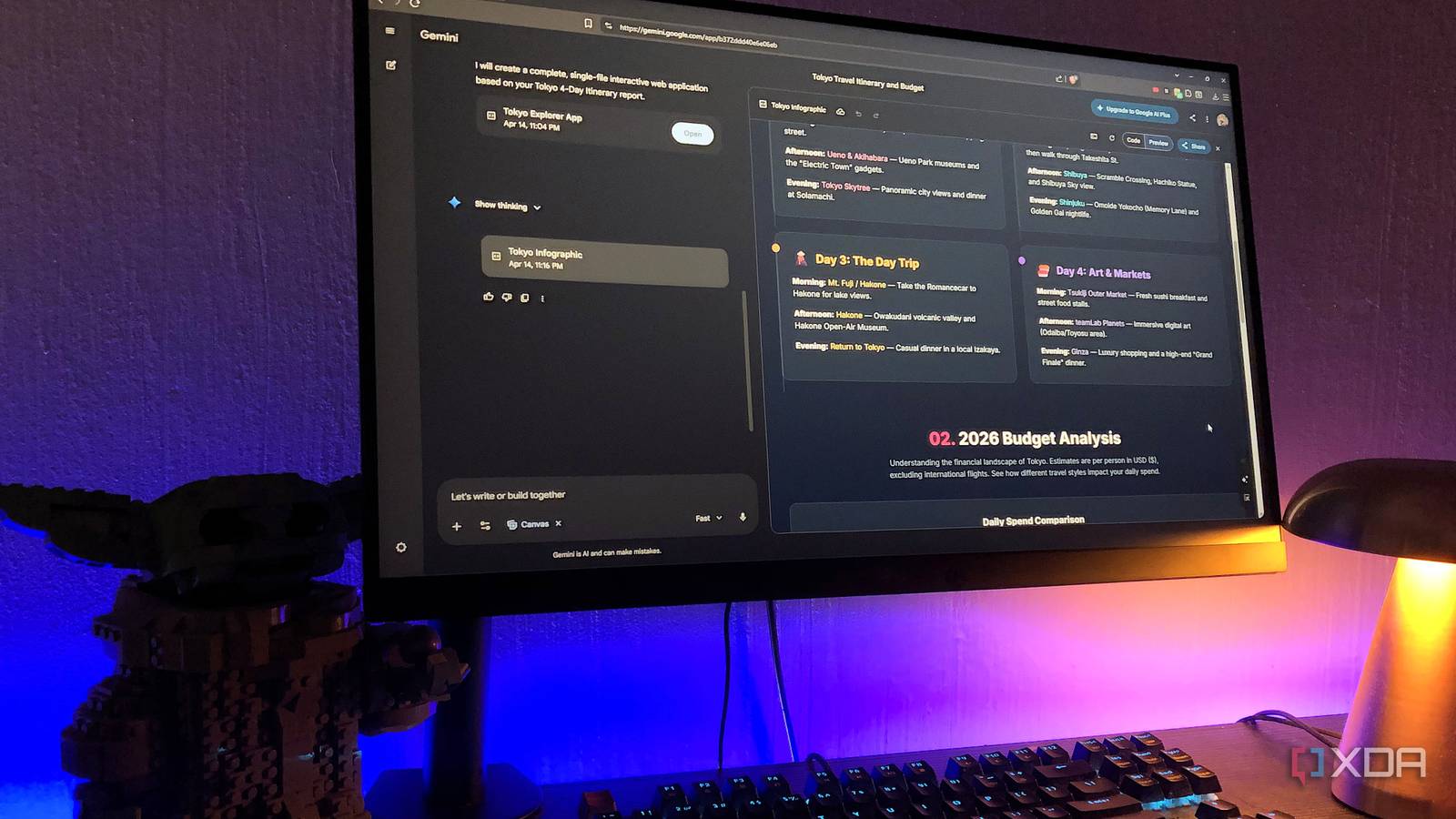
Like probably most people, ChatGPT was the first AI chatbot I used. It wasn’t until the last couple of years that I actually gave its competitors a fair shot, and Gemini ended up surprising me the most. It’s heaps better than other tools for real-time data, and because I’m already deep in the Google ecosystem anyway, the integration just made sense. So at some point, it just became one of my daily drivers, and I started exploring what it could do beyond just answering questions.
That’s when I came across the Canvas feature. It’s a little embarrassing how long it took me to notice it – I actually thought it was a new addition when first discovering it. But Canvas has been around for about a year now. On the surface, it’s Gemini’s workspace for writing and building things, but that kind of undersells it. It morphs depending on what you’re creating, which is why it managed to knock out a bunch of tools in my productivity stack at once…

I paired NotebookLM with Gemini, and it’s the biggest upgrade I’ve made for my research
NotebookLM hits different when you pull it into Gemini
What is Gemini’s Canvas?
Gemini’s hidden workspace

Canvas launched in March 2025 and has been getting more powerful since. It’s an interactive workspace that lives right inside Gemini – you select it from the prompt bar, and a side panel opens up where you and Gemini co-create in real time. The difference from a regular chat is that instead of responses just stacking up in a scrolling thread, everything lives in one persistent, editable document or project. You can go back in, tweak a specific section, highlight a paragraph and tell Gemini to rewrite just that part, adjust the tone, shorten it, whatever – without regenerating the whole thing from scratch.
What makes it interesting, though, is that it’s context-aware, meaning the interface actually shifts depending on what you’re making. Ask for a written document and it behaves like a rich text editor with formatting tools and a one-click export to Google Docs. Ask it to build something and it switches into a coding environment with a live preview pane where you can interact with what it just made, toggle to see the underlying code, and keep refining through conversation. You don’t need to know how to code for any of this – you just describe what you want and it handles the rest. You can pretty much throw anything at it, and it will give you something structured yet malleable back.
Canvas is actually free for everyone, which was one of the bigger surprises of the Gemini 3 rollout. The free tier runs on Gemini 3 Flash with a context window of around 128k-200k tokens, plenty for most tasks. Pro and Ultra unlock Gemini 3.1 Pro, a 1 million token window, and higher daily quotas – but unless you’re working with massive documents or codebases, the free tier covers most of what you’d need.

Claude’s latest feature just made ChatGPT and Gemini obsolete for studying
Can the other LLMs keep up?
You don’t need Canva or PowerPoint with Gemini’s Canvas
It’s not perfect, but it’s fast enough that it doesn’t need to be
Canvas morphs into whatever you need it to be. It has something called a Presentation mode – but it’s not a deliberate feature you’ll find anywhere in the interface. You activate it by simply prompting Gemini to create a presentation or slide deck using Canvas. The Canvas will then turn into a slide space with a card-based navigation, and the option to export to Slides or download it as a PDF.
Canvas is based on code (HTML/React/SVG), so your slides won’t be a series of images, but rather a living web prototype. It’s basically vibe-coding but for presentation slides. That’s the big win it has over Canva and PowerPoint – you never have to touch a design tool and just describe exactly what you need. Once your slides are generated, you can go back into the chat and prompt Gemini to tweak the style or any other specifics. So the entire thing happens with natural language. If you’re on the free tier like me, by default, Gemini will create static slides – but you can ask it to write live code to make it interactive.
Same deal with infographics. Canvas will generate anything you throw at it; it will generate a vertical scrollable graphic, and you can have a back-and-forth with the bot to refine it. The free tier will also make it static by default, so you have to give it a vibe-code-style prompt and ask for an interactive infographic in order to get clickable elements. It’s not a Canva replacement for anything brand-heavy or marketing-focused. But for the kind of graphics I was making most of the time, it’s more than enough.
Canvas steps up as a Notion replacement, too
Less setup, same structure
I’ve had a love-hate relationship with Notion for years. The idea of it is great, and I still like dabbling in it. But its flexibility is also kind of its problem – you spend more time managing everything than actually getting work done. Canvas solves that completely. If you ask Gemini for anything text or document-based, it will turn the Canvas into a document-style editor, complete with formatting options.
The biggest difference is that you skip most of the setup. Instead of you constructing the structure, you just describe what you need and it builds around you. Ask it to set up a project tracker with a table and dedicated sections, and it opens the document space, formats everything, and populates it with a starting point in a few seconds. The highlight-and-refine toolbar is probably my favorite part – select any chunk of text and tell it to shorten, rephrase, or change the contents without ever leaving the document.
The document-style version of Canvas also lets you turn the content into other formats. Say you have some research laid out in tables – you can turn it into a quiz, infographic, audio overview, or even a web page. And all of this remains sharable, so you can get the content outside of the app.
Fewer apps, same results
I was just poking around a feature I hadn’t paid much attention to, and somewhere between generating a deck and building out a document, I realized I hadn’t opened Canva, PowerPoint, or Notion in weeks. Canvas isn’t perfect for everything, but for the tasks I was using those three tools for most of the time, it covers enough ground that going back feels like unnecessary extra steps.
