

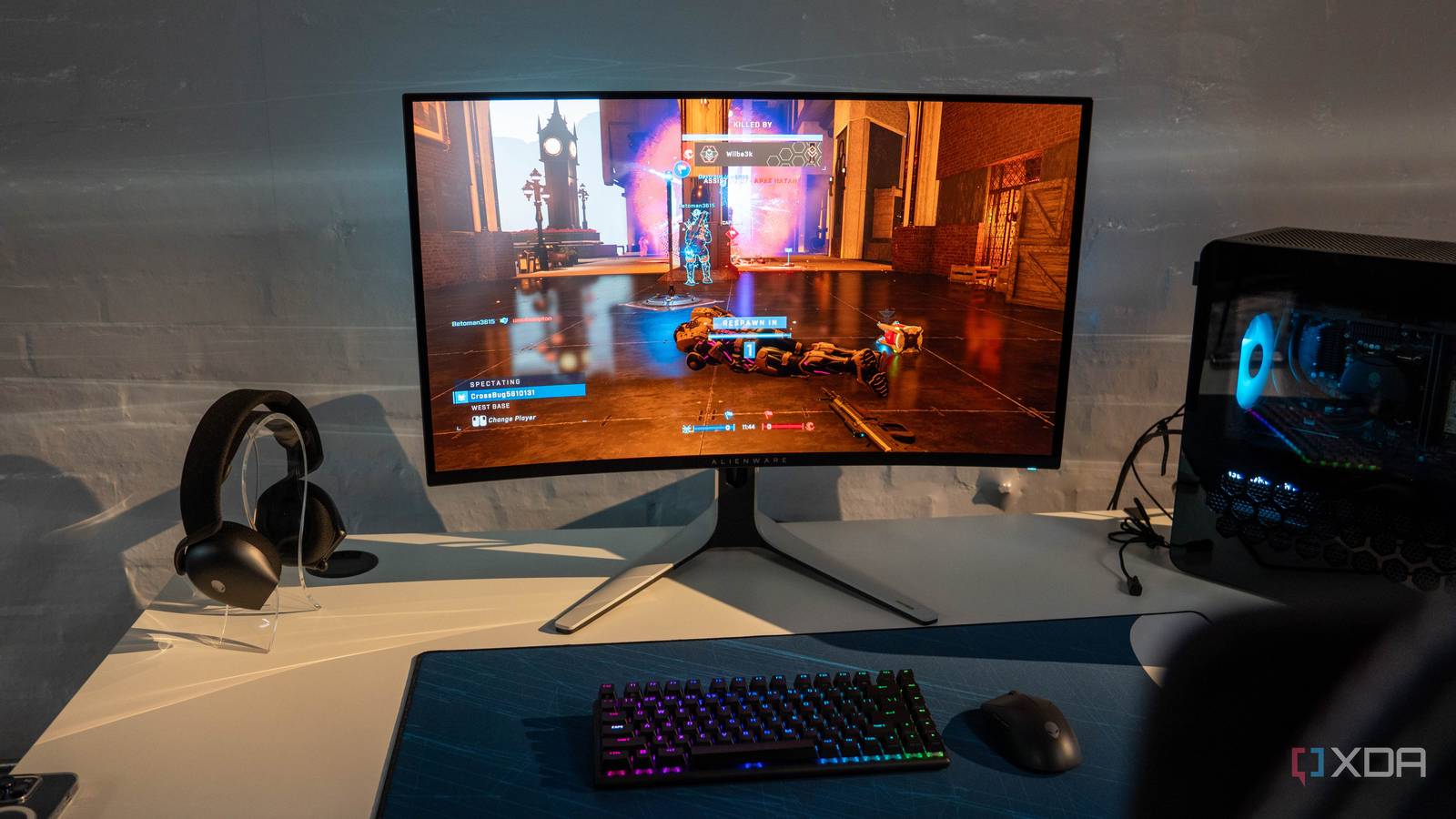
When you upgrade to a new monitor, you naturally expect everything to look better, whether that’s a sharper image, more vibrant colors, or smoother motion in games. You’d think the improvements would be immediately noticeable the moment you turn it on, but that’s not always the case. I’ve had times when new monitors looked underwhelming out of the box. For instance, my old LG 27GN950 looked flatter than I expected until I messed with the color profiles.
The reality is that many monitors ship with default settings that can undermine what the panel is actually capable of. On top of that, Windows can default to 60Hz and apply suboptimal HDR settings that make everything look washed out. That’s exactly why you should spend some time dialing in your monitor’s settings before writing it off. In most cases, all it takes is a couple of tweaks to make your monitor look and feel exactly the way you expected.

5 PC settings I had to change after buying a QD-OLED monitor
Your QD-OLED monitor might look terrible without these changes
Double-check your refresh rate
Windows doesn’t always default to your monitor’s advertised refresh rate

I know this sounds basic, but honestly, it’s one of the easiest things to miss after upgrading to a new monitor. Just because you have a 240Hz or 360Hz monitor doesn’t necessarily mean Windows will default to that refresh rate. When I got the LG 27GN950 and the Alienware AW3423DW, I had to manually switch the refresh rate in Windows (Settings -> Display -> Advanced display) to get the smoothness that I was expecting. You can also do the same thing from the Nvidia Control Panel if you prefer.
Likewise, if your monitor lets you overclock the panel to hit a slightly higher refresh rate, you may have to head into your monitor’s OSD and enable that option before it even shows up in Windows. For instance, my LG 27GN950 didn’t show the 160Hz option in the Nvidia Control Panel until I enabled the overclock setting in the OSD. Simply put, if your monitor doesn’t feel as smooth as it should, this is one of the first things you should check before jumping to the conclusion that 144Hz doesn’t feel any different from 60Hz.
Response time setting makes or breaks motion clarity
Finding the sweet spot is key, or you’ll end up with overshoot and blur

If you have an OLED monitor, you can skip this part, but if you have an LCD, this is one of the most important settings to get right. You may have seen how IPS, TN, and VA gaming monitors advertise response times as low as 0.5ms, but the reality is that those numbers are measured with aggressive overdrive settings under ideal conditions. Using the fastest response time setting has its drawbacks, like inverse ghosting, where you’ll notice bright trails or halos behind moving objects.
On the other hand, settling for the default “normal” response time setting isn’t ideal either. While you may not notice inverse ghosting, you’ll likely deal with more blur or smearing, especially in fast-paced competitive titles. That’s why I highly recommend finding the sweet spot. In my experience, that’s usually the second-fastest overdrive setting, but it can vary depending on the monitor and the refresh rate you’re running. Sure, you won’t get anywhere close to those advertised response times, but you’ll still get noticeably cleaner motion than the default settings.
Windows HDR needs calibration
Don’t be surprised if your monitor’s HDR performance isn’t great out of the box
If you’ve ever enabled HDR on Windows only to notice that your desktop looks washed out or flat, you’re not alone. It’s usually not even the HDR content that’s the problem, but the SDR content that ends up looking worse when HDR is turned on. I’ve experienced this long enough on both my LCD and OLED monitors to know that Windows doesn’t always handle HDR the way you’d expect by default. Even Microsoft knows this, which is why there’s a link to install the Windows HDR Calibration app in the HDR settings menu.
This tool basically lets you properly set peak brightness, black levels, and overall tone mapping, so HDR content actually looks the way it should. On top of that, the SDR brightness slider in the HDR settings menu can also make a difference in how your desktop and apps look. Personally, I lowered it to 25, so everything doesn’t look washed out. Lastly, it’s also worth using the legacy Display Color Calibration tool in Windows to create and load an ICC profile, especially if your SDR content still feels slightly off.
Experiment with color presets and gamma settings
The default color presets and gamma may not give you the look you want

Most monitors ship with a default color preset that’s meant to look acceptable in a wide range of environments, but that doesn’t mean it’s the best option for everyone. We all have our preferences, so if you’re someone who likes the colors to pop, the default “standard” preset may not be your cup of tea. On some monitors, switching to the sRGB preset can immediately make the image look more balanced, whereas others may need a custom preset to really dial things in.
Similarly, if you’re not satisfied with your monitor’s black levels, gamma is one of the first things you should look at. If darker areas look crushed or you’re losing detail in shadows, your gamma might be too high. On the flip side, if the image looks a bit washed out or lacks depth, your gamma might be too low. In most cases, a gamma value around 2.2 is a good starting point, but I raised it to 2.4 on my Alienware AW3423DW since I prefer deeper blacks for better contrast in darker scenes.
Your monitor is just a few tweaks away from looking right
The next time you find a new monitor underwhelming, just know that most of the issues that are bothering you have less to do with the panel itself and more to do with how it’s set up. If there’s anything I’ve learned from trying out so many different gaming monitors over the past decade, it’s that even a mediocre monitor can often look perfectly satisfactory after a few tweaks. So, it’s always worth spending a bit of time dialing things in before you start second-guessing your upgrade.

4 monitor settings that can improve your game’s performance
Changing these settings can give your gaming skills the boost you need to get out of bronze.
