

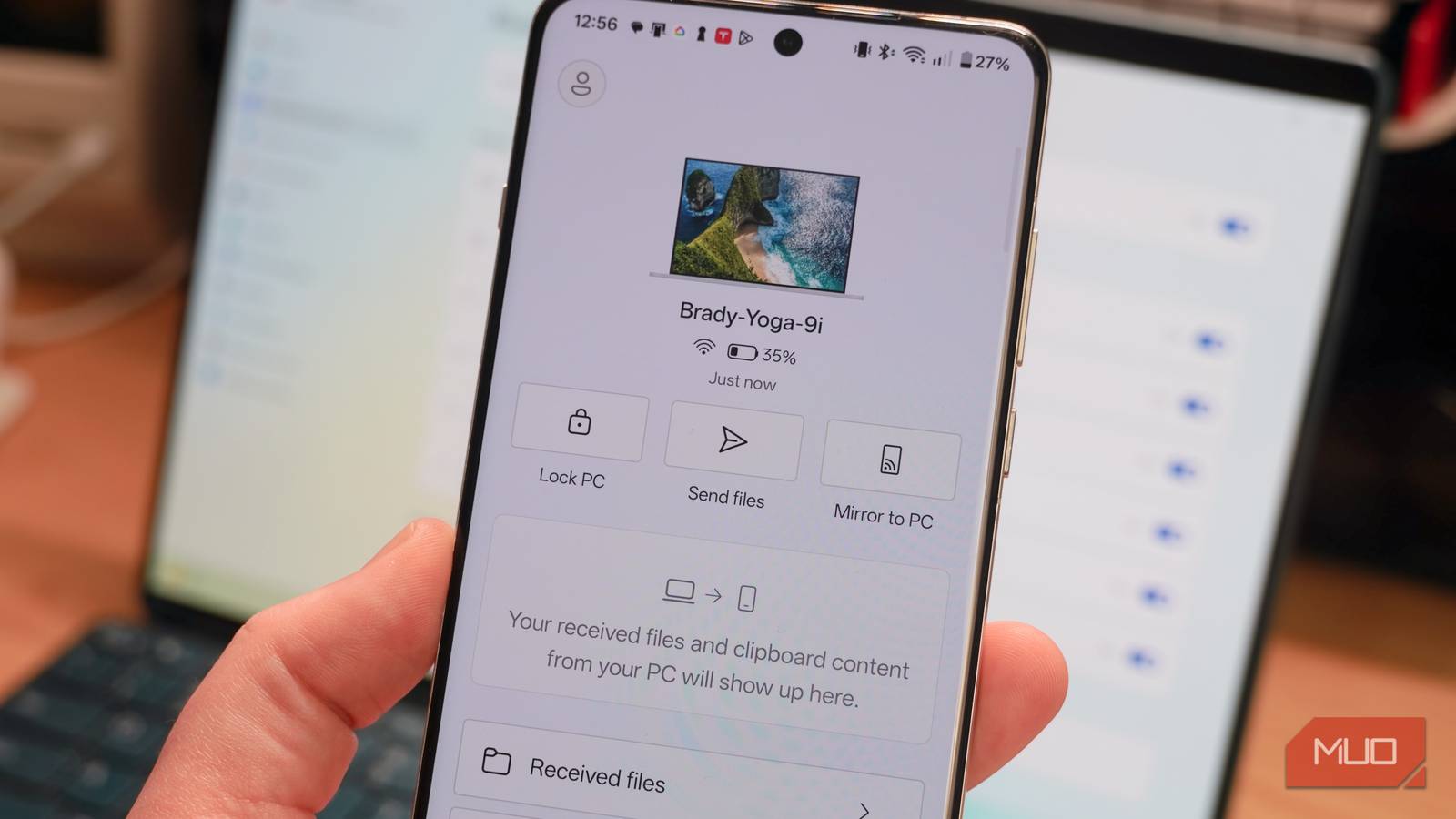
There are plenty of handy Windows 11 tricks power users take advantage of to save time and improve their productivity. Virtual desktops, clipboard history, and focus sessions are just a few pivotal features that make a real difference on a daily basis. However, there’s a critical Windows 11 feature you’re probably overlooking — Phone Link. The software connects with the Link to Windows app on iOS or Android to bridge the gap between your Windows machine and your smartphone. If you ignored Phone Link so far, viewing it as just another distraction, I wouldn’t blame you.
Phone Link is much more than a way to get your smartphone notifications on a Windows computer or laptop, though. It’s also a vital tool for file sharing, photo viewing, clipboard history sharing, and a handful of other cross-device sync features. If you use Phone Link the right way, it can actually limit distractions, speed up workflows, and improve your overall productivity.

I absolutely love the new Phone Link on Windows 11
Phone Link joins my phone and PC together beautifully.
Phone Link makes sharing photos and files a breeze
Plus, it can sync your clipboard history between Android and Windows
Phone Link is the best way to share content between your phone and a Windows PC, and it can seriously simplify the process. Typically, I use Google Photos or Google Drive to transfer photos and files from an Android phone or an iPhone to my Windows 11 machines. This is a cross-platform solution that can move content between any two internet-connected devices with a web browser, so it’s extremely versatile. The problem? It’s also time-consuming.
Microsoft streamlines the process with the Phone Link and Link to Windows apps. Download and install the latter on your Android or iOS device (it even works on Macs), and open up the former on your Windows 10 or Windows 11 computer. Follow the prompts on your PC to pair your phone and computer. Phone Link will instruct you to scan a QR code with your smartphone to complete the pairing process, and from there, your devices can talk to each other over Wi-Fi and Bluetooth. You can even view a smartphone dashboard powered by Phone Link in the Windows 11 Start menu.

Phone Link helps your phone and computer work together, and it’s especially handy for continuity. There’s a Photos tab in the Phone Link app on Windows that lets you view the pictures stored on your smartphone at any time. If you need to move them to your PC, you can do so by selecting a photo and clicking Save As. Alternatively, you can open the Link to Windows app on your smartphone to select multiple photos and send them straight to your PC’s Downloads folder.
My favorite Phone Link feature, though, is shared clipboard history. By enabling the Cross-device copy and paste toggle in the Phone Link or Link to Windows app settings, you’ll be able to view text and images saved to your clipboard on either device. So, I can copy a Slack message on my phone and paste it on my Windows 11 laptop. Or, do it in reverse. This feature alone saves me from having to manually enter URLs or upload files to a cloud server — and it speeds up my productivity workflow as well.
Keep your phone in a pocket while staying in control
I can make calls, change songs, and manage notifications from my PC
It’s easy to view notifications and make calls with your smartphone using your Windows PC with the Phone Link app. Initially, I thought this would foster more distraction. Who wants to be bugged with constant notifications on another device? I couldn’t have been more wrong, because using Phone Link as a dashboard for my phone has been the best productivity tweak I’ve made to Windows 11. By checking and managing notifications on my laptop, I can keep my smartphone in my pocket.
We’ve all been there before — you open your phone up to respond to a text message or change now-playing music, and you end up going down a rabbit hole of distractions that wastes 10 minutes of the day. With my phone connected to Phone Link, I can change the song playing on my OnePlus 13 straight from the Start menu of my Lenovo Yoga Book 9i. Similarly, I can respond to texts, make phone calls, and even launch Android apps without needing to physically pick up my smartphone.
The quick, efficient access to these simple actions keeps me on task. Once I’ve skipped that song or replied to that message, I hide the Phone Link app or close the Start menu to get back to work.
Mirror your phone to your Windows PC when in doubt
This tool allows you to complete any action from your PC

Our phones are information hubs packed with critical data, so it’s not uncommon to need them while working on a Windows computer. For example, I have to pull out my smartphone multiple times throughout the day to receive two-factor authentication codes via text message or an authentication app. I can’t access these with my phone in my pocket without using Phone Link. After setting everything up, I can receive 2FA codes over text and see them immediately on my Windows PC.
Better yet, I can mirror my Android phone screen to my Windows PC to open any app on my computer. Almost everyone uses one mobile app that throws a wrinkle in their computer-only workflows; for me, it’s that pesky authentication app. By using Phone Link’s casting and mirroring feature, you can now access that mobile-only app on your Windows laptop, saving time and minimizing distractions.
Phone Link is the most underrated Windows productivity feature. At first glance, it seems like a recipe for daily interruptions. I’ve found it to have the opposite effect. I spend less time transferring files, copying text and images, and using mobile apps by accessing them from my Windows 11 laptop with the Phone Link app. If used properly, Phone Link has the potential to save you hours each week.

- OS
-
Windows (Phone Link); iOS, Android, macOS (Link to Windows)
- Developer
-
Microsoft
- Cost
-
Free
Phone Link is a Windows 11 app that connects to the Link to Windows app on Android, iOS, or macOS to bridge the gap between your PC and your smartphone. With the two apps, you can share photos and files, make texts and calls, and more using your Windows PC or laptop.
