

Excel is deceptively powerful. Every time I think I’ve squeezed everything out of it, it quietly reveals another door you can open with one function.
This time, the trick is simple and maybe unintended, but fantastic regardless. It is indeed simple: Excel can build URLs, Excel can URL-encode whatever chaotic human text you throw at it, and Excel can display an image from a URL. Put those together and Excel becomes a lightweight front end for a whole universe of free image APIs.

I stopped wasting time in Excel when I learned these 3 functions
Small formulas, big time savings.
The IMAGE function is the core trick
Use it as an API client

Let’s start with an example. Suppose you want to put QR codes in your Excel sheet, for an event, or whatever. Not just put them, but generate them right there in Excel. The problem: Excel doesn’t have a native QR-code function, but it doesn’t need one. If a service can generate an image via a URL, Excel can pull it in with IMAGE().
The only part that trips people up is encoding. If you skip ENCODEURL(), your formulas will work until someone’s name includes a space, a dash, an emoji, or anything remotely human. ENCODEURL() is what keeps everything from exploding.
Assume your sheet includes the names of your guests and whether they’ve got a ticket or not. You want the QR code to contain the guest’s name and whether they’ve paid. QRServer is a simple example of a static QR image API. The URL format is:
https://api.qrserver.com/v1/create-qr-code/?size=200x200&data=[YOURDATA]&color=000000&bgcolor=FFFFFFIn E2, this full formula generates the QR code:
=IMAGE("https://api.qrserver.com/v1/create-qr-code/?size=200x200&data="&ENCODEURL("name="&A2&"; paid="&D2)&"&color=000000&bgcolor=FFFFFF")Drag it down, and every row gets its own QR code. Scan one with your phone camera and you’ll see the payload. If you want the payload to be more useful when scanned, don’t mash values together. Label them. You can encode multiple fields like this:
=IMAGE("https://api.qrserver.com/v1/create-qr-code/?size=200x200&data="&ENCODEURL("name="&A2&"; age="&B2&"; gender="&C2&"; paid="&D2))
There’s more to it than QR Codes
Generate GitHub-style badges inside Excel

Once you do QR codes, your brain immediately asks: what else can I generate as an image? That’s when shields.io clicks. You’ve seen those little GitHub badges everywhere. They’re just images generated from URLs. If A2 contains a name, this creates a basic blue badge:
=IMAGE("https://img.shields.io/badge/"&ENCODEURL(A2)&"-blue.png?style=flat")Now the fun part: conditional formatting inside the badge. If D2 is TRUE, make it blue; if it’s FALSE, make it red:
=IMAGE("https://img.shields.io/badge/Guest-"&ENCODEURL(A2)&IF(D2,"-blue.png?style=flat","-red.png?style=flat"))If you want the badge to show a label and a value (for example, a paid/unpaid status), you can do this:
=IMAGE("https://img.shields.io/badge/"&ENCODEURL("Paid")&"-"&ENCODEURL(IF(D2,"Yes","No"))&".png?style=flat")
Generate a chart that updates itself
This time as an image

This is where the trick stops being a gimmick and starts feeling like a dashboard. QuickChart can generate charts from a URL. That means you can build the chart configuration in Excel, then render the image directly in a cell.
If B2:D2 contain numbers you want to chart (for example, three weekly totals), this creates a simple bar chart image:
=IMAGE("https://quickchart.io/chart?c="&ENCODEURL("{type:'bar',data:{labels:['W1','W2','W3'],datasets:[{label:'Totals',data:["&B2&","&C2&","&D2&"]}]}}"))You can adapt that same pattern to make charts per row, per person, per project, per anything. It’s a good replacement for Excel’s sparklines, if you want more control.
The same “URL + encoding + image rendering” pattern works in Google Sheets, which makes it even more versatile.
Live weather report in your Excel sheet
Don’t forget your umbrella

If you want something more practical, wttr.in can generate a weather image. If A1 contains a location (for example, Chicago), this gives you a terminal-style weather graphic:
=IMAGE("https://wttr.in/"&(A1)&".png?0_m_q_n")
Profile pictures and placeholders
When you need “something visual” per row

Not every spreadsheet needs QR codes. Sometimes you just want a clean visual column, so the sheet feels like a real system instead of a table.
If you have an email in A2 and you want a consistent avatar image, Gravatar can generate one. This formula creates an identicon-style avatar without you uploading anything:
=IMAGE("https://www.gravatar.com/avatar/"&LOWER(TEXTJOIN("",TRUE,DEC2HEX(CODE(MID(A2,SEQUENCE(LEN(A2)),1)),2)))&"?d=identicon&s=200")
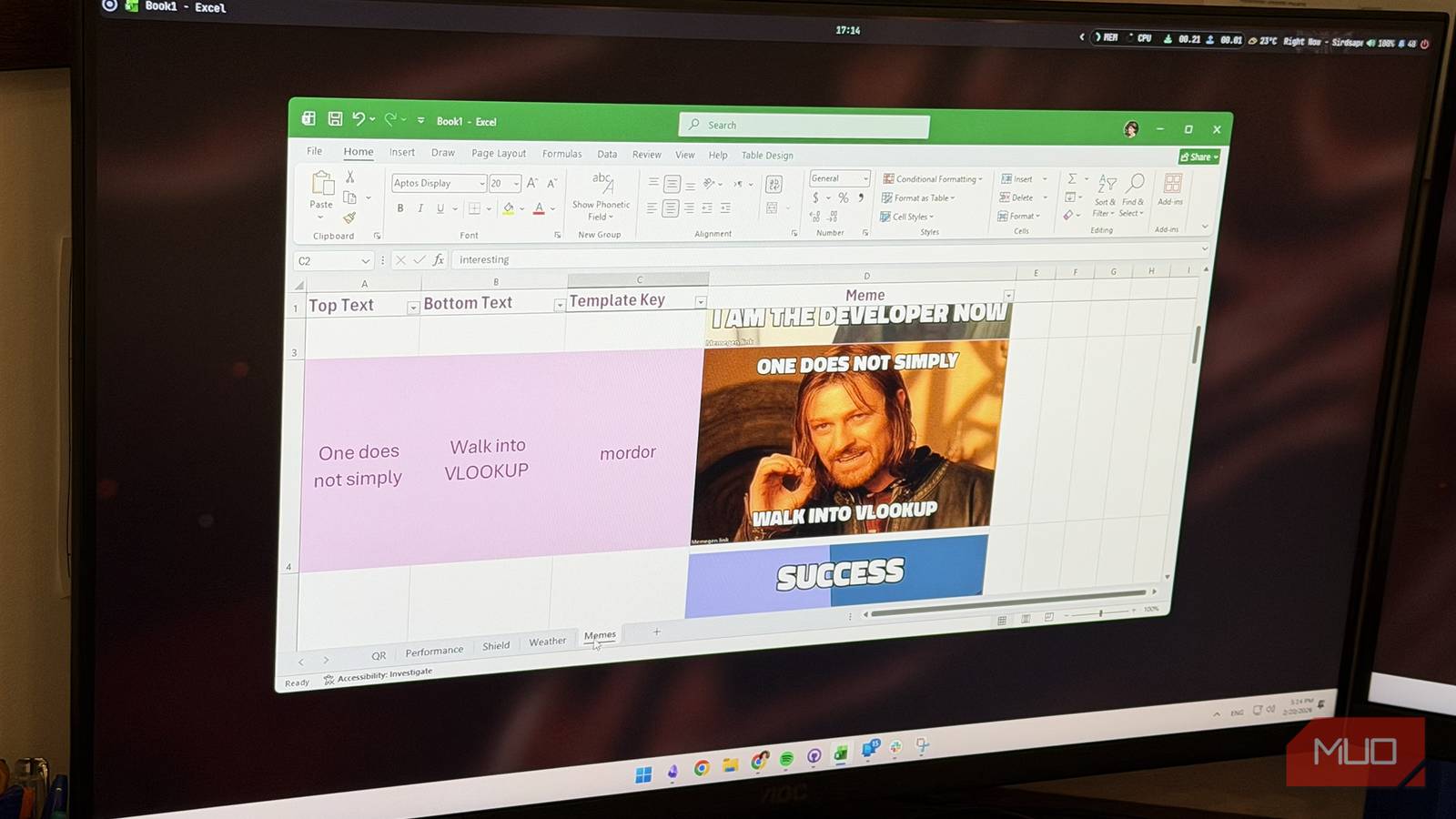
You can even make memes right inside Excel
(because of course)
Once you accept Excel can display API-generated images… you start experimenting. Here’s a fun one: Memegen generates meme images from a URL, where the top and bottom text are part of the path.
If A2 has the top text and A3 has the bottom text, this works:
=IMAGE("https://api.memegen.link/images/buzz/"&ENCODEURL(A2)&"/"&ENCODEURL(A3)&".jpg",2)Swap “buzz” for another template name and the same pattern applies.
Don’t paste sensitive data into third-party image APIs. Assume services can log requests. If you’re doing this for work, get permission. And if you’re building something you actually care about, test with dummy data first.
IMAGE and ENCODEURL effectively turn Excel into a URL builder and a parameter editor that can render outputs. That’s why this trick feels endless. Once you understand it, you start seeing APIs everywhere (and hopefully putting them to good use).
When I showed this to friends, the first thing out of my mouth was the same sentence I always say when Excel pulls a new trick: Did you know you can do this in Excel? So… did you? Ten years in, and Excel still had one more surprise for me.
