

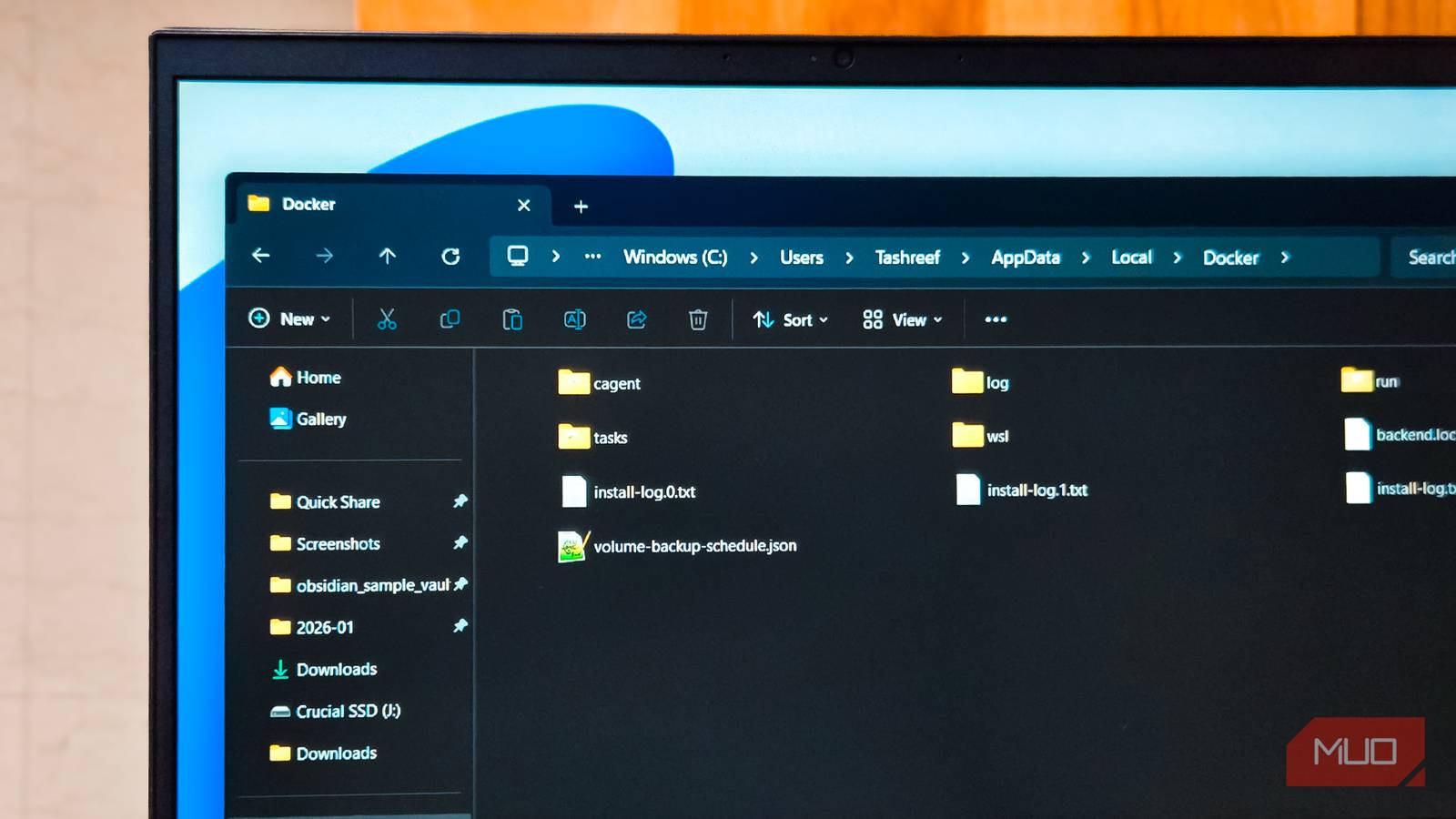
If you’ve installed WSL, Docker Desktop, or Hyper-V on Windows, there’s a good chance a single file on your drive is taking up 30, 40, or even 50 GB. You won’t see it in your usual cleanup spots, including the Downloads folder, the Recycle Bin, and even Storage Sense won’t see it. It just sits there, quietly growing, buried in a folder most people never open.
The file is a VHDX, the virtual disk image these tools use to store everything inside your Linux distros, containers, and VMs. The catch is that VHDX files grow as you use them but never shrink on their own, even after you delete what’s inside. Whether you spin up a few containers, pull some images, or delete them a week later, the file stays the size it peaked at. If you’ve been running any of these tools for a while, it’s worth checking these folders to free up some meaningful amount of storage space.
Where the bloat hides
The exact folders to check on your PC
The first time I went looking for these files, I didn’t know where to start. The location depends on which tool you’re running, but each one drops its VHDX file in a predictable spot. For WSL, open File Explorer and paste %LOCALAPPDATA%\Packages in the address bar. Look for a folder that starts with CanonicalGroupLimited (for Ubuntu) or your distro’s publisher name. Inside the LocalState subfolder, you’ll find ext4.vhdx. That single file holds your entire Linux filesystem.
Docker Desktop keeps its disks at %LOCALAPPDATA%\Docker\wsl in a file called docker_desktop.vhdx or disk\docker_data.vhdx, depending on your version. Hyper-V VMs live wherever you configured them, but the default isC:\Users\Public\Documents\Hyper-V\Virtual Hard Disks.
The file size is where things get a little weird. I’ve seen WSL show 583 GB in Apps & features while df -h inside Ubuntu reported only 93 GB used. That’s a 490 GB gap with nothing to show for it. Your first guess might be that /mnt/c is being counted, since Windows mounts your C: drive inside WSL by default, but it’s not. The VHDX itself just never gave the space back.
To check your own file, right-click ext4.vhdx or docker_data.vhdx in File Explorer and look at the Size on disk value. That’s the number that matters, and it’s usually the one that takes people by surprise. If it’s larger than what you actually have inside the distro or container, the rest of this article is for you.
Why VHDX files don’t shrink on their own
It’s a deliberate design choice, not a bug

This sounds like a Microsoft oversight, but it’s actually a deliberate choice. WSL uses a dynamically expanding VHDX, so you don’t have to pre-allocate a huge chunk of your drive up front. The disk grows as you need it, which is great until you want that space back.
The reason it doesn’t shrink automatically is also interesting. If your workload constantly hovers around a stable size, say a 32 GB project that fluctuates by a gigabyte or two, auto-shrinking would mean the disk shrinks and re-grows over and over. That kind of churn is bad for performance and worse for SSD wear. The same logic applies to Docker containers that get spun up and torn down throughout the day.
So Microsoft chose to let the file grow and stay grown, leaving manual cleanup to the user. It’s the right call for most workloads, but it does mean you need to know this trick exists. Otherwise, you’ll keep wondering why your C: drive feels full despite deleting things inside WSL or pruning Docker images. The Linux side reports the space as free, the Windows side keeps holding onto it, and neither tool tells you about the mismatch.
How to reclaim the space
The compaction process and its gotchas

The cleanup is a two-step process, and skipping the first step is where most guides go wrong. You need to zero-fill the free space inside WSL before compacting, because a sparse VHDX can only be shrunk where it sees long runs of zeros. If you skip this, Optimize-VHD runs cleanly, but the file barely changes size. You follow the steps, see no change, and assume the trick doesn’t work.
Inside your WSL distro, run dd if=/dev/zero of=/zerofile bs=1M; rm /zerofile. This writes zeros until the disk is full, then deletes the file, leaving you with clean, compact space. The command will eventually fail with a no space left on device error, which is exactly what you want. If you’re running Docker through WSL2, stop Docker Desktop first and back up anything important, since some users have reported broken containers after compaction.
Then, in PowerShell, run wsl --shutdown, navigate to the folder containing your VHDX, and run Optimize-VHD -Path .\ext4.vhdx -Mode full. This needs the Hyper-V feature installed, which means Windows Pro or Enterprise. On the Home edition, you’ll hit an error. The fallback is diskpart: open it as admin, then run select vdisk file="C:\path\to\ext4.vhdx“, followed by attach vdisk readonly, compact vdisk, and detach vdisk. It’s clunkier but works without Hyper-V.
Don’t make this routine maintenance
The compaction works, and on a bloated WSL install, you can easily reclaim a hundred gigabytes or more. But it’s worth remembering why Microsoft built things this way. Running Optimize-VHD every week fights against the design and adds unnecessary write cycles to your SSD for marginal gains.
I run this when I notice my drive getting tight or after a big cleanup inside WSL, like deleting old Docker images or wiping a few project folders. The rest of the time, I leave it alone. If you’re running low on disk space across the board, this is one of the highest-value cleanups you can do. Just don’t put it on a schedule.
