

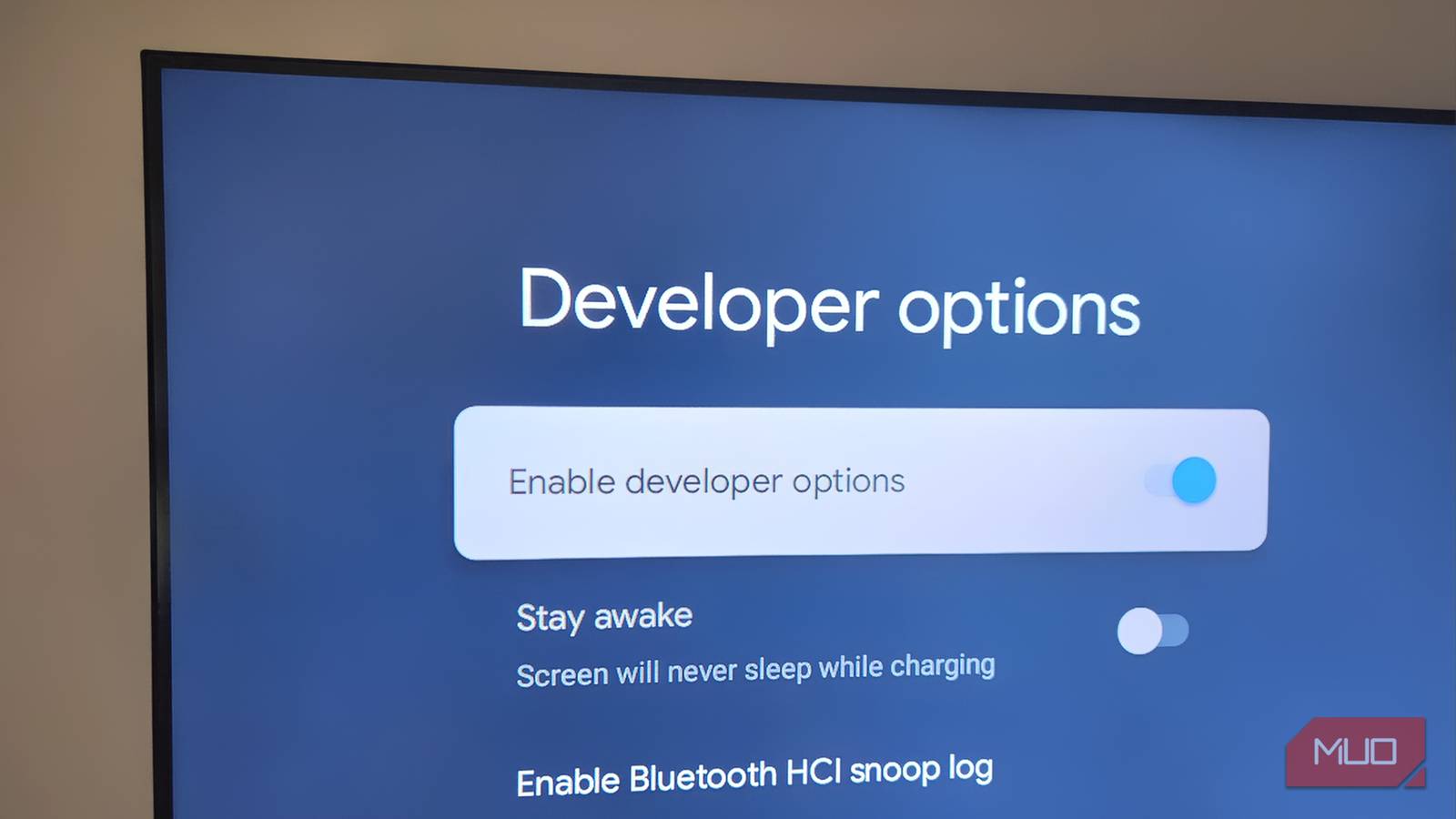
Android TVs aren’t exactly known for their speed. And as apps pile up and storage fills, even simple tasks like opening a menu or switching apps can start to feel slow. That’s exactly what was happening to me too, so I finally decided to unlock the Developer Options settings on my TV.
All it took was a couple of quick changes, and my Android TV felt quicker and more responsive than before.
Android TV’s best-kept secret

If you’ve used an Android phone or tablet for a reasonable amount of time, you probably already know about its Developer Options menu. It’s where Android hides some of its fun and experimental settings. The same menu is also present on Android TVs, and much like Android phones, it’s hidden by default.
To enable the Developer Options menu on your TV, head to Settings > System > About, then press OK on the Android TV OS Build entry seven times. You’ll then see a message that says “You’re now a developer!” Now, go back to the System menu and you should see a Developer options entry.
What makes this menu special is that it’s not just for developers testing their apps. It hides some handy features that can be useful for everyday user too. For instance, you can enable USB Debugging to remove bloatware apps on your TV. Another useful trick is the ability to sideload apps that aren’t available on the Play Store.
Besides this, the Developer Options menu also includes a couple of settings that directly affect the overall performance.
Reduce animations for a snappier interface
Turn smooth into fast

You may not have realized it, but every time you open a menu, launch an app, or move your cursor, your Android TV plays subtle animations. These obviously make things look nice and polished. But the thing is, all these little animations and transitions require processing power, which TVs don’t have much to begin with.
These animations aren’t a problem when your TV is new, but as it gets older and the storage fills up, it may have a hard time playing those same animations and effects. Thankfully, the Developer Options menu includes a few options that let you tone down these animations or turn them off entirely.
Inside the menu, you’ll find three settings that control how animations behave: Window animation scale, Transition animation scale, and Animator duration scale. By default, all of these are set to 1x, but dropping them to 0.5x can make your TV feel snappier. Menus will open quicker and navigation becomes noticeably tighter.
If you want to go all in, you can also turn them off entirely for the best possible speed. It won’t look polished, but it’s ideal if your TV is old and struggling to keep up.
Keep background processes in check
Give your apps room to breath

A big reason your Android TV may feel slow at times has nothing to do with what you’re actively doing. It’s all the stuff running in the background.
On Android TV, apps don’t always fully close when you exit them. Instead, they hang around to load faster the next time you open them. This is great for multitasking, but you can imagine how it can become a problem. As more apps pile up in the background, your TV has to juggle them all at once. And once it runs out of RAM, performance can start to dip.
To avoid this, you can use the Background process limit setting inside the Developer Options menu. This lets you tell your Android TV how many processes can run in the background. Setting it to 2 or 3 processes is usually the sweet spot, as it keeps things efficient without killing multitasking. This frees up resources for the app you’re actively using and keeps your TV from lagging.

It took 10 minutes to make my Google TV less annoying
A few quick tweaks can turn your Google TV from frustrating to fabulous.
Don’t forget the usual tricks
They still matter
Disabling animations and limiting background processes will certainly help your TV run smoothly. But you shouldn’t forget the usual performance tricks.
For instance, a quick restart can do wonders for your Android TV. It gives the OS a fresh start and clears out any temporary issues. Another thing that helps is clearing cache. As you stream content, apps on your TV collect caches to speed things up, but over time, these temporary files can occupy unnecessary storage and even cause problems.
Getting rid of these cache files also frees up storage space, which is just as important for smooth performance. Head to Settings > System > Storage > Internal shared storage > Cached data and hit OK.
Finally, you should keep your phone updated. Software updates often include performance improvements, bug fixes, and optimizations that can make your TV run more smoothly.
You don’t need to replace your Android TV just because it’s starting to feel slow. In many cases, it just needs a bit of tuning. But if nothing works, you can always go for the nuclear option: factory reset your TV and start over.
