

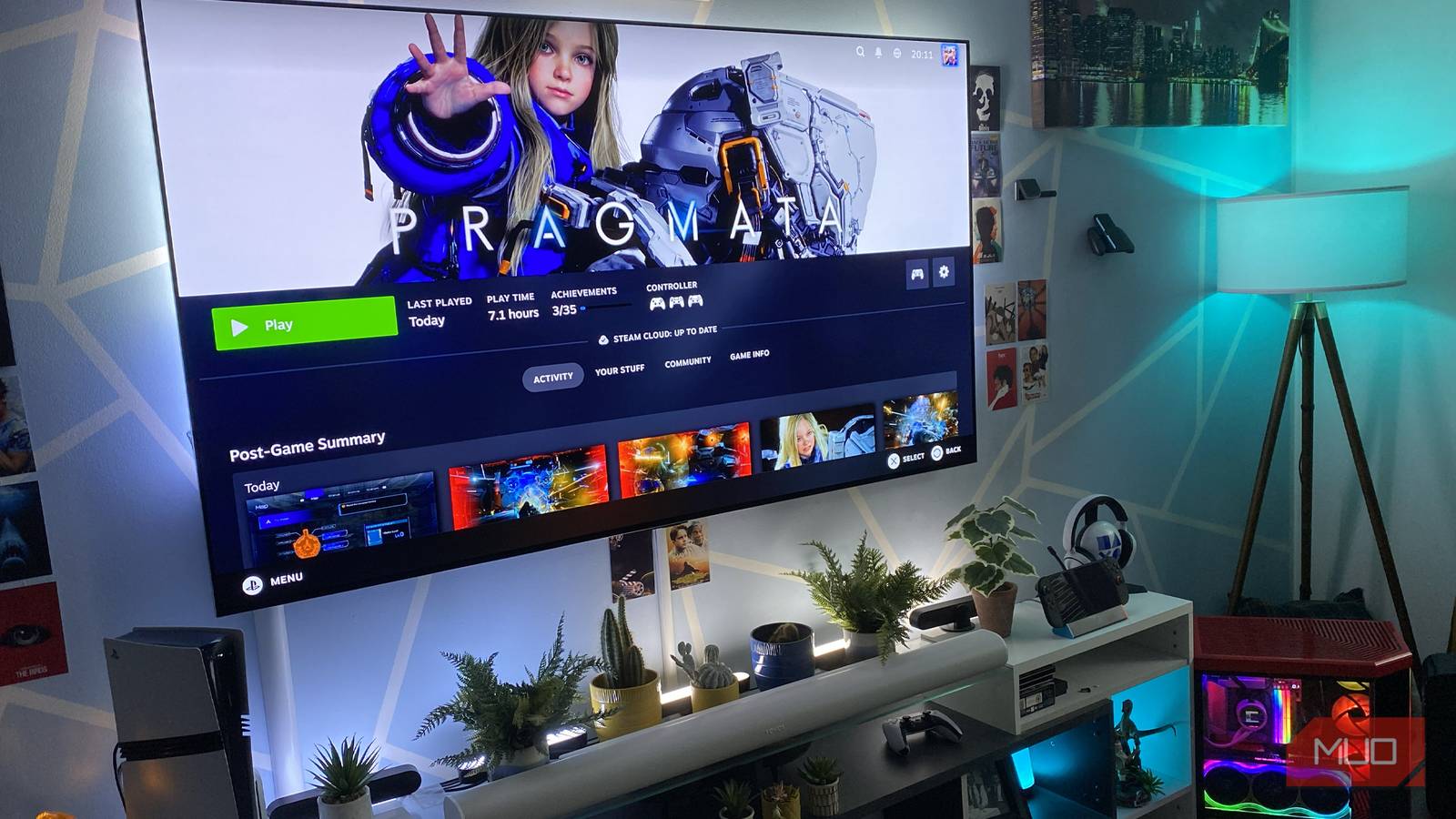
I can’t get enough of Steam Big Picture mode. Like, I’m legitimately obsessed with Valve’s front room-accommodating UI. Not only does it make PC gaming from the comfort of your couch a breeze, but it’s also the main reason I’ve not touched my PS5 Pro in a year.
As intuitive as Steam Big Picture is, not every one of its useful, time-saving features is immediately obvious. If you’ve recently created a Steam account or finally dragged your gaming desktop into your lounge for the first time, let me guide you through the features of this console-like interface I absolutely adore.

I made the switch to Steam OS on my ROG Ally X and haven’t looked back
Being reunited with SteamOS has never felt better, especially on the ROG Ally X
Hassle-free controller remapping
Regardless of the pad you’re using, Big Picture mode has you covered

Outside of its general console-like interface, the main reason I want to pour all of the love onto Steam Big Picture mode is thanks to the Steam Input overlay. This handy UI feature recognizes whether you’re using an Xbox, PlayStation, or Nintendo Switch gamepad, allowing you to remap the inputs of whatever controller you’re using in a simple style.
On consoles, remapping buttons typically requires a high-end gamepad, such as the Xbox Wireless Controller Series 2 or the DualSense Edge. With Valve’s Big Picture mode, though, you can remap inputs with super-cheap third-party controllers.
My favorite thing about the Steam Input overlay? It’s made my DualSense Edge the ultimate PC pad. Because Steam recognizes both its rear paddles and its front function buttons, the latter specifically can be tweaked to system-level functionality, which, in my case, involves setting Steam to take screenshots with a quick jab of an FB input. As Steam doesn’t naturally recognize a DualSense controller’s Share button, being able to assign a dedicated screenshot input is a massively welcome feature this snap-happy dweeb appreciates.
Instant access to screenshots
Like snapping screens? Big Picture mode is your new best friend
I take a borderline-unhinged number of screenshots when I’m playing my favorite PC games. Well, apart from when the wrong sort of motion blur is ruining said shots. As such, I love that a quick press of the guide/home button on my controller of choice lets me access all of those in-game snaps in an instant, thanks to Steam Big Picture mode’s “Media” sidebar option.
When Steam’s sofa-friendly UI is enabled, it’s an absolute doddle to peruse your screenshot library (to the point where I’d argue it’s as easy to sift through a curated collection of screens as it is on a PS5). Compared to Desktop Mode, Big Picture allows you to more easily save shots to either your PC or upload them to Steam’s mobile app.
More than anything, though, I love that Big Picture sequentially tracks every single screen I’ve snapped in my game library, providing an instant, blow-by-blow history of my recent gaming history at the touch of a couple of buttons.
Easy in-game recording
Capture and edit videos in no time at all

Though it’s not exclusive to Big Picture mode, Steam Game Recording is so much more seamless to engage with when you enable Valve’s console-style frontend. Within seconds, you can switch between Recording off, Record in Background, or Record Manually options, with the middle choice allowing you to capture your last 120 minutes of gameplay on the fly.
I stumbled into Steam Game Recording many months after it launched, and I really appreciate it. Thanks to Big Picture mode, it’s easy to tweak quality settings, to disable/enable GPU hardware encoding, or to tweak HEVC (H.265) video codec preferences and max frame rate settings when recording through controller inputs.
Big Picture also makes it fairly easy to chop up and curate your favorite Steam clips thanks to easy-to-apply timeline markers. And that’s something I love to do when going back over footage with PC games that use path tracing.
Custom startup movies
Brighten up your Steam experience with a custom video

I absolutely love Big Picture startup movies. It’s a small thing, sure. But being able to swap between both countless official Valve and fan-created animations every time you fire up Steam’s lounge-focused UI is a joy.
Let me quickly run you through my preferences. On my RTX 5090 PC, I normally go with the “Handmade” movie that shows someone painting the Steam logo on a gigantic sheet of paper. It’s delightful. And for those times when I feel like switching things up, I simply press my controller’s home button, then go to Customization -> Startup Movie, then select the “Shuffle” option to switch between my go-to startup preferences.
One of my all-time favorites involves using Steam’s Point Shop — that’s mostly tallied up by buying things on Steam’s storefront. Said startup clip would have to be an incredibly specific Simpsons vid that involves Moe Szylack firing a shotgun into the classroom ceiling of a night course he’s teaching where he discusses “some gangsta dissin’ your fly girl.” Yes, I might be the most colossal, absurdly specific Simpsons dweeb on Earth.
Steam Big Picture makes PC gaming from your living room a practical joy
RAM shortages might potentially be delaying the launch of the much-anticipated Steam Machine, but why let that get in the way of you enjoying your current rig from the comfy confines of your couch? Big Picture mode is my absolute favorite video game platform UI. For me, it shames the interfaces of both the PS5 and Xbox Series X. The features above are why my PC will continue to hog my living room gaming time over any console.

- Brand
-
Valve
- Screen
-
7-inch touchscreen (1280 x 800, 16:10)
- Processing Power
-
AMD RDNA 2 with 8 Compute Units, up to 1.6 GHz
- CPU
-
AMD Zen 2: 2.43.5 GHz
- Battery
-
40 Wh, 5-8 hours
- Connectivity
-
Wi-Fi, Bluetooth, USB-C, 3.5 mm audio
Steam Deck is a portable PC gaming handheld that runs your Steam library on the go, offering a 7″ touchscreen, high-performance AMD chipset, and built-in controls. It supports full PC games, customizable settings, and optional external display output — delivering console-like convenience with PC-level flexibility.
