

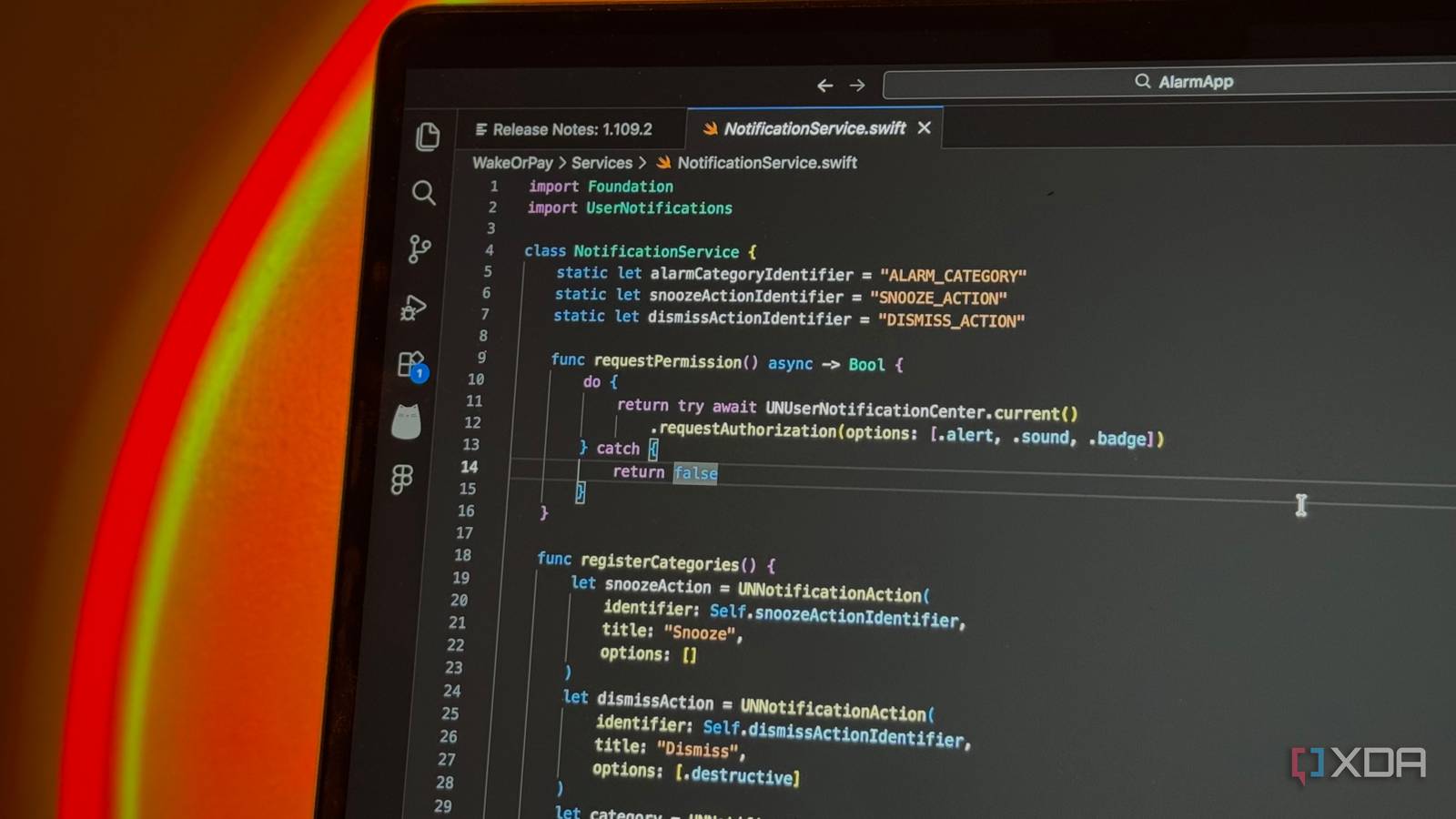
Like most of us, I’ve always treated my editor and terminal as two separate places, with constant back-and-forth between them. I would write code, switch to a terminal, run a script, scan the output, and go back to the editor. This is a very normal loop, but when you think about it, there is a lot of friction here.
I only paid attention when I started working on slightly larger projects that involved continuous builds, linting, and test scripts. That’s when I also came across the task runner in VS Code. At first glance, it looked like a thin wrapper around scripts I was already running. But after a few days of regular use, I stopped opening the terminal for routine tasks almost entirely.

7 reasons VS Code is the best text editor, even if you’re not a developer
The secret text editor everyone should be using
Bringing scripts into the editor
Define scripts inside a tasks.json file and run them without leaving the editor
Your editor already knows your project structure, so it should also know how to run the commands tied to it. VS Code’s task system does exactly that. It lets you define scripts inside a tasks.json file and run them without leaving the editor.
At a basic level, a task is just a command. You give it a label, define how it should run, and VS Code takes care of execution. But what’s different is that you’re not typing commands from memory or scrolling through shell history. You trigger a task from the Command Palette, assign a shortcut, or mark it as a default build step.
The first thing I set up was a build task. If you are working with TypeScript, VS Code can detect the compiler automatically and expose it as a runnable task. That means you can compile your project with a shortcut instead of switching context and typing tsc. The same applies to npm scripts. If your project has a package.json, VS Code picks up scripts like lint, test, or build and lists them as tasks.
This auto-detection reduces setup time, and it keeps your workflow consistent across projects. You clone a repo, install dependencies, and the available tasks appear without any extra configuration.
VS Code’s task runner also includes custom tasks, which takes things to another level. You can define anything from a simple shell command to a multi-step process. For example, I have tasks that run test scripts stored in a /scripts folder, tasks that start development servers, and tasks that clean up build artifacts. Each one lives inside tasks.json, which sits in the .vscode folder of the project.
The structure is straightforward. You define a label, choose between a shell or process type, and write the command. You can also group tasks, which makes them easier to find and run. For example, a task in the “test” group shows up when you run the test command from the palette.
Making VS Code’s task runner part of your workflow
Task Runner is full of features made to save your time

You start seeing the real value when tasks begin shaping how you work rather than just replacing commands. One feature that stands out is problem matchers. These scan the output of a task and surface errors directly inside the editor. If you run a linter or compiler, the errors appear in the Problems panel with clickable links to the exact lines in your code.
This means you don’t need to read raw terminal output and chase file paths. You can just click on an error and jump straight to the source. This is closer to how an IDE handles compilation, but without locking you into a specific language or toolchain.
Another useful detail is how VS Code’s Task Runner controls output behavior. You can decide whether the terminal panel opens every time, stays hidden unless an error occurs, or runs in a dedicated window. I prefer keeping it silent for routine tasks like linting.
There is also something called compound tasks, which further adds to the convenience. You can define a task that depends on multiple other tasks. For example, a single “Build” command can trigger both client and server builds in parallel. If you need a specific order, you can run them in sequence. This is useful for projects with multiple moving parts where you would otherwise run several commands manually.
VS Code’s task runner also includes background tasks. Some tools, like the TypeScript compiler in watch mode, keep running and react to file changes. VS Code can track these processes and understand when they are active or idle. That allows the editor to show status updates and keep problem reporting accurate even when the task runs continuously.
There is also a small but important feature around variable substitution. The task runner can reference things like the current file or the workspace folder. That means you can create commands that adapt to what you are working on without rewriting them. For example, a task can run a formatter on the file you currently have open.
It’s worth noting that VS Code’s task runner also affected my keyboard usage. Once you bind tasks to shortcuts, the loop surprisingly becomes faster than using a terminal. You write code, press a key, and see results, eliminating window juggling and the need to recall commands.

Claude Code’s creator keeps sharing tips, and they all made my experience better
Who better to learn from than the person who built it?
