

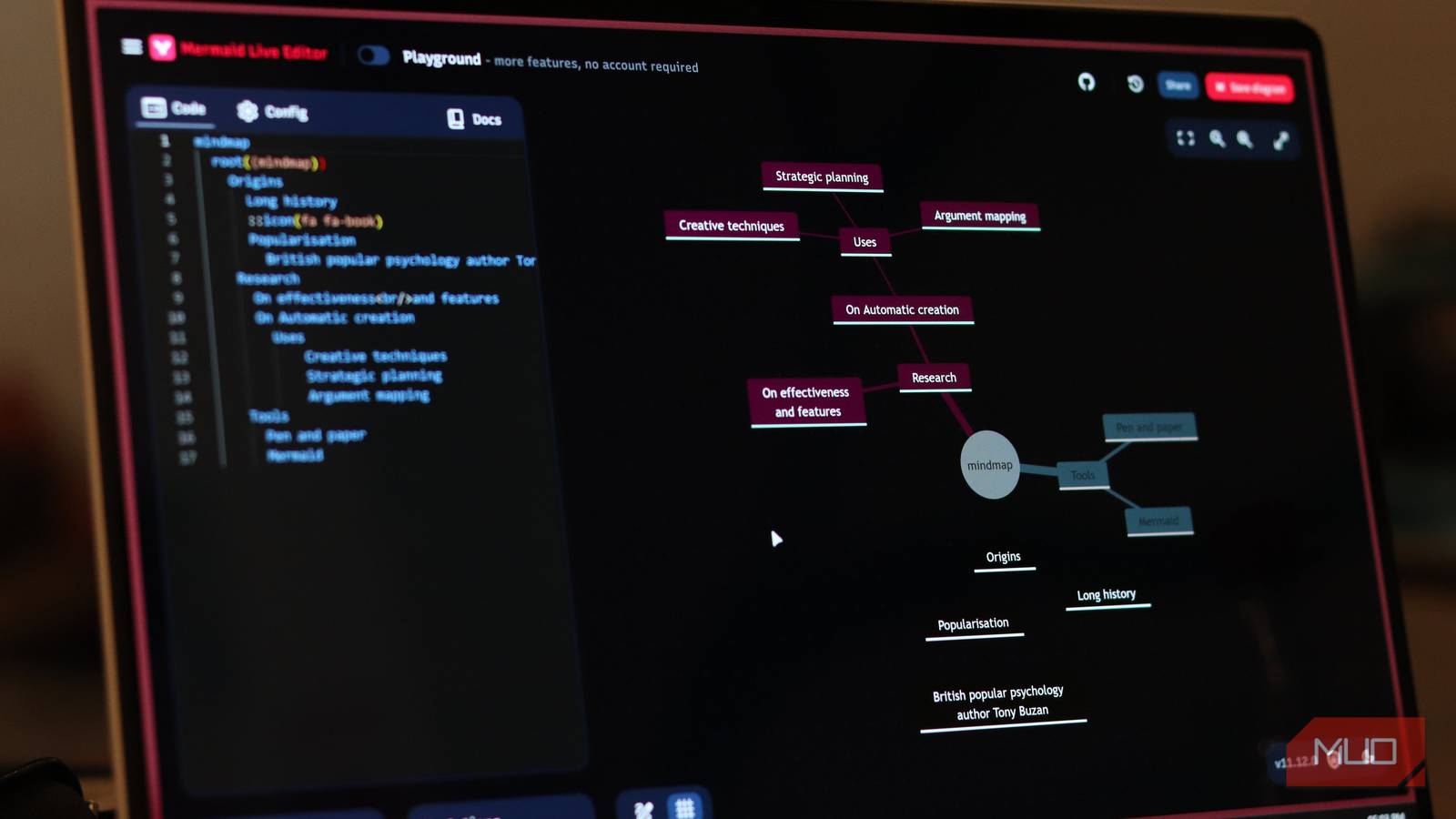
When we hear the word “code,” we often assume it’s meant for highly technical people. But sometimes, it just means entering simple commands into a program to get a result. In this case, the program is Mermaid — an open-source JavaScript library with a web-based live editor that converts human-readable commands into diagrams such as flowcharts, pie charts, Gantt charts, sequence diagrams, and Kanban boards.
Using Mermaid has made me much faster at creating diagrams than when I used diagramming and visualization tools like Lucidchart and draw.io (officially Diagrams.net). I know their drag-and-drop interfaces are meant to be easy and intuitive, but they can get in the way. Coding in Mermaid eliminates the visual noise and lets me focus on the content itself.

- Developer
-
Knut Sveidqvist
- Price model
-
Free with paid tier, Open-source
Mermaid is a free, open-source tool that lets you create diagrams by writing simple text instead of dragging boxes around.
Drawing a diagram is as quick as writing a note
Code-as-diagram is a breath of fresh air
To create a diagram using a drag-and-drop interface, you have to drag a box onto the canvas, then double-click it to insert text. After you’re done adding your shapes, you have to insert the connectors, aiming for small connection handles or precise connector endpoints. All this clicking, dragging, and typing can get tiring if you have to make a long diagram.
That’s why I say Mermaid is a breath of fresh air, since it makes drawing a diagram as easy as writing a note in something like Notepad. It uses syntax that mimics natural communication, making it easier to learn.

I stopped making PowerPoints — this free tool turns my notes into diagrams instantly
I still do the thinking; I just stopped doing the designing.
Let’s look at a simple example. In Mermaid, you first need to specify the diagram you want to create. In this case, let’s do a flowchart. But you also need to specify the direction you want it to go — right to left (LR) or top to bottom (TD).
flowchart LR
The line below will add a box (also known as a node) with the label Box 1 to the flowchart. The A before the square brackets is the box’s ID (you can name it anything).
flowchart LR
    A[Box 1]
You can link the node to another box using a connector (also known as an edge) with the code below.
flowchart LR
    A[Box 1] --> B[Box 2]
These two lines of code have done what would otherwise require multiple clicks and drags. You can even add a label to the arrow with the code below:
flowchart LR
    A[Box 1] -->|Arrow 1| B[Box 2]
Of course, drawing diagrams like you’re writing a note requires knowing the syntax. But, as you can see, it’s very human-readable. You just need to study the Mermaid documentation. With a few diagrams under your belt, writing Mermaid will become second nature.
More “drawing,” less fiddling
Automatic positioning is a time saver

When using drag-and-drop interfaces, I set out to create a visually appealing diagram. But somewhere along the way, things became messy. I got into the trap of trying to fix the diagram’s look by, for example, resizing boxes and matching font sizes. All this fiddling caused frustration because a drawing session quickly devolved into needless housekeeping.
I understand that the freedom of drag-and-drop interfaces is that they help you create highly customized diagrams. But for standard diagrams, Mermaid does an excellent job of maintaining a clean, attractive layout. It automatically positions nodes and edges on the canvas based on the code you’ve written. No fiddling required.
Also, as you saw in the previous section, Mermaid even simplifies choosing the direction of your diagram. We chose left to right as the direction, but if I decide later on that I want it to go from top to bottom, I don’t have to start repositioning things. A small tweak is all it takes — from LR to TD.
flowchart LR
    A[Box 1] -->|Arrow 1| B[Box 2]
With Mermaid handling all the positioning, I can focus entirely on the problem the diagram is trying to solve.
Maintenance and updates are super quick
Mermaid handles everything with ease

Here’s a scenario I hate about drag-and-drop interfaces — updating them. Suppose you’re looking at a diagram you just finished designing and realize you missed a step. Now you have to delete shapes, realign elements, reposition boxes, and reconnect broken arrows to accommodate the new information.
Code makes fixing diagrams much easier. Here’s the code for a flowchart showing the article writing process.
flowchart TD
    A[Start] --> B[Define article topic]
    B --> C[Research sources]
    C --> D[Write first draft]
    D --> E[Publish article]
    E --> F[End]
Between writing and publishing, there’s a missing step — editing. To add it, I just need to tweak the code slightly. Here is the full, fixed code.
flowchart TD
    A[Start] --> B[Define article topic]
    B --> C[Research sources]
    C --> D[Write first draft]
    D --> X[Review and edit the draft]
    X --> E[Publish article]
    E --> F[End]
With automatic positioning, everything fixes itself. Changing diagrams this way applies to more than just big changes. For instance, I can easily change nodes, edges, and text with fewer clicks by changing a few lines of code. This also makes it easier to evolve my ideas without dreading how to incorporate them into the diagram.
I am starting to dislike drag-and-drop interfaces
Again, don’t be put off by the coding aspects of Mermaid. There are things you can do to make it easier on yourself while you learn the syntax. For instance, you can use an AI like Gemini to generate the code, and then paste it into Mermaid’s editor. If you’re a visual person, you can sketch out the diagram first before putting it into code. If you invest time in learning and using Mermaid, you might discover a much faster way to create diagrams — just like I did.
