

I advocate setting up effective backup tools for everyone. It makes a lot of sense if you value your personal data. But, I hate to admit that I myself have procrastinated about backing up portions of my digital life. My photos and videos living on my NAS, get backed up to another NAS, sure. But my documents, and working files, not so much. I’ve been looking for something simple, free, capable of running on my Mac and NAS that would simplify the process dramatically. That’s where Kopia comes in.
I’d heard about backup source tools before, but most of them required way too much configuration and working with the terminal to configure. Kopia, on the other hand, keeps things simple. While it has all the terminal-based configuration you’d want, it adds a simpler GUI on top for when you just need to set up snapshots, encryption and kick-off your backups. And that can make all the difference between finally getting around to setting up backups, versus procrastinating like me. It also helps that Kopia just works. More on that, below.

I self-host Kopia to back up my essential files – here’s how you can, too
Looking for a simple way to create snapshots of your system? Kopia can help you out
Using Kopia is far easier than it looks
From install to first backup in minutes
Setting up Kopia is straightforward enough using Homebrew on a Mac, and you have an option to install the CLI tool or the GUI version. I opted for the GUI version for the simplicity it offers. Once you’re past the initial setup, what stands out is just how little setup Kopia needs. You start off by picking where you want your backups to be stored. That can be a local folder, network share, or a cloud bucket. I’d highly recommend setting it up on a NAS, which is precisely what I did.
From there, you start working with configuring your snapshots. Instead of constantly rewriting files on the storage destination, Kopia takes point-in-time snaps of selected files and folders. Each snapshot captures precisely what your data looks like at that moment. When you back up that snapshot again, it only copies over the elements of the file or folder that have changed. This minimizes excess storage usage and makes nightly backups fast enough that you don’t have to keep your machine running all night long.
Part of a solid backup policy is encryption. Encrypting your backup ensures that your offsite or off-device data can’t be snooped on by bad actors in case they get their hands on it. When using Kopia, encryption is handled early in the process with all data being encrypted before it is transferred to your storage medium. That includes all your file contents, filenames and folder structures. Obviously, like most other such backup utilities, this is all handled using encryption keys that are entirely in your control. You don’t need to create an account or tie your backups to an external service. That’s a big differentiator over running your own backups versus storing them in cloud storage.
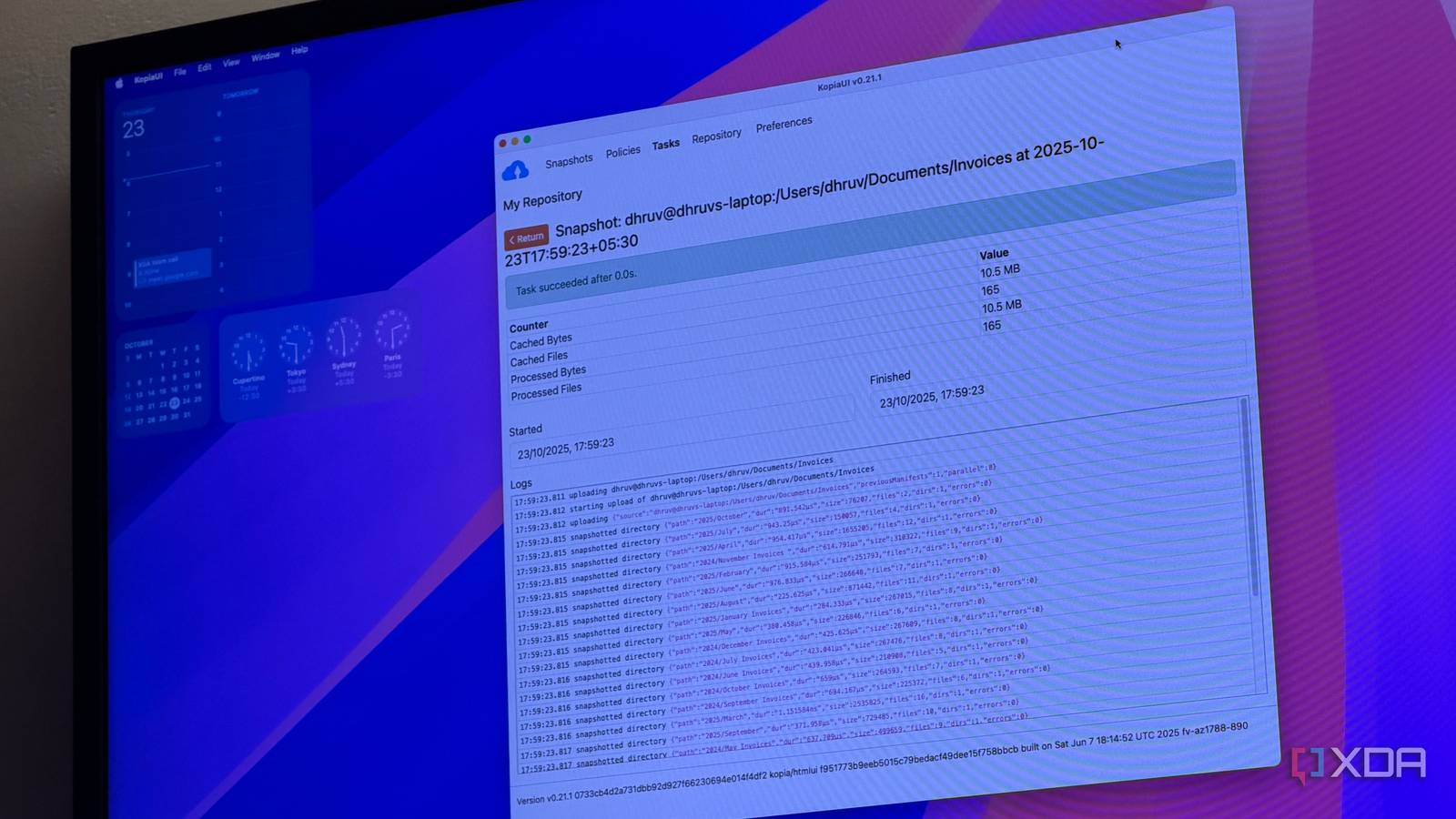
Elsewhere, the GUI is another reason why I’ve opted for and stuck with Kopia. Let’s be clear, you’re not getting a modern-looking app here keeping up with the latest design trends. That’s not the priority here. What you do get is a simple, straightforward interface that is easy to understand — arguably more important. You can see what is being backed up, when the last snapshot ran, and whether a backup failed. For everyday use, that’s all you need, and is enough. You can also scroll between your defined policies and tasks and make adjustments as needed. However, for the most part, it’s a set and forget process when it comes to backups. Additionally, if you so choose, you can interface with your backup instances via the terminal. However, that’s something I haven’t had to mess around with just yet.
Why the restore process matters more than backups
Testing the backups is just as important

The real test of any backup test isn’t always how it works when everything works as normal. Testing out backups is an intrinsic part of any backup strategy to make sure that your backup apps behave exactly how you expect them to when you need them. In my case, I recently had an opportunity to test out Kopia’s capabilities when I accidentally deleted a critical documents folder. Mild panic aside, it presented the perfect opportunity to test out Kopia’s backups in action.
Restoring data with Kopia is just as straightforward as the backups are. Just open the interface, browse through your snapshots, and access the files as they existed at the time of your last backup — no guesswork needed. Restoring the files takes a few clicks at most, and you’ll have your data back exactly as before.
As far as day-to-day usage goes, Kopia isn’t resource intensive, and I have it running in the background so that it syncs and backups files on schedule.
Kopia finally helped me stop procrastinating about my backups
Most backup utilities tend to be fairly obtuse to set up, which means that you either procrastinate or give up. I’m not new to backups, so the technical hurdles weren’t a big challenge. However, I wanted something easy with a good interface so that I could add in extra files or folders from my computer on the fly whenever I had new data that needed backing up. Kopia offers that flexibility. I now have all my documents, working files and system-critical folders backed up every night from my Mac to my NAS — reliably. And that, to me, is exactly what a good backup tool is all about. Ease of setup, and reliability where it matters.
