
Close Menu
    Facebook X (Twitter) Instagram
    Wifi PortalWifi Portal
    • Blogging
    • SEO & Digital Marketing
    • WiFi / Internet & Networking
    • Cybersecurity
    • Tech Tools & Mobile / Apps
    • Privacy & Online Earning
    Facebook X (Twitter) Instagram
    Wifi PortalWifi Portal
    Home»Tech Tools & Mobile / Apps»Google Chrome Now Has Split View (and Two More New Productivity Features)
    Tech Tools & Mobile / Apps

    Google Chrome Now Has Split View (and Two More New Productivity Features)

    adminBy adminFebruary 22, 2026No Comments3 Mins Read
    Facebook Twitter LinkedIn Telegram Pinterest Tumblr Reddit WhatsApp Email
    Google Chrome Now Has Split View (and Two More New Productivity Features)
    Share
    Facebook Twitter LinkedIn Pinterest Email


    While I generally consider Chrome to be a mature, feature complete browser, it’s great to see that Google is still making meaningful additions to it. With its latest update, Google Chrome for desktop now has three new productivity features: Split View, PDF annotations, and the ability to save downloads directly to Google Drive. These features are targeted at both regular and enterprise users, the company says, so you don’t need to worry about Workspace exclusivity. Let’s take a look at each new feature and how you can best use it.

    Split View lets you boost your productivity

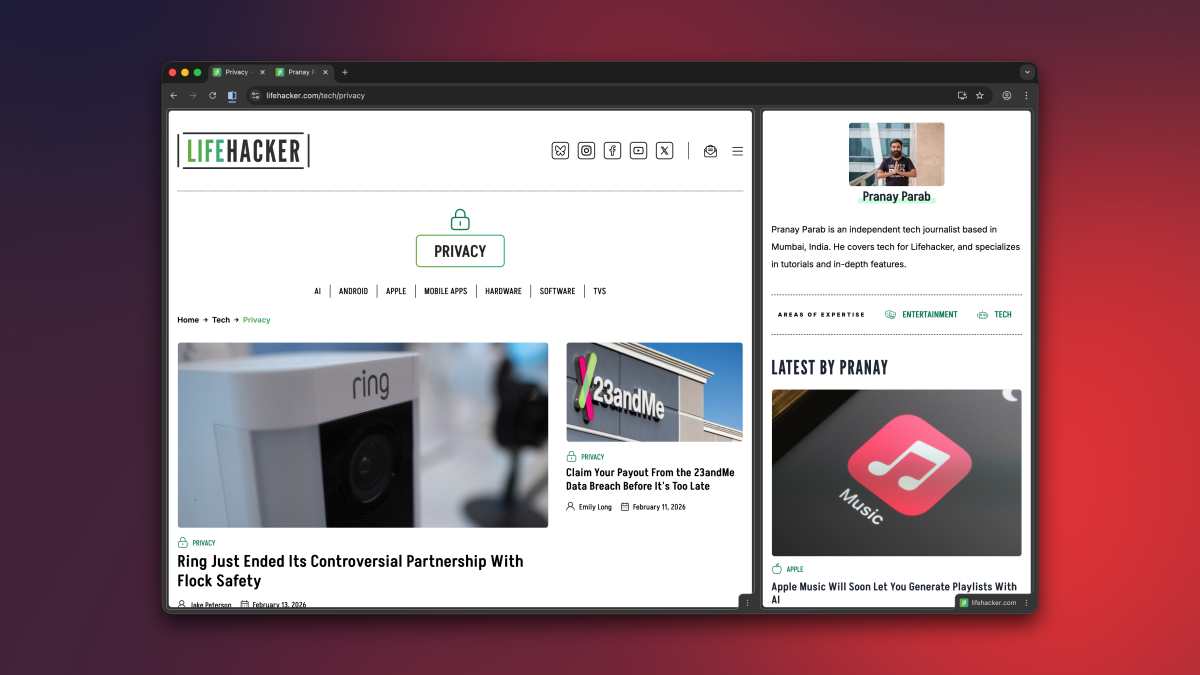
    Chrome's Split View feature.


    Credit: Google

    Over the years, the internet browser has become a super app of sorts, since it has access to so many useful sites and web apps. In Chrome, I often find myself taking notes while attending meetings online, or keeping a second tab open for research while I write articles. For many people, a single Chrome tab or window is no longer enough, and with that in mind, Google’s added Split View to the desktop version of its browser.

    Split View merges two tabs and displays them in the same window. You can think of it like the split-screen view in old school video games. You can use Split View by right-clicking any tab and selecting Add Tab to New Split View. For now, Chrome allows you to have a maximum of two tabs side by side in Split View, although I hope you’ll eventually be able to add more in the future. In its current form, the feature is great for using Google Docs while watching an educational video, or similar two-tab use cases. Finally, no more opening single tabs in separate windows and then resizing them into your own, makeshift split view.

    You can easily drag the slider in between the two tabs to give one tab more screen space than the other. Or for more control, you can click the Split View button to the left of the address bar and select the Arrange Split View menu (this is also available if you right click the merged tabs in your tab bar). This is an easy way to quickly reverse the order of the two tabs, separate them, or close just one of the tabs.


    What do you think so far?

    Annotate PDFs in Chrome

    Chrome's PDF annotations feature, shown via a digital signature in a PDF.


    Credit: Google

    Let’s be honest: Chrome is probably the PDF viewer that most people use. No matter how many fancy PDF editing apps I or my colleagues recommend, for the most part, you’re going to search for and open PDFs in your browser. Luckily, now you no longer have to use a different app for basic annotations. Chrome’s desktop PDF Viewer now has tools for highlighting text, adding notes, and even making digital signatures. You’re still going to need a different app for advanced PDF edits, but Chrome is now capable enough to handle the basics.

    Save PDF files directly to Google Drive

    Chrome's PDF download to Google Drive feature.


    Credit: Google

    Whenever you download a PDF file using Google Chrome, it defaults to saving them to the Downloads folder on your computer, or to another location on your hard drive. On desktop, Google now lets you save these files directly to your Google Drive account. This can be very useful if you want to keep your local storage clear. When you open a PDF file in Chrome, you’ll see a Google Drive icon in the toolbar, next to the download button. Clicking the Google Drive icon will automatically save it to the cloud storage service, in a new folder called “Saved from Chrome.”

    Chrome Features Google productivity Split view
    Share. Facebook Twitter Pinterest LinkedIn Tumblr Telegram Email
    Previous ArticleWhat size 3D printer do you need? The answer is pretty simple
    Next Article Over $20 million stolen in surge of ATM malware attacks in 2025
    admin
    • Website

    Related Posts

    Galaxy S26 Ultra vs Galaxy S23 Ultra – Is it FINALLY time to upgrade? [Video]

    April 20, 2026

    That screenless Google band on Stephen Curry’s wrist may finally have a name

    April 20, 2026

    Starbucks’ New ChatGPT Integration Is a Potential Privacy Nightmare

    April 20, 2026
    Add A Comment
    Leave A Reply Cancel Reply

    Search Blog
    About
    About

    At WifiPortal.tech, we share simple, easy-to-follow guides on cybersecurity, online privacy, and digital opportunities. Our goal is to help everyday users browse safely, protect personal data, and explore smart ways to earn online. Whether you’re new to the digital world or looking to strengthen your online knowledge, our content is here to keep you informed and secure.

    Trending Blogs

    Galaxy S26 Ultra vs Galaxy S23 Ultra – Is it FINALLY time to upgrade? [Video]

    April 20, 2026

    That screenless Google band on Stephen Curry’s wrist may finally have a name

    April 20, 2026

    Starbucks’ New ChatGPT Integration Is a Potential Privacy Nightmare

    April 20, 2026

    I replaced my entire streaming setup with a $30 device and free apps

    April 20, 2026
    Categories
    • Blogging (65)
    • Cybersecurity (1,403)
    • Privacy & Online Earning (172)
    • SEO & Digital Marketing (850)
    • Tech Tools & Mobile / Apps (1,689)
    • WiFi / Internet & Networking (232)

    Subscribe to Updates

    Stay updated with the latest tips on cybersecurity, online privacy, and digital opportunities straight to your inbox.

    WifiPortal.tech is a blogging platform focused on cybersecurity, online privacy, and digital opportunities. We share easy-to-follow guides, tips, and resources to help you stay safe online and explore new ways of working in the digital world.

    Our Picks

    Galaxy S26 Ultra vs Galaxy S23 Ultra – Is it FINALLY time to upgrade? [Video]

    April 20, 2026

    That screenless Google band on Stephen Curry’s wrist may finally have a name

    April 20, 2026

    Starbucks’ New ChatGPT Integration Is a Potential Privacy Nightmare

    April 20, 2026
    Most Popular
    • Galaxy S26 Ultra vs Galaxy S23 Ultra – Is it FINALLY time to upgrade? [Video]
    • That screenless Google band on Stephen Curry’s wrist may finally have a name
    • Starbucks’ New ChatGPT Integration Is a Potential Privacy Nightmare
    • I replaced my entire streaming setup with a $30 device and free apps
    • Blood Strike – FPS for all 1.003.650015 APK Download by NetEase Games
    • The Ray-Ban Meta (Gen 1) smart glasses just scored a rare 25% discount at Amazon
    • The best robot vacuum in Australia: reliable, effective, effort-free automated cleaners
    • Monitor spec sheets hide the one thing that actually decides whether a display feels premium
    © 2026 WifiPortal.tech. Designed by WifiPortal.tech.
    • Home
    • About Us
    • Contact Us
    • Privacy Policy
    • Terms and Conditions
    • Disclaimer

    Type above and press Enter to search. Press Esc to cancel.