

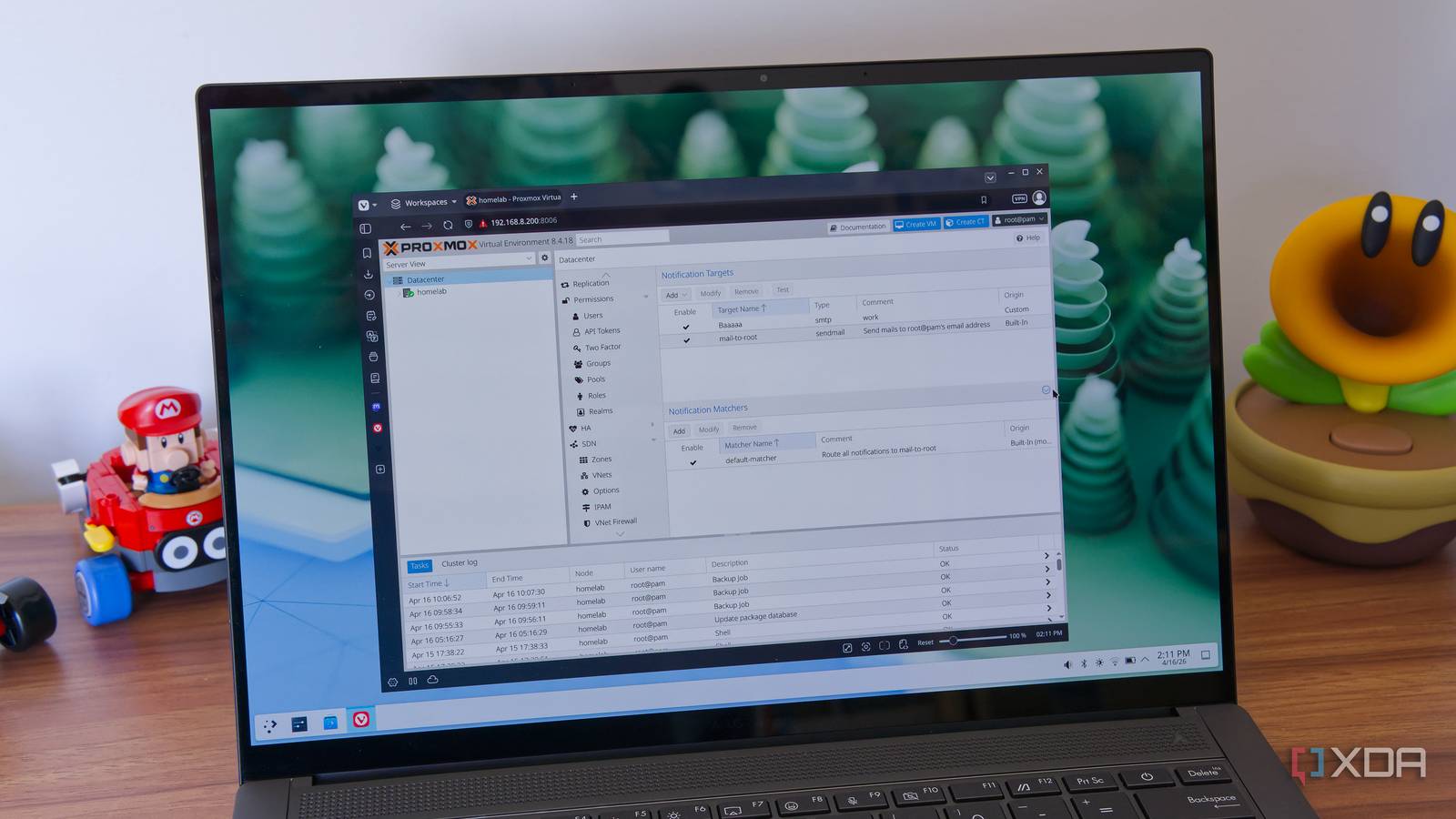
Like many others, I’ve made Proxmox the heart of my home lab/NAS setup, and while I end up working in my TrueNAS VM more often than Proxmox itself, it’s still important to make sure everything is backed up and working as intended. And whenever something is automated, it’s easy to forget to check and make sure it’s still working.
And really, you shouldn’t have to. Proxmox can notify you whenever something doesn’t work, so you can rest easy. The problem is, it doesn’t do that by default, so I had to go in and do it myself. Here’s how I did it, and you should too.
Setting up email notifications
It’s easy enough

When you set up a Proxmox account, you’ll likely link an email to it from the get-go, and with it, the operating system will automatically set up a notification workflow to email you whenever an event in your notification matchers, which, by default, includes every Proxmox notification.
But first, the real work you need to do is the notification targets. The default system for sending emails in Proxmox uses postfix. which you may have to configure manually in the terminal. That’s not necessarily a problem for a typical Proxmox user, but I didn’t want to do about it that way, and Proxmox actually has another method for sending emails using SMTP.
So what you need to add a new notification target, select the SMTP type, and then fill in the fields as needed. I used Gmail as the SMTP server as it seemed to be more reliable for setting up emails. I had initially tried Outlook, but it kept giving me errors.

One thing you’ll need to do beforehand for this to work is create an app password in your Google account. Most, if not all, Google accounts now use two-factor authentication, which is not supported by this system. Creating an app password lets you bypass two-factor authentication so Proxmox can sign into your account to send emails. You can create app passwords for your Google account on this page, but keep in mind you should absolutely only do it in situations that require it. Once you have created an app password, use it as your authentication password for your Proxmox notification target, and you should be good to go. You can click the Test button to send yourself a test notification and see if the target is functional.

4 Proxmox changes I made that delivered 90% of my reliability gains
These Proxmox tricks made my self-hosting and experimentation server more reliable
Adjusting notification matchers
Get only what you need

Once I had notification targets working, I also had to make sure the notification matchers were correctly set up. I didn’t immeidately realize this, but you need to configure a matcher to use the targets you want for a given type of notifcation event. Again, the default notification matcher includes all kinds of notifications, so I mostly focused on just enabling the target I just created to make sure I was getting emails.
However, you can configure this to just get emails when something goes wrong. If you go into the Match Rules tab, you can match specific fields, such as the job ID for your backup task, and then create another rule to match severity levels. By default, Proxmox will match all severity levels, so you might get notifications even if a backup is successful, but maybe you only want to hear about errors. You can select only the severity levels for errors, and that way you’ll know when something is wrong, but have peace and quiet otherwise.

This is entirely up to your preference in terms of balancing notification volume and peace of mind, so you can set up rules the way you like them.

5 common Proxmox mistakes everyone makes when starting fresh (and how to avoid them)
Yeah, I’ve made some of these mistakes in my early Proxmox days
Now I know when my backups fail
And even if they don’t

As ill-advised as it may be, I hadn’t really set up Proxmox backups before this, so I also had to do that for the first time to test this out, and it was pretty easy. All you need to do is go to the Backup section in your datacenter view, and then click Add. You can configure things like which nodes to include, the backup schedule, which VMs or containers should be backed up, and your target location. Just leave the notification options as the default so they simply reply on the notification setting we configured above.
Once the task is created, you can run it manually to see if it works, and indeed, it did for me. As expected, I received the email confirming that the task was completed successfully, complete with a log of the entire process, so I had full transparency into what it did.

The email was received instantly, too, so I know if my backups ever go wrong, I won’t find out days after it happened or after something has already gone horribly wrong. That’s a pretty big benefit to have.
You might want to do the same
Everyone should already know the importance of backups, but just setting them up and never checking if they worked as intended isn’t going to help if you never check whether it’s actually working or not. Notifications like this can help you stay on top of your home lab and make sure you don’t lose any data, without forcing you to manually check every time.
