

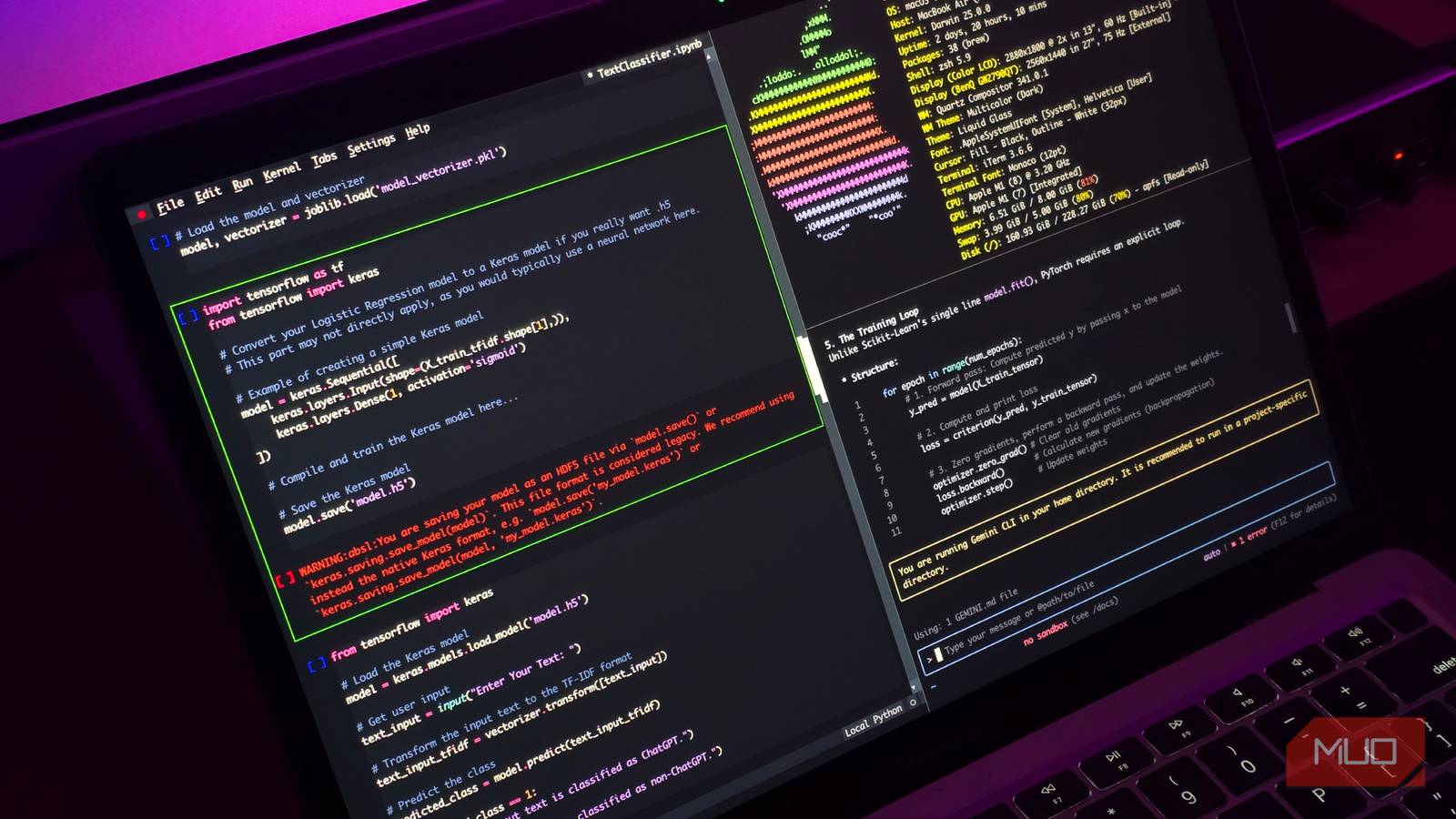
The terminal has a reputation for being intimidating, and it is not entirely undeserved. When you are just starting out, it feels like you need to memorize a hundred commands just to get anything done.
I’ve actually been using the terminal as a full-blown IDE, so I’ve come across a lot of tools that make the experience much easier, but I still have some favorites.
Claude Code
It’s not just a dev tool
I know this sounds a little weird, but hear me out. Claude Code is actually a great tool if you’re not entirely familiar with the terminal. When you’re a new developer staring at a blank prompt with no idea what command you actually need, it’s a deeply unpleasant feeling. Claude Code fixes that in the most direct way possible.
While it’s marketed as a development tool, the fact that it has full access to your shell means you can use it for something much simpler: just telling it what you want to do in plain English and watching it handle the rest. Want to find all files over 100MB in a directory you’ve never navigated before? Just say that.
Want to kill a process that’s eating your CPU but have no idea what ps aux means? Say that too. It figures out the command and runs it for you.
And even if you’re already familiar with the terminal, it eliminates a surprising amount of grunt work. I use it regularly for things like setting up SSH configs, bulk renaming files with specific patterns, or chaining together commands I technically know but would otherwise have to look up the exact syntax for every single time. That last one alone saves me more time than I’d like to admit.
Do not blindly accept whatever command an LLM suggests. Always read it before you hit Enter. I have personally never seen Claude try to run something dangerous or destructive, but the stakes in a terminal are higher than they are in a chat window. It takes two seconds to glance at what it’s about to do. Get into the habit.
Claude Code is only available on paid Claude plans, which I know is a deal breaker for some people, but that’s not actually stopping you from getting the same thing. Codex CLI, Gemini CLI, and OpenCode are all solid alternatives that work in a similar way. The only thing changing would be the models you use. That’s it.

- Developer
-
Anthropic PBC
- Price model
-
Free, subscription available
Claude is an advanced artificial intelligence assistant developed by Anthropic. Built on Constitutional AI principles, it excels at complex reasoning, sophisticated writing, and professional-grade coding assistance.
tldr-pages
Man, but better

If you’re still new to the terminal, someone must have told you at some point to just “read the man pages”, and I am very much aware that the official manual pages look more like a legal contract. It’s extremely verbose and just difficult to understand sometimes. They are thorough, sure, but they are written for people who already know what they are doing.
If you type man tar, hoping to figure out how to extract a file, you are going to get four pages of dense documentation that’s going to leave you even more confused.
tldr-pages is the fix for that. Instead of the manual, you get a short, community-written cheat sheet about the command you’re trying to understand. Instead of me trying to convince you, just look at the difference below. tldr-pages is on the left, and man is on the right, both explaining how to use Git.
Using it is pretty simple. Just type tldr, followed by the name of the command. For example, if you want to learn how to use grep, just type in tldr grep inside your terminal, and that’s it!
To be fair to man pages, they have their place. Once you actually know a tool well and need to look up one very specific edge case flag, the full manual is exactly what you want.
lazygit
Save yourself from the hassle of vanilla Git

Unpopular opinion: using Git in the terminal is a huge hassle. But typing out git add, git commit, git push, git pull, remembering which branch you’re on, trying to stage only specific files, it adds up, and none of it feels natural when you’re just trying to get something committed.
I’ve tried all the alternatives out there, but GitHub Desktop, or the built-in Git integration in VSCode, never really clicked for me. I just wanted something extremely snappy that lived right inside my terminal and was just plain simple to use. That’s when I settled on LazyGit.
It’s a TUI app, which means the entire interface lives inside your terminal. You get a proper visual layout of your files, your branches, your commit history, all of it, and you navigate everything with your keyboard without having to remember a single Git command.

These 4 Linux myths kept me from trying it for years
Turns out, you don’t have to hack the mainframe to change your wallpaper after all.
It pretty much supports every Git feature you’ll ever need, and the learning curve is pretty gentle because you can see exactly what’s happening at every step.
Lazygit is available on most package managers, so you just install it the same way you would anything else, and you’re done. Type lazygit in any repository and it opens right up.
aliases
Stop typing in long commands

The idea behind aliases is simple: you assign a short custom shortcut to a command you find yourself typing over and over again, and from that point on, you just type the shortcut instead.
For example, on a Debian-based system, instead of prompting apt to update your system again and again, you can map an alias to the command like this:
alias update="sudo apt update && sudo apt upgrade -y"
Now all you need to do is type “update” in your terminal, and it runs the whole thing for you.
The one thing worth knowing is that aliases are not persistent by default. Close your terminal, and they are gone. To make them stick, you need to add them to your shell’s configuration file, which is ~/.bashrc or ~/.zshrc depending on which shell you use.
And if that still sounds like too many steps, just ask Claude Code to do it for you. Tell it which alias you want to set up, and it will handle the whole thing automatically.

Android’s Linux terminal is so good that I keep finding new reasons not to open my PC
I keep reaching for my phone, and it’s not for scrolling.
It just takes a little help to get there
None of these tools is going to make the terminal feel effortless overnight. It is still going to throw you off sometimes, and there will still be moments where you have no idea what you are doing. That is just part of it.
But once it clicks, especially if you are a developer, it feels like a superpower. You stop dreading it and start reaching for it. These tools just helped me get there a little faster.
