

I consider myself a patient person. I have lived through times when it took a long time for the dial-up connection to connect, or for the 1GB game to download overnight. However, in the 21st century, when things move at a rapid pace, seeing a 200MB software take 45 minutes to download is a different kind of torture.
This happened to me when I tried to download a game (around 4.5 GB) on a gigabit connection. On paper, the software should’ve been downloaded within a few minutes. To my surprise, the progress bar was moving so slowly that it felt like dial-up internet. After applying standard tricks such as restarting the router and clearing the cache, I found the culprit.
It wasn’t a broken file or a virus; it was a single setting that was actually throttling my internet speed. Here’s the one setting that you need to change if you are also experiencing slow Microsoft Store downloads.

This registry hack finally stopped Windows updates from hogging my bandwidth
This clever registry hack stopped Windows Update from hogging my bandwidth for good.
Delivery Optimization was the saboteur
It reduces bandwidth on servers, but also slows down downloads

Having to wait hours for the game to download over the super-fast internet just doesn’t sit right. It not only raises questions about the money I spend on my internet but also about my PC’s abilities. I searched various forums and documentation, only to find that a Windows feature called Delivery Optimization was slowing down my downloads from the Microsoft Store.
On paper, Delivery Optimization is a brilliant feature. According to the official documentation, Delivery Optimization “allows Windows devices to download those packages from alternate sources if desired (such as other devices on the network and/or a dedicated cache server) in addition to the traditional internet-based servers.”
This theoretically improves the download speed and also reduces the bandwidth load on Microsoft’s servers. However, when enabled, this feature often acts as a bottleneck, as it did for me. It started throttling the Microsoft Store to ensure that I had sufficient bandwidth available at my disposal, even though I did not want to.
Fixing my download speed was easy
Just a tweak, and everything went back to normal
I did not know that fixing stuff would be so easy. Here is how you can resolve the slow download speed issue with the Microsoft Store:
- Open the Settings menu on your Windows PC by pressing the Win + I key.
- Navigate to Windows Update -> Advanced Options.
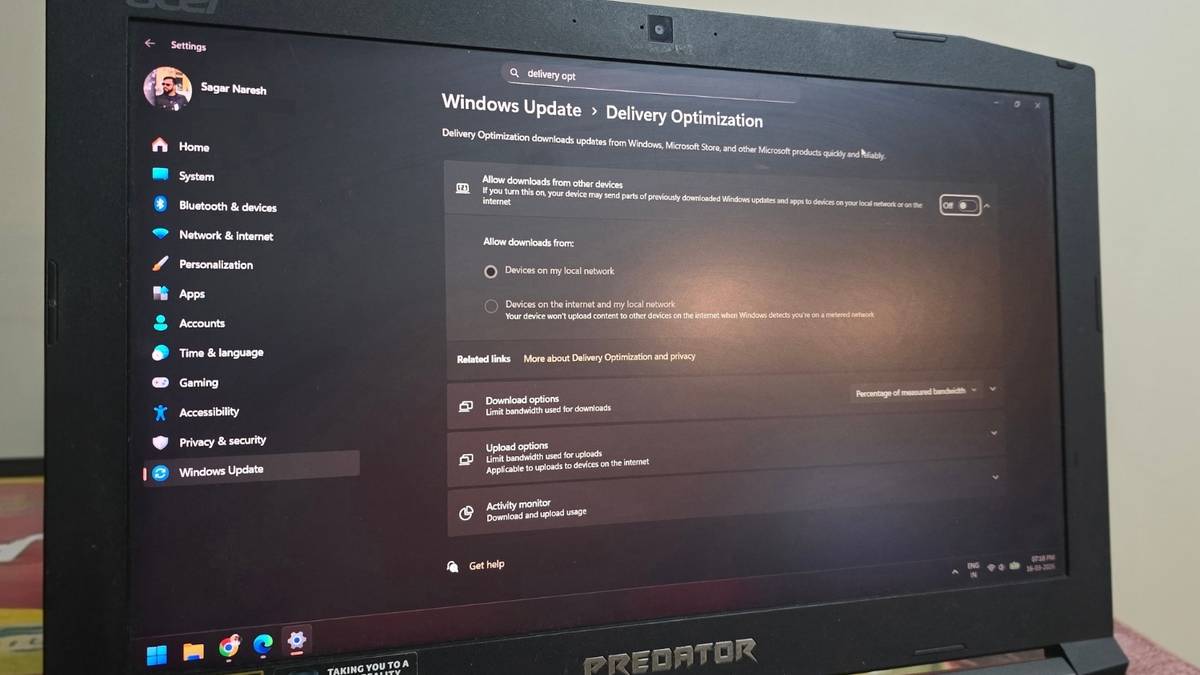
- Scroll down and click on the Delivery Optimization option.
- Ensure that the Allow downloads from other PCs option is turned off. This is the option that stabilizes the internet connection to Microsoft’s direct servers.
Now, the most important thing is adjusting the bandwidth limits. By default, Windows dynamically decides how much bandwidth to give to the Microsoft Store. But there is a way to take the power back into your own hands.
- Under the Delivery Options menu, you will see Download options.
-
Click on the drop-down corresponding to Download options, and you will see the two options:
- Absolute bandwidth limit
- Percentage of measured bandwidth
- You have to select the Absolute bandwidth limit option, but leave the boxes for limiting bandwidth in the background and foreground unchecked. There are chances that leaving the boxes unchecked won’t solve the problem. In this case, you need to check the boxes and enter massive numbers such as 9999. Basically, you are feeding it a significantly higher number than your actual internet speed.
By manually overriding the options and entering the value, you are telling the operating system that it has permission to use up to 9999 Mbps, which effectively removes the bottleneck since your home internet likely won’t ever hit that peak, anyway.

RIP to these 5 Microsoft apps
Microsoft giveth, Microsoft taketh away.
Surprisingly, this works
The optimization becomes a bottleneck

You might be wondering why a simple setting meant to optimize was slowing down your downloads from the Microsoft Store. When Delivery Optimization is active, your PC spends a lot of effort looking for peer-to-peer connections. If it struggles to locate a healthy peer, it lingers in the state of limited connectivity.
Now, when you switch to Absolute Bandwidth and feed a larger bandwidth number, you give Windows the freedom to use every bit of speed that is available.
For me, the Delivery Optimization fix worked like magic. However, I also saw on multiple forums that the Microsoft Store’s cache can quickly fill. If, despite tweaking the above settings, you are getting slow speeds, then you can try the method below:
- Press the Win + R keys to open up the Run dialogue.
- Type wsreset.exe and press Enter.
- A blank command prompt will open, where you don’t have to do anything. In a few seconds, it will automatically close, and the Microsoft Store will refresh.
This is one of the ways that you can apply to speed up the downloads in the Microsoft Store.
From hours to minutes
Sometimes, a feature that is meant to fix things can screw up what was good in the first place. Delivery Optimization is one feature that I would personally recommend you disable. And I also believe that if you are paying for premium stuff, then first, you should disable all the manual settings that bottleneck them. If you don’t want to use them, buy a cheaper one. If you are also getting slow download speeds with Microsoft Store, don’t blame your router just yet; it is likely your OS is trying to be a bit too helpful, saving your bandwidth.
