

Artificial intelligence (AI) assistants keep getting better, and one of the best is Microsoft’s Copilot. First introduced in 2023, Copilot, like all AI assistants, has several functions that extend well beyond question-and-answer play.
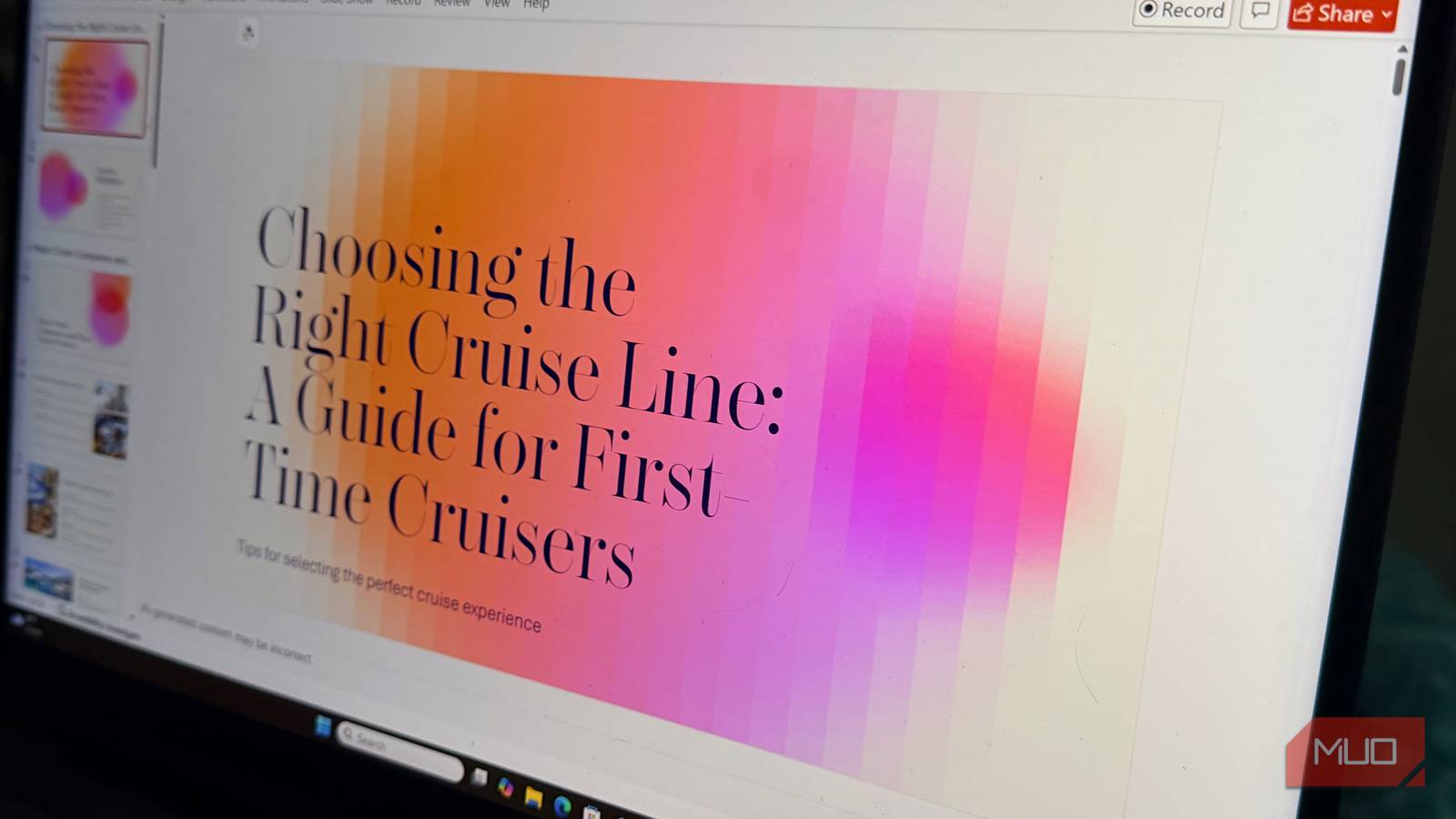
Recently, I decided to use Copilot to help me create a PowerPoint presentation for my new side gig as a travel advisor. The goal: to design a presentation on the world’s top cruise lines, including who they are, what they focus on, and the type of travel they target.
The result wasn’t necessarily what I expected.

Don’t Miss These 8 Underrated Microsoft Copilot Features
Don’t let these features slip through the net; get more out of Copliot by using its most underrated tools.
Getting Copilot up and running in PowerPoint
What to do if Copilot doesn’t appear

Before you can start working with Copilot in PowerPoint, you need to confirm that it’s up and running within the app. Sign in to your Microsoft account and make sure you have the most current version of the application — this is typically tied to an active Microsoft 365 subscription. After signing in, Copilot should appear directly on your ribbon, ready to go.
If you can’t find Copilot in PowerPoint, you probably need to update your software, or your system falls short of Copilot’s minimum requirements. Assuming your PC or Mac does, you will need a Microsoft 365 subscription and an active internet connection.
Putting Copilot to work: My real-world test
What Copilot got right

To get started with using Copilot in Powerful, you simply need to select the “Create with Copilot” option, as there’s no need to switch between apps or copy and paste anything. Then I gave the assistant a fairly detailed prompt, asking it to create a presentation on cruise companies. I wanted it to cover who each major line targets, key considerations for choosing a cruise, and the entertainment available on board. I also made it clear that I didn’t want the presentation to be too long, so I set a limit of 12 slides. This way, the deck wouldn’t get too bulky and hard to manage.
I had a clear plan in mind when I worked with Copilot. By giving it a specific topic, the type of format I was hoping to use, and specific content categories to focus on, I hoped to get a good first draft. I also limited the number of slides to keep things concise. For the most part, this approach worked out well.
The results were really good, considering how quickly they were done. Copilot organized the content well and hit all the main points I wanted. However, there were a few issues. The theme Copilot chose clashed with the subject matter, killing any cruise-vacation atmosphere. Also, some of the pictures didn’t match the text on the slides.
These are the kinds of small problems you’d normally fix by hand, and they’re not a big deal. But even with these minor issues, the overall result was a solid, presentation-ready document that would have taken a lot longer to create from scratch.
It’s worth noting that the time it took to get these results was really short, which is a big plus. The content covered everything I wanted and was easy to follow. The problems were mostly minor tweaks. This started with selecting a new theme and continued with finding better images. I also cleaned up the font hierarchy a little bit, so the presentation used only one header font and one body font. I also tightened up the copy Copilot selected, as it tended to be wordy.
Why Copilot is a starting point, not a finish line
Tailor the content to your audience

When you’re using a tool like Copilot to create a presentation, it can really speed things up. But to make it truly great, you need to add a human touch.
First, think about the design. AI defaults to safe, generic templates, so take a closer look at the fonts, colors, and layout. Make sure they fit your brand and don’t look too basic.
Next, consider who you’re presenting to. A presentation for one group might. not work for another and vice versa. So, go through each slide and think about what your audience needs to know.
Finally, make sure the story flows well. AI is great at gathering information, but telling a story still requires a human touch. Read through your entire presentation as if your audience will. Does each slide pull the audience into the next? Does it all build to a clear, memorable ending?
Copilot gives you a good starting point, but it’s these final touches that turn a good presentation into a great one. You need to make sure your presentation seems deliberate, not like it was created from an everyday template. The bottom line: your audience needs to feel like you’re speaking to them, and the story ought to flow in such a way that you keep that in mind to keep them interested. With a little extra work, you can turn a decent presentation into one that really compels your audience.
The bottom line: Copilot is a powerful ally, not a replacement
When you’re creating a presentation in PowerPoint, using Copilot can really speed up the process and help you make something that looks great and has a lot of content. But to get the best results, it’s better to think of Copilot as an intelligent partner that you work with, rather than just a magic button that does everything for you.
Usually, the AI is good at handling the more straightforward tasks, like organizing your slides and setting up the words, while you bring the creative ideas, know your audience, and tell stories in a unique way that the tool can then help you with.
When you work together like this, it’s a pretty unbeatable combination. You can focus on the parts of the presentation that need a human touch, and let Copilot handle the more routine tasks, like getting everything lined up and looking neat. By working together, you can create a presentation that’s not only polished and professional but also engaging and effective.
