

For as long as I’ve used Windows, I’ve always seen it as an extremely robust operating system. There are settings for almost everything you need; however, these settings often feel a bit too scattered. You find some in the Settings app, some in the legacy Control Panel dialogs, and a few others seem to change constantly with every new major update.
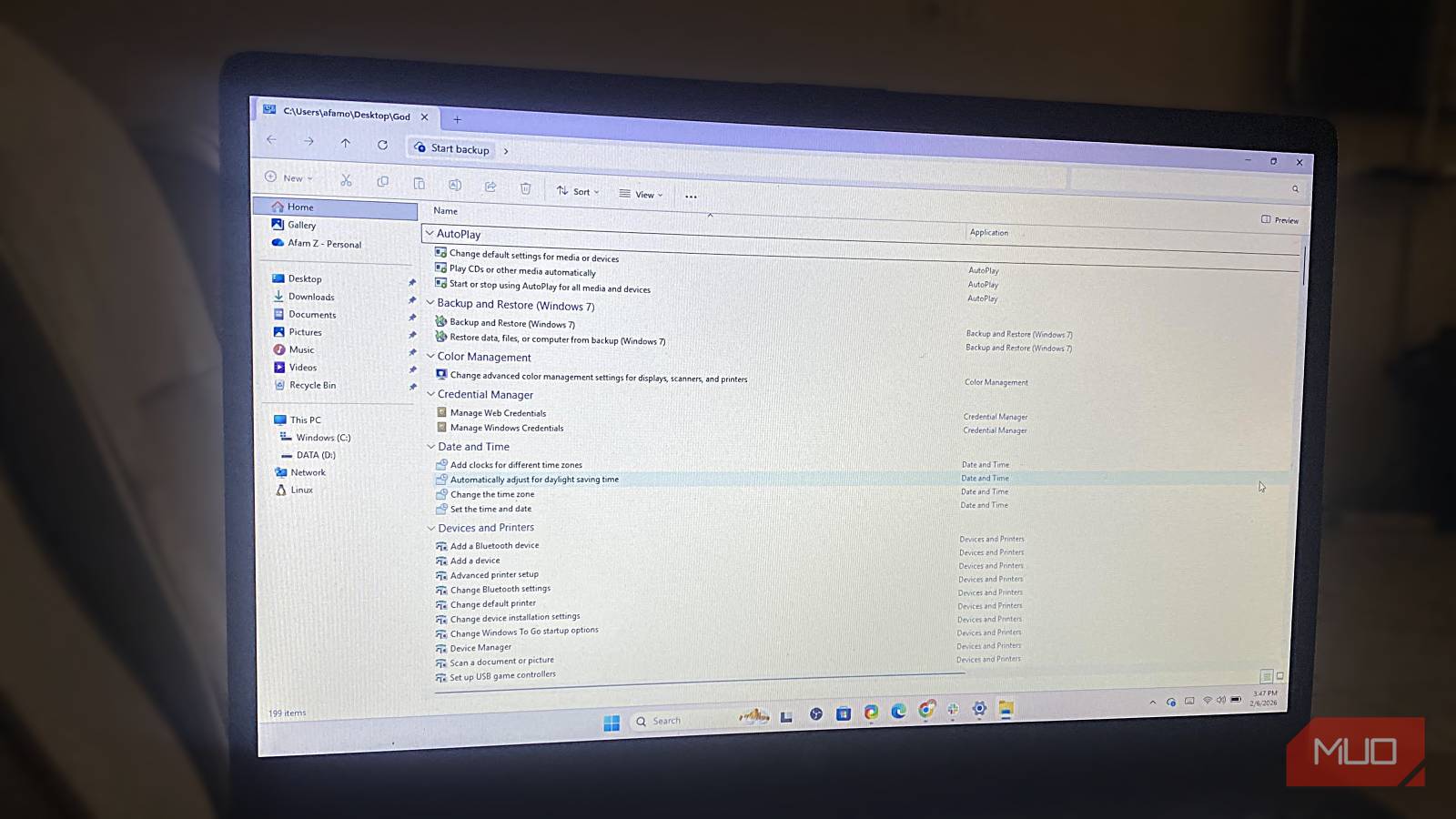
The God Mode folder fixes this tiny Windows annoyance. This folder doesn’t unlock new or previously unseen settings, but it lets you cut through several locations and menus, bringing all adjustable settings into a single searchable list. There are certain settings that I can’t do without; now, I have a single location where they all exist.
What the God Mode folder really does in Windows
It’s a master index of system settings, not a special permission level

God Mode is a heavy name, but it isn’t an admin bypass or a power-up. In technical terms, this feature is a pointer or shortcut to a Windows shell object marked by {ED7BA470-8E54-465E-825C-99712043E01C}. This is a CLSID (Class Identifier) string that Windows uses to internally address components. They can feel more like phone numbers that give access to specific objects, and this particular one points to the All Tasks shell object.
The more important point to note is what this particular object contains. I will elaborate more later, but for now it suffices to say that it’s essentially Windows’ internal catalog of settings shortcuts. So, these are not some hidden features; they are also not private APIs. By accessing the All Tasks shell object, you have all that Windows knows how to configure in a single repository with no UI layers in between.
On the latest Windows installs, this shortcut gives you access to about 200–240+ settings (depending on your Windows version) that typically live across several categories in the Control Panel. You have them flattened into a single alphabetic list, without hierarchy or menu memory.
How to create the God Mode folder safely
It’s just a folder name, but the details matter

Accessing God Mode is intentionally boring and straightforward. Simply create a new folder and rename it: GodMode.{ED7BA470-8E54-465E-825C-99712043E01C}. You may substitute the GodMode part for any other word you prefer, since it’s only a label, and the CLSID is what really counts.
Once you rename it, the folder icon changes to a Control Panel–style icon. Windows stops treating it as an ordinary folder, and it becomes a virtual container. It’s also impossible to rename it afterward. The only workaround is to delete and recreate it.
When you create the God Mode folder, the placement is important. The goal of the folder is to provide access to settings as quickly as possible. This makes the desktop the best place to create the folder, as you don’t need multiple clicks for access. God Mode doesn’t install anything new on the computer, so it’s safe to delete it if you need to.
Why God Mode feels faster than the Settings app
Centralization beats navigation every time
I don’t calculate the speed difference between God Mode and the Settings app in raw seconds; the real difference is in the mental effort. An example is changing the pointer speed on Windows. Traditionally, I can do this from the Settings app by navigating Bluetooth & devices -> Mouse -> Additional mouse settings -> Pointer Options. I need to memorize several screens, including a legacy dialog, just for this one action.
In God Mode, I only search for “pointer speed” and click the pointer speed option from the search results. This is a single search and a single result, without recalling any paths.
There are several examples. To find visual effects from Windows Settings, I navigate System -> About -> Advanced system settings, then under Performance, I click Settings. If I were to do the same thing using God Mode, I would only search for “visual effects” and click the only search result it surfaces.
What makes this a big deal is that Microsoft is notorious for moving things. However, in the next few updates, I may have to go down an entirely different path to find it. With God Mode, I search, and regardless of how many changes have been made, Windows Search surfaces it for me.
The settings I actually use God Mode for
These are the ones Windows makes unnecessarily hard to find

Whenever I know a setting exists but don’t remember how to find it, God Mode becomes my go-to. An example is “Create a password reset disk.” It doesn’t exist in the Settings app. If you don’t know it’s in the Control Panel, you’ll never find it. This is a perfect use case for God Mode.
Another setting I use to reach is display calibration. Technically, it’s possible to access this setting from the Settings app by navigating Display -> Advanced display -> Display adapter properties for Display X -> Color Management. Using God Mode, I search for “calibrate” and click on the only search result that surfaces.
Performance Options is another classic one I use God Mode for. With a single God Mode click, I avoid navigating System Properties -> Advanced -> Performance Settings.
Categories are sorted alphabetically, and options within categories are sorted alphabetically as well. This easily reveals some elements I typically wouldn’t have gone hunting for. Skimming through the orderly list of configurations tells me a lot about Windows that I’d never have known existed. It’s easy to find all the settings that I turn on for a smoother experience on Windows.

I ditched Windows Search for this free app and it’s amazing
Searching has never been this fast or this satisfying.
It’s a reference tool, not a replacement for Settings
Here is an important point to note. God Mode would shine if I needed to troubleshoot an unfamiliar system, set up a new PC, or user profile. It is the best choice for finding a setting I can describe but can’t locate, and for accessing legacy dialogs Microsoft hasn’t fully replaced. However, it doesn’t replace the Settings app.
For daily use, like adjusting volume, brightness, Wi-Fi, and Bluetooth, the Settings app still wins. I use both, and no one is actually replacing the other.
