

Have you ever been watching a movie or tv show and found it doesn’t look right? Almost like the movement of the picture looks too smooth? Well, that’s commonly called called the ‘soap opera effect’.
Why is it called the soap opera effect? It stems from the fact that soap operas were shot at higher frame rates compared to movies particularly (but also some TV shows), giving them a kind of ‘hyperreal’ smoothness to the movement.
If you’ve been fed up with this weird looking motion on your TV but don’t know how to solve it, we’re here to help. But first a quick explanation as to what’s going on.
Why does the soap opera effect happen?

Modern TVs are very bright and work at a range of different frame rates (how often the image on-screen changes) and this can cause a problem called ‘judder’ in movies (which are shot at 24 frames per second), where you can really see gaps in the movement sometimes, which you can’t see in the dim, custom-designed world of movie theaters.
On top of that, many cheaper or older TV literally can’t show a clean 24fps image. Many of these TVs have screens that refresh at 60fps, and can only cleanly show motion at a number that 60 divides into (such as 30fps, which is common in HDR video). This means you’ll get more judder, because 24fps movies are having frame moved forward or backward in timing to fit the world 60fps TVs.
(More advanced TVs are 120fps, and these actually can show a clean 24fps image, because 120 divides by 24).
On top of that, lower-quality streaming or digital broadcasts lose a lot of information in fast-moving scenes, because the amount of data they can include is pretty limited. Anytime there is a quick, panning shot or fast moving sequence, there will be a loss of detail on the screen.
This is where motion smoothing settings come into play. TV manufacturers began to add motion settings into their lower frame rate TVs to help reduce motion blur and judder during fast paced content, but it’s used in all TVs.
With motion smoothing activated, a TV will artificially insert new frames within content to improve clarity. The TV essentially guesses what the next frame is going to look like based on the previous few frames, and adds new frames in – in order to make the image appear smoother and more detailed.
This may sound great for sports, and it usually is – but it has a weird effect on 24fps movies, or cinematic TVs shows. When a TV tries to artificially add more frames into a movie, the movie starts to look too smooth, almost like it’s moving too fast – because the low frame rate of movies is very distinctive.
A long panning shot will suddenly look like it’s moving at a higher speed, taking on a soap opera appearance, hence the name ‘soap opera effect’. People will feel like they’ve move too twitchily. Things will also appear artificially ‘clear’ in a way that’s really off for how we’re used to films.
Thankfully, in most cases, these motion settings can be controlled or turned off. Here’s how – but bear in mind, you won’t always want to turn them off.
Turning off or adjusting motion smoothing
If you head to your TV’s picture settings, often under ‘more’ or ‘advanced’ settings, motion settings can often have their own sub-category. Sometimes, they can be found under another menu and can be referred to as ‘clarity’ settings.
Below I’ve done a quick step-by-step guide on how you would access motion settings to turn them off or adjust using our reference LG C5 – there’s no way I can run through it for every TV, but it will hopefully give you a useful example.
1. Access Picture settings

1. First, you’ll need to access the picture settings. For the C5, I clicked Settings (the cog button on the remote) and then clicked Picture Settings.
2. Access the advanced settings menu

To get to the right area where motion settings will be located, I selected Advanced Picture Settings.
3. Go to the menu where Picture Settings will be

After clicking Advanced Picture Settings, I then scrolled down to Clarity settings. While the area motion settings will be will vary from TV to TV, they’ll most likely be under a ‘clarity’ type sub-menu.
4. Scroll to the motion settings menu

Once you find the correct menu, in the C5’s case Clarity, scroll down to the relevant motion settings menu. With the C5, this was called TruMotion
5. Turn off or adjust motion settings

Once you’ve found the motion settings menu, you can select your preferred motion style or turn them off. This should get rid of the soap opera effect.
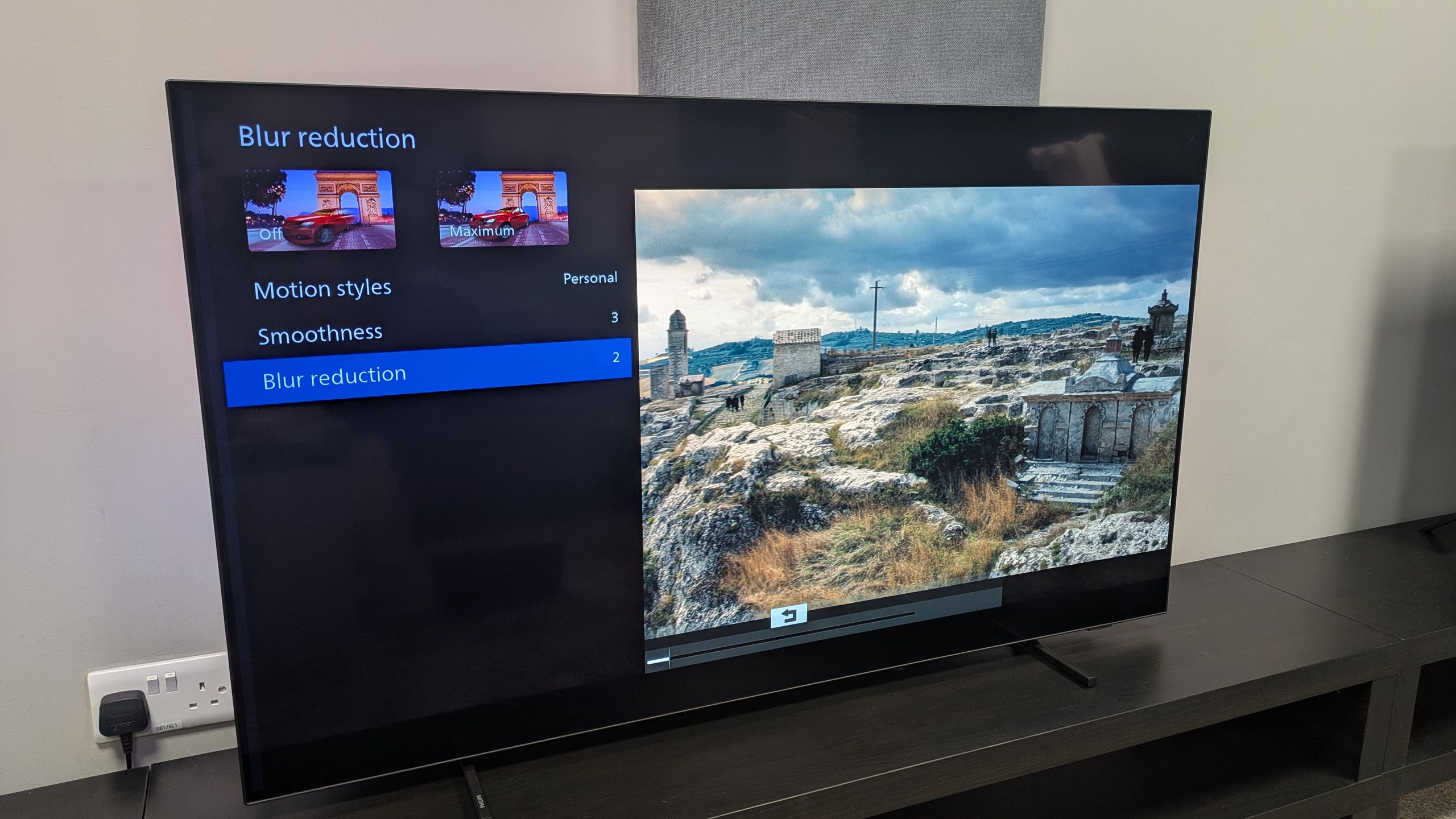
An indicator of motion settings will be two headings called ‘blur reduction’ and ‘judder reduction’, or can be referred to under different names. I found, for example, that while testing Philips OLEDs, judder is referred to as ‘smoothness’.

Another quick fix, if you’re looking for film-accurate picture, is to set your TV to Filmmaker Mode picture mode. Not all TVs have one, but most do nowadays. This picture mode is designed to turn off any enhancement features, including motion smoothing (though some brands have started to keep some more minimal motion settings on).
Where motion smoothing can help

While home theater purists often say motion smoothing is no good, as someone who’s tested a lot of TVs of every kind, there are many situations where it can be helpful.
When I tested the C7K, I found that without motion settings tweaked, there was a lot of judder while watching sports. However, setting blur and judder reduction to 3 (out of 10) resulted in a smoother image that didn’t result in the soap opera effect.
I’ve found this to be the case with a lot of budget TVs, especially 60Hz panel ones for the reason mentioned above – 24fps movies literally can’t show correctly on these screens, so a minimal amount of motion smoothing is the best option.
In fact, I found that LG’s OLEDs, including one of my top sets of 2025 the LG C5, benefitted from keep a motion setting on. In its motion settings menu, activating Cinematic Movement, a mild form of motion smoothing designed purely to preserve the look of 24fps movies, resulted in a much more stable image. A panning shot of a rocky cliffside in No Time To Die had a lot less judder with this setting activated – more like how it’s supposed to look.
Really, motion smoothing is all about personal preference. It will require some time experimenting, but it’s worth the investment. It will depend on what TV you have and what content you’re watching as well, but if you’re looking to get away from the soap opera effect, this is how to do it.

The best TVs for all budgets
Follow TechRadar on Google News and add us as a preferred source to get our expert news, reviews, and opinion in your feeds. Make sure to click the Follow button!
And of course, you can also follow TechRadar on YouTube and TikTok for news, reviews, unboxings in video form, and get regular updates from us on WhatsApp too.
