

With home servers being as popular as they are, a while back I invested in a mini PC for a new build out for my home office. I wanted to solve a few specific issues, like keeping scattered files sorted, arranging scanned documents better, and, most importantly, having a unified place to keep all my passwords. While they’re not necessarily the biggest problems individually, trying to solve these problems individually, multiple times a day, certainly slows things down to a crawl.
The goal behind the mini PC was to solve that specific problem. So, I went about installing Docker on the $80 mini PC, and started solving these issues one by one with a set of curated open-source tools. Nothing too complex, just simple, straightforward, self-hosted tools that solve daily friction. These three containers are the ones I picked, and together they turned my affordable new mini PC into all the office server I need. More specifically, though, the result is a tool that I rely on every single day without fail.

7 Docker containers I use to boost my productivity
Docker containers that turned me into a productivity ninja
Nextcloud
Fixing file access across devices
Like I mentioned, one of my biggest issues is consolidation and access of files. Moving files between devices shouldn’t be complicated, but if you jump across multiple platforms, it can get cumbersome really quick. I’d often end up emailing myself attachments, using message apps like WhatsApp as temporary storage, or relying on a cloud service like Google Drive. That’s not ideal.
NextCloud replaces all of that with something much more straightforward. The tool works like a self-hosted file sync and storage system. And once setup, it behaves like a mainstream cloud drive, except it is entirely self-hosted.
NextCloud is my working directory for every-day use. Be it screenshots, documents that I’m exporting as PDFs, and project files, all live here. The desktop client keeps all these folders synced automatically so that anything I store here from my computer, goes up straight to my NAS as well. Similarly, the mobile app can comfortably handle uploads too, making NextCloud a one-stop shop for file handling. If you want to go whole hog on the NextCloud ecosystem, you can even use the built-in notes and collaboration tools, but that’s not something I use very often.

- OS
-
Windows, macOS, Linux
- Key highlights
-
Self-hosted, open source
- iOS compatible
-
Yes
- Android compatible
-
Yes
- Desktop compatible
-
Yes
Nextcloud is a self-hosted cloud platform that keeps your files synced and accessible across apps and devices.
Paperless-ngx
Make your archived documents fully searchable
If you thought digital files were messy, wait till you get around to handling physical documents. Be it scanned receipts, or official paperwork, invoices, combined with scanned PDFs and things get out of hand pretty quickly. You know that you’ve got the document saved, but finding it is a whole different headache.
That’s where Paperless-ngx has made my life significantly easier by turning documents, both those that I’ve scanned in and electronic documents, into a searchable index. My setup is straightforward, and anything that I need to keep on hand goes into a consume folder. That’s everything from a scanned receipt to a downloaded invoice, or even a bill. Paperless automatically picks up the document, processes it and runs OCR on it so that the text inside becomes fully searchable.
From there, the documents get tagged and organized and assigned metadata. Over time, as you keep on adding documents, you end up with a structured archive with zero manual intervention needed. All this organization comes in handy when you need something quickly in the middle of a workday. Instead of searching through folders, I can simply search for a keyword or a company name and Paperless-ngx serves up the document straight up. The goal here is to help you find and retrieve your documents with ease, and Paperless-ngx is a critical part of my self-hosted home office setup.
Vaultwarden
Fixing the password and secure notes mess

Managing passwords for personal and business needs is always a chore. I’ve tried a range of apps, including the password managers built into macOS and Chrome, but they just don’t offer the quick ease of use that I need in a work day. Plus, between browsers, apps and different devices, it’s easy to end up with a fragmented system.
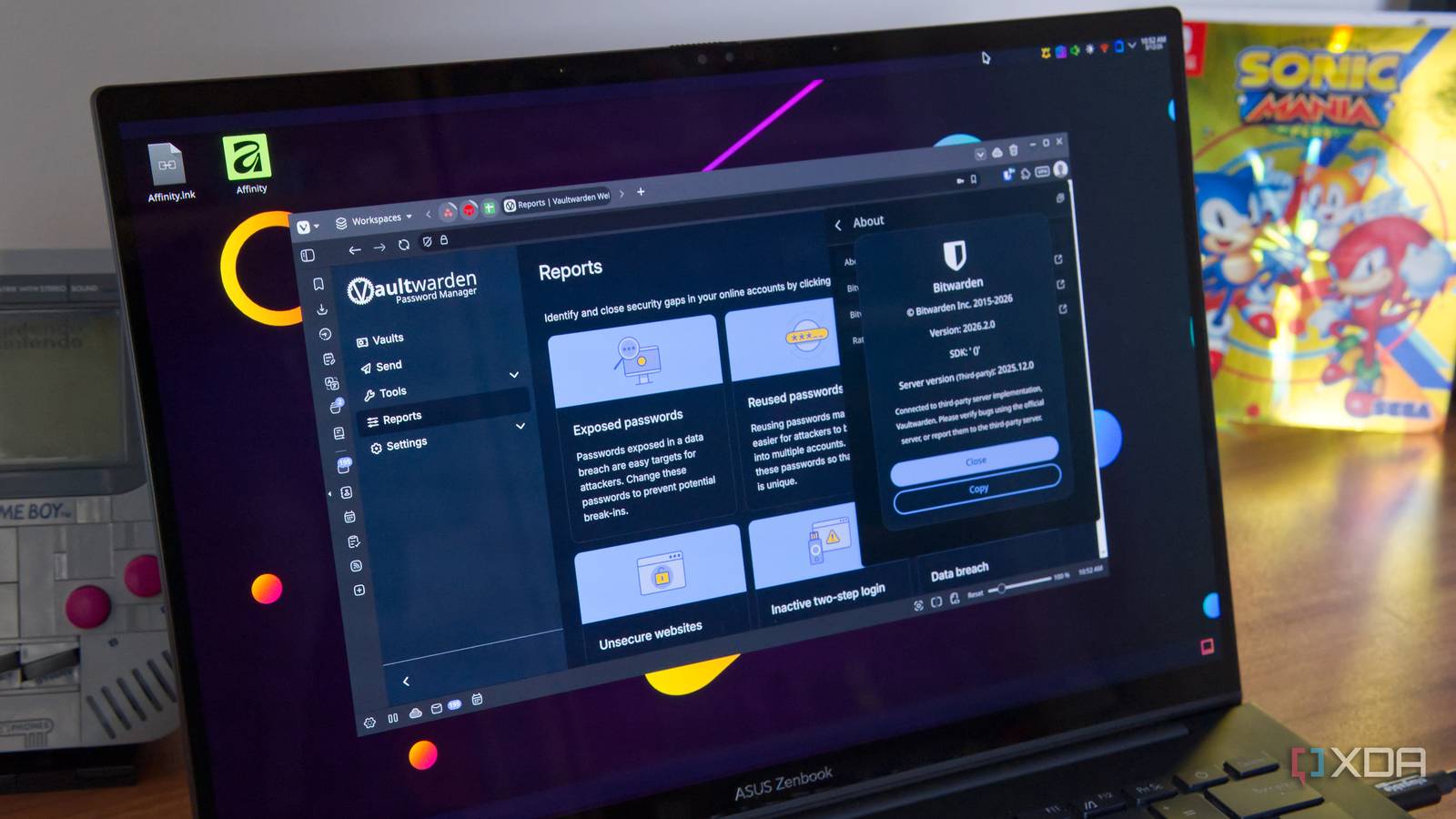
Vaultwarden is what I use to create a more consistent ecosystem. The self-hosted password manager works with the extensions and apps as Bitwarden, but everything is right there on your system — something which is important to me, both for privacy and business compliance.
Once it’s running, it works precisely as you’d expect. Passwords can be autofilled easily in apps, new passwords sync across practically instantly, and everything is present in one single vault. The benefit? No external dependency at all.
Not just passwords, Vaultwarden has become my storehouse for secure notes, API keys and even banking information. No matter what device I’m on, I just log in to Vaultwarden, and everything is right there.
A practical home-office setup that just works
Building out a self-hosted setup isn’t just about great power and performance, as you can see. Even on a lowly $80 mini-PC, I have no trouble at all running these services and more. But despite that extremely low price point, I’m able to build a surprisingly practical self-hosted system that solves practical problems on a daily basis. At the end of the day, the goal was to remove friction from things that I do anyway. And for something that started as an $80 experiment, it’s become one of the most useful upgrades I’ve made to my home office setup.
