

Introduction
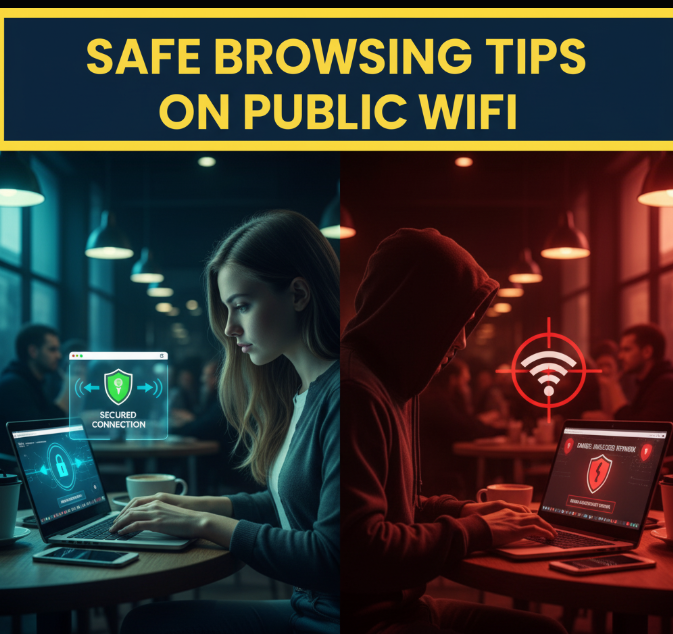
Public WiFi is everywhere today—airports, coffee shops, libraries, shopping malls, and even buses. Free internet feels like a blessing when you need to check your emails, scroll social media, or quickly download a file. But here’s the hidden truth: public WiFi is not safe by default.
Cybercriminals love these networks because they are often unencrypted, poorly managed, and accessible to anyone. When you connect without protection, your data can be intercepted—passwords, banking details, private messages, and even personal photos.
This guide will give you practical, step-by-step safe browsing tips to protect yourself on public WiFi in 2025. By the end, you’ll know exactly how to keep your data safe while still enjoying the convenience of free internet.
Why Public WiFi Can Be Dangerous
Before diving into safety tips, let’s break down why public WiFi is risky.
1. Open Networks With Weak Security
Most public WiFi networks don’t use strong encryption. This means your data can be sent “in plain sight.” Hackers can use tools to sniff out what you’re doing online.
2. Fake Hotspots (Evil Twin Attacks)
Cybercriminals often set up fake WiFi networks with names like “FreeCoffee_WiFi” or “AirportGuest_WiFi.” If you accidentally connect, all your data flows directly into their hands.
3. Malware Distribution
Some compromised WiFi networks inject malware into your device. You may not even realize it until your files are corrupted or your accounts hacked.
4. Man-in-the-Middle Attacks
Hackers can sit between you and the website you’re visiting, secretly reading or altering the information you send.
Quick Checklist: How Safe Is That WiFi?
Here’s a table that can help you quickly judge whether to connect or not:
| WiFi Sign | Risk Level | Should You Connect? |
|---|---|---|
| Open WiFi, no password | 🔴 Very High | Avoid if possible |
| Password-protected network | 🟡 Medium | Safer, but still risky |
| WPA3 secured network | 🟢 Safer | Acceptable with caution |
| Unknown or duplicate SSID | 🔴 Very High | Never connect |
| Provided by official business | 🟡 Medium | Connect with extra safety |
Essential Safe Browsing Tips on Public WiFi
Now let’s get into the step-by-step methods to protect yourself while browsing on public WiFi.
1. Use a Virtual Private Network (VPN)
A VPN is your number one defense. It creates a secure tunnel for your internet traffic, hiding it from hackers and snoopers.
Benefits of using a VPN on public WiFi:
-
Encrypts your browsing data
-
Masks your IP address
-
Prevents hackers from spying on your online activity
-
Helps you bypass fake hotspots
🔑 Pro tip: Choose a VPN with AES-256 encryption and a no-logs policy for maximum protection.
2. Always Connect to HTTPS Websites
Websites that start with HTTPS (instead of HTTP) are encrypted. This makes it much harder for hackers to intercept your data.
How to check:
-
Look for the padlock symbol in your browser’s address bar
-
Avoid entering passwords on HTTP-only sites
3. Turn Off File Sharing and AirDrop
When connected to public WiFi, disable:
-
File Sharing (Windows)
-
AirDrop (Mac/iPhone)
-
Network Discovery
These settings can expose your personal files to anyone connected to the same network.
4. Keep Your Firewall Active
A firewall is like a gatekeeper between your device and the internet. It blocks suspicious connections.
Make sure it’s turned on:
-
Windows: Control Panel → System and Security → Firewall
-
Mac: System Settings → Network → Firewall
5. Update Your Device Regularly
Outdated software = security holes. Hackers often exploit old versions of apps and operating systems.
Keep these updated:
-
Operating system (Windows, macOS, iOS, Android)
-
Browser (Chrome, Firefox, Safari, Edge)
-
Antivirus software
-
VPN app
6. Avoid Logging Into Sensitive Accounts
Even with protection, try not to:
-
Check your bank account
-
Make online purchases
-
Enter personal IDs (like government portals)
If you must do these tasks, use mobile data instead of public WiFi.
7. Use Two-Factor Authentication (2FA)
Even if a hacker steals your password, they can’t log in without the second code.
Best options:
-
Authentication apps (Google Authenticator, Authy)
-
Hardware keys (YubiKey)
-
SMS codes (less secure, but better than nothing)
8. Forget the Network After Use
When you finish browsing, remove the WiFi connection from your device.
-
Windows/Mac: Forget network option
-
Smartphones: Settings → WiFi → Forget
This prevents automatic reconnection in the future.
9. Use a Mobile Hotspot Instead
If possible, skip public WiFi altogether. Use your phone’s hotspot—it’s much safer since you control it.
10. Use a Browser with Extra Security
Some browsers offer built-in protection:
-
Brave (blocks trackers and ads)
-
Firefox (strong privacy settings)
-
Chrome with extensions (like HTTPS Everywhere, Privacy Badger)
Extra Safety Tips for Different Devices
For Laptop Users
-
Disable WiFi auto-connect
-
Use strong antivirus software
-
Keep VPN on at all times
For Smartphone Users
-
Turn off WiFi when not in use
-
Use mobile data for payments
-
Enable “Private DNS” (on Android settings)
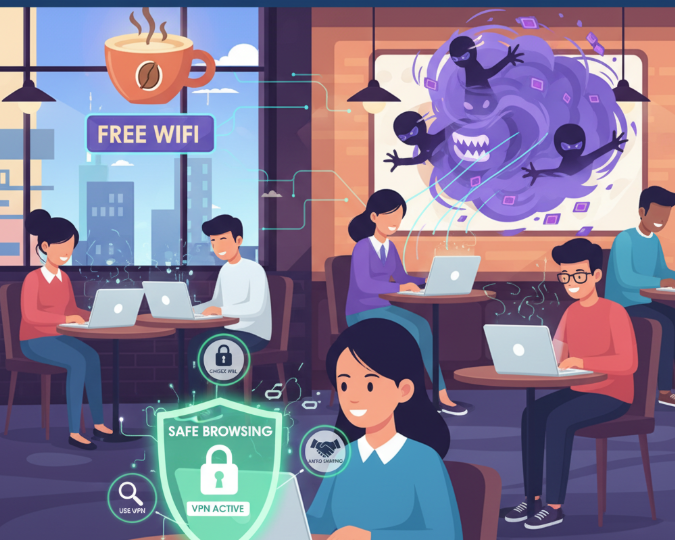
Safe Browsing Tips on Public WiFi
Safe Browsing Habits You Should Build
-
Think before connecting – Don’t join random WiFi networks just because they’re free.
-
Verify the source – Ask staff at the café or airport for the official WiFi name.
-
Log out when done – Don’t stay logged into accounts unnecessarily.
-
Use strong, unique passwords – Avoid reusing the same password across multiple accounts.
-
Check for unusual behavior – If your device slows down, disconnect immediately.
Real-World Example: How Hackers Exploit Public WiFi
Imagine you’re at a coffee shop. You see two networks:
-
Coffee_Shop_WiFi
-
Coffee_Shop_Free
Without thinking, you connect to the second one. But here’s what’s happening:
-
A hacker set up a fake hotspot.
-
Every site you visit is logged by them.
-
They capture your Facebook password when you log in.
-
Later, they sell your data on the dark web.
Lesson: Always verify the network before connecting!
Infographic: Quick Safe Browsing Tips
📊 (Text-based infographic for readability)
Public WiFi Safety Do’s and Don’ts
| Do’s | Don’ts |
|---|---|
| Use VPN | Connect to open networks |
| Check for HTTPS | Shop online on public WiFi |
| Verify official WiFi name | Log in to bank accounts |
| Keep firewall active | Leave sharing options on |
| Use strong passwords | Reuse old weak passwords |
Future of Public WiFi Safety
With more people working remotely and traveling, public WiFi will keep growing. Here are some future trends:
-
WPA3 encryption will replace weaker WPA2 in public places.
-
Built-in VPNs may come pre-installed on smartphones.
-
AI-powered firewalls will automatically detect unsafe networks.
-
5G mobile hotspots may replace the need for public WiFi in many cases.
Conclusion
Public WiFi is convenient but full of hidden risks. Hackers are always waiting for careless users to connect without protection. By following the tips in this guide—using a VPN, checking for HTTPS, disabling sharing, and practicing safe browsing habits—you can protect your personal information.
Next time you’re sipping coffee or waiting at the airport, remember: free WiFi isn’t free if it costs you your privacy.
Stay smart. Stay safe. Browse with confidence.
