

My computer developed a flickering problem that started subtly. For a split second, it goes black, the icons redraw, and the taskbar disappears briefly. This behavior wasn’t constant, and I couldn’t always predict when it would happen. Sometimes it happens if I open a folder, other times it starts when I switch windows. In fact, it may also occur when the computer is idle.
I thought it was a graphical issue, but checking the display cables and reinstalling or updating the GPU drivers did not help, and there was no problem with my graphics card either. The real issue turned out to be corruption in File Explorer’s thumbnail cache, and the symptom vanished as soon as I cleared the cache.
What the Explorer thumbnail cache actually does
A speed optimization that quietly runs your entire desktop

Windows generates thumbnail previews (small preview images) whenever you open folders with certain file types, especially images, videos, PDFs, and shortcuts. This is an important process that guarantees File Explorer doesn’t have to reprocess those files in the future. For efficiency, the results of this process are stored within your user profile in several thumbnail cache database files. And Windows maintains several databases of icons and thumbnails in different sizes to enable rapid display at multiple scales.
As long as there are no related problems, this process is a massive efficiency win. File Explorer uses cached previews when you open a folder with thousands of images to make the display feel instant. This is possible because it’s not decoding every file. On devices, especially media-heavy systems, this cache reduces disk activity and CPU usage.
However, since this cache grows over time and isn’t actively maintained, it can become an issue. The system is prioritizing reuse over verification, so entries that become corrupted over time are not actively purged. The further the cached data drifts from reality, the greater the likelihood of the thumbnail problem.
Why corrupted thumbnails don’t cause errors — they cause flickering
The Explorer.exe restart loop hiding in plain sight

When the desktop flickers, it may feel like a rendering issue, but it’s actually trying to recover. Explorer.exe is the single process that hosts the Windows desktop, taskbar, Start menu, and system tray. Windows automatically restarts Explorer when it crashes, leading to a brief screen flicker. Icons reload, and the taskbar disappears momentarily.
These crashes occur very regularly when there are corrupted preview files. So just hovering over files, refreshing the desktop, or opening a file prompts File Explorer to read a damaged cache entry. File Explorer doesn’t skip the bad files but terminates and restarts with no error messages displayed.
This problem is a loop that will continue as long as the bad cache exists. None of the solutions that fix the more common graphical issues will work.
Clearing the thumbnail cache breaks the restart loop instantly
The fastest fix, ranked by reliability
Removing the thumbnail cache deletes the corrupted entries. It also forces Windows to rebuild a clean version and fixes the flickering. There are two ways to delete the Windows thumbnail cache. The first is using Disk Cleanup. Follow these steps:
- Search for cleanmgr and click the Disk Cleanup option.
- Select the C drive or any drive letter that corresponds with your system drive and click OK.
- Check Thumbnails in the Files to delete list.
- Click OK, then click Delete files.
Once the cleanup finishes, restart File Explorer. Open the Task Manager using Ctrl + Shift + Esc, right-click Windows Explorer, and select the Restart option. While this method is effective, it may not remove all corrupt entries if Explorer is actively using the locked cache files. You can run the PowerShell script below if the problem persists:
Stop-Process -Name explorer -Force
Start-Sleep -Seconds 2
Remove-Item "$env:LOCALAPPDATA\Microsoft\Windows\Explorer\thumbcache_*.db" -Force
Start-Process explorer
Once the script runs, your screen will turn black briefly, and the problem should be fixed. This script first terminates File Explorer, ensuring the files in the thumbnail database are not locked. Deleting the thumbnail cache is one of the file management tricks that improves performance.
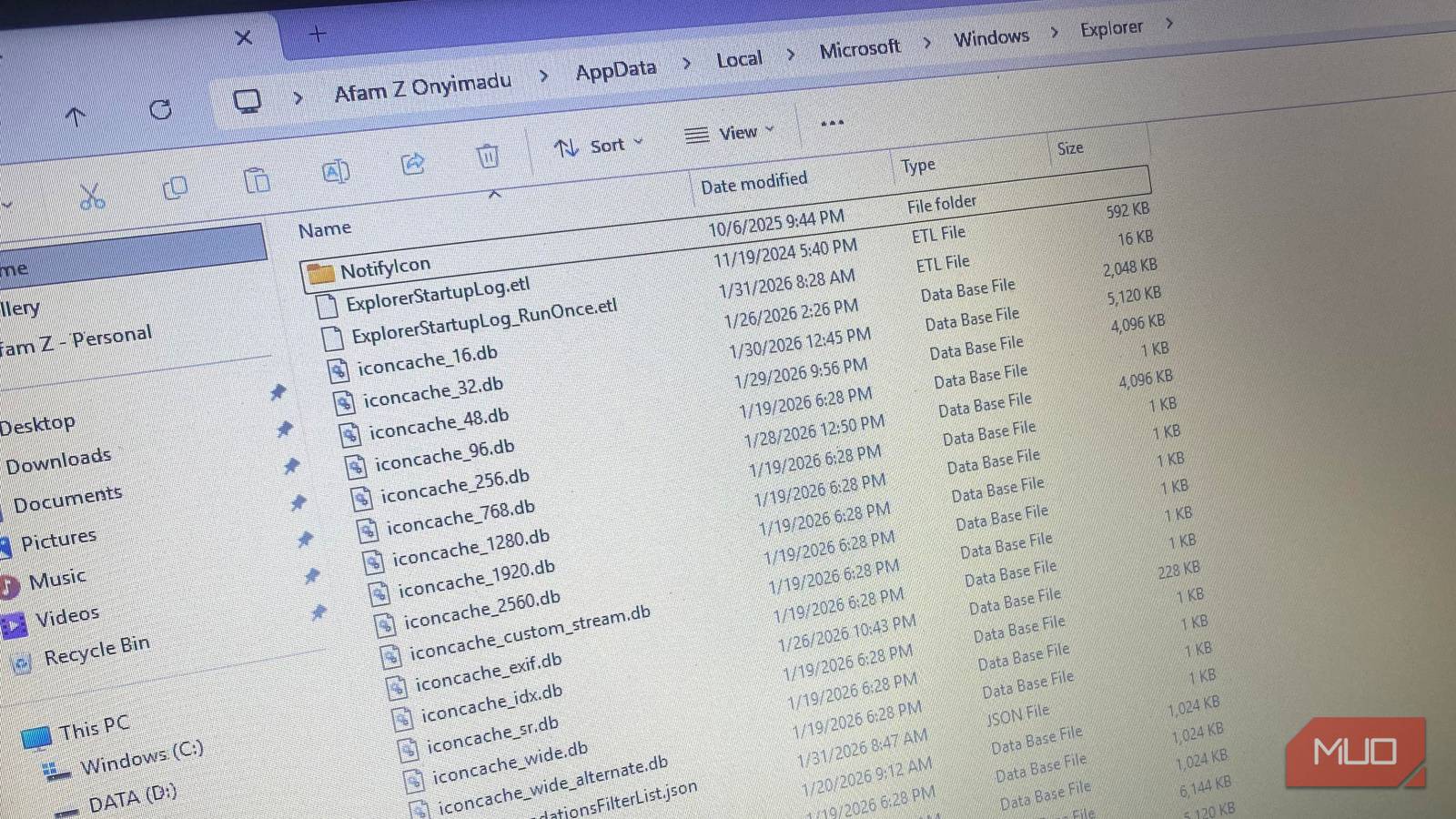
The cache files are located at %LocalAppData%\Microsoft\Windows\Explorer if you want to check their size before and after clearing—seeing them drop from hundreds of megabytes to near-zero confirms the operation worked.
Why this problem shows up more on modern Windows systems
Cloud files, large media libraries, and fragile previews

Modern workflows add more stress to your computer and can trigger the thumbnail cache problem more frequently. These workflows can include high-resolution photos, large video files, and mixed-format folders, which often generate substantial preview data. The complexity of the thumbnail cache increases as the number of thumbnails Windows creates grows.
Windows maintains separate databases for different thumbnail sizes (thumbcache_32.db through thumbcache_1920.db), and viewing the same folder at different zoom levels can multiply the number of entries that could be corrupted.
Cloud services like OneDrive add a new layer of fragility by presenting placeholder files that aren’t fully local yet. The cache entries created from these placeholders, which are only partially available, stand a higher risk of being inconsistent. If your external drive or storage device disconnects while thumbnails are still being generated, it may cause a similar issue. This is one reason why I stopped syncing my entire desktop with OneDrive.
The possibility of running into this flickering screen isn’t a sign of a broken OS. However, it shows that the thumbnail cache hasn’t been redesigned for the more modern and aggressive workflows we have. Unfortunately, this problem is tricky because it doesn’t show up as a neat error message.

How to Delete a File in Use by Another Program in Windows
Windows says your file is in use because it’s open in another program? Learn how to force rename, delete, or move the file.
If clearing the cache didn’t stop the flickering
There are a few problems that show up with similar symptoms. The most common of these are graphics driver crashes. These crashes typically affect your entire display stack and are logged separately from Explorer issues.
Third-party shell extensions from file managers, archive tools, and cloud clients can misbehave, crash Explorer, and cause display problems with similar symptoms. The same fixes won’t work for these, but you can always rule out a bad thumbnail cache before trying other solutions.
