

I’ve been a Kindle reader for years. I even tweaked a bunch of settings to make my Kindle feel more like paper, and it worked great for store-bought books. But the more I leaned into reading DRM-free EPUBs and personal PDFs, the more I ran into its limitations. The books were scattered across devices, stuck in formats Kindle doesn’t support, and syncing anything outside Amazon’s ecosystem felt like a chore.
That’s when I found Kavita, an open-source, self-hosted book library that gave me a reading setup I’ve come to enjoy using more than my Kindle. The setup is a bit tricky, but once it’s up and running, it works flawlessly.
The reason my Kindle started collecting dust
Amazon’s ecosystem works great until you step outside it

For books bought through the Kindle Store, the experience is seamless. Buy a book, and it shows up across all your devices with progress synced automatically. But the moment you bring your own files into the mix, things get frustrating.
Kindle only handles a handful of formats natively. If you have EPUBs, which is what most DRM-free bookstores and public domain sites use, you need to convert them first. Calibre helps, but it adds extra steps every time you want to read something new. Even something as simple as reading a PDF on a Kindle requires workarounds.
Then there’s the organizational problem. My personal library had no good way to stay organized across devices without depending on Amazon’s Send to Kindle feature. And even that has limitations on file size and format. I wanted my books available on my phone, tablet, and laptop without jumping through hoops or relying on Amazon to be the middleman.
The DRM lock-in is another quirk. Books I bought on Kindle are tied to Amazon’s ecosystem, and if I ever wanted to switch to a different reader or platform, those purchases don’t come with me. I needed something that offered more control over my library without an ecosystem lock-in, and Kavita offered just that.
Setting up Kavita
Scoop makes the whole process painless

I set up Kavita using Scoop, which is a command-line package manager for Windows. If you’re not familiar with it, Scoop lets you install and update apps from the terminal without dealing with graphical installers or UAC prompts. If you don’t have Scoop installed yet, open PowerShell and run:
Set-ExecutionPolicy -ExecutionPolicy RemoteSigned -Scope CurrentUser
Invoke-RestMethod -Uri https://get.scoop.sh | Invoke-Expression
Once Scoop is ready, you need to add the extras bucket, which is where Kavita lives, and then install it:
scoop bucket add extras
scoop install kavita
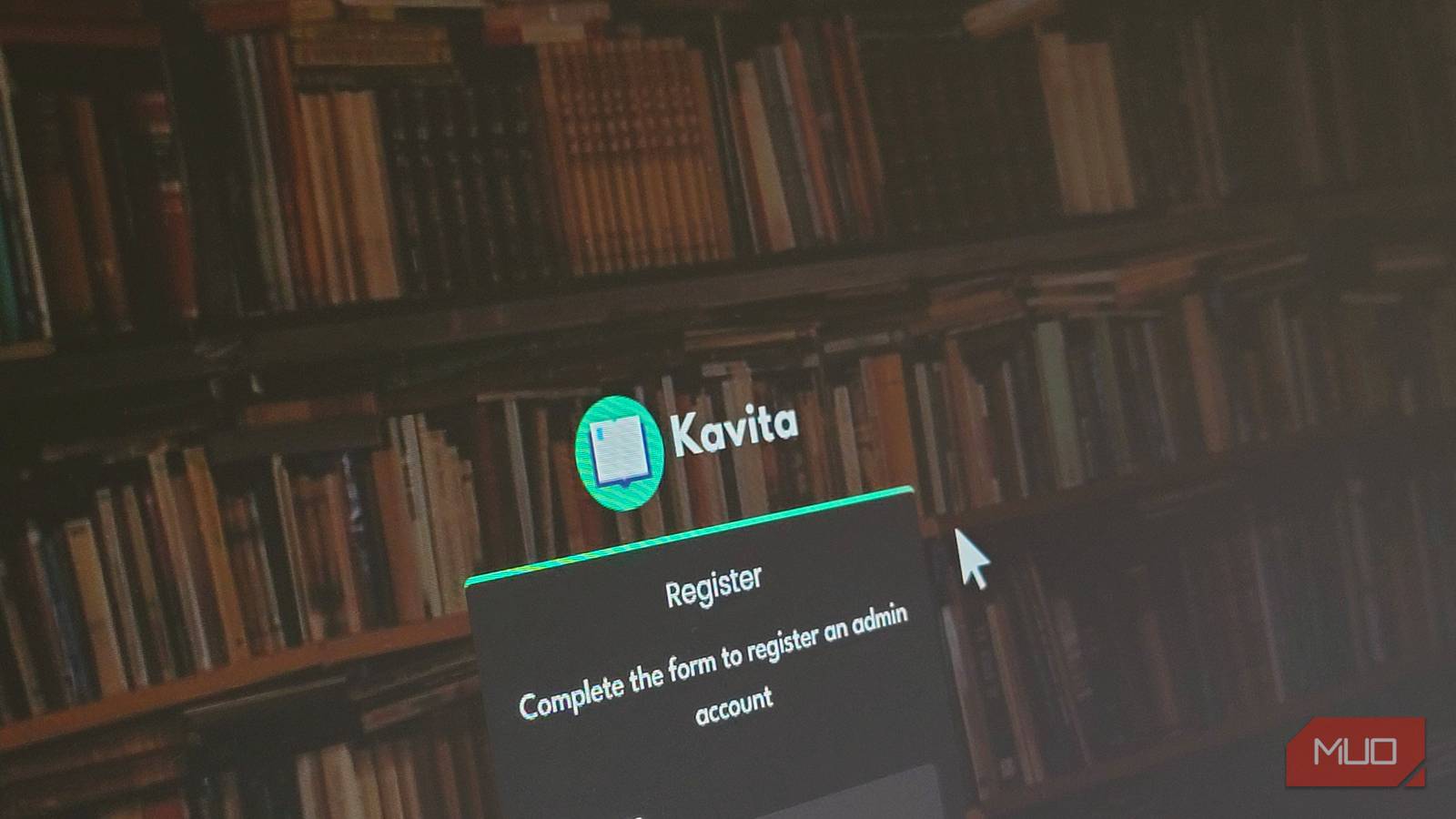
That’s it. Scoop downloads and sets up Kavita at %userprofile%\scoop\apps\kavita\current\kavita.exe. To start the server, run the executable, then visit http://localhost:5000 in your browser. You’ll see the setup screen where you create your admin account. From there, go to Settings, create a new library, set the type to Book, and point it to your books folder. Kavita’s scanner will index your collection and pull in cover art and metadata automatically.
The nice thing about using Scoop is that updating Kavita later is just a single command: scoop update kavita. No re-downloading installers or manual replacements.
If you want Kavita to start automatically in the background at boot, you can set it up as a Windows service using Shawl. Install it with scoop install shawl, then run the following commands in an elevated PowerShell window:
shawl add --name Kavita --cwd "$env:USERPROFILE\scoop\apps\kavita\current" -- "$env:USERPROFILE\scoop\apps\kavita\current\Kavita.exe"
sc.exe config Kavita start= auto
Importantly, Kavita is particular about folder structure. It works best when books are organized in folders by series or author rather than dumped into a single flat directory. I uploaded my existing, properly structured ebook library, and the scanner picked everything up within minutes. For transferring files to a remote server, a tool like FileZilla over SFTP works well.
Setting up Kavita
Docker makes the whole process painless

I set up Kavita using Docker since I already had it running on my machine from my Readeck setup, but you can also use the standalone Windows installer from the Kavita GitHub page. If you don’t have Docker installed, download Docker Desktop, run the installer, and make sure it shows Docker Desktop is running before you proceed.
Kavita’s website provides a ready-made Docker run command. The key parts are two volume mappings: one for Kavita’s configuration data and one for your book library, and a port mapping that exposes the server on port 5000. I created a kavita directory under my Docker folder with config and books subfolders, then edited the command to point the container’s volumes to these local paths.
Once you run the command, Docker pulls the Kavita image and starts the container. Visit http://localhost:5000 in your browser, and you’ll see the setup screen where you create your admin account. From there, go to Settings, create a new library, set the type to Book, and point it to the books folder. Kavita’s scanner will index your collection and pull in cover art and metadata automatically.
Importantly, Kavita is particular about folder structure. It works best when books are organized in folders by series or author rather than dumped into a single flat directory. I uploaded my existing, properly structured ebook library, and the scanner picked everything up within minutes. For transferring files to a remote server, a tool like FileZilla over SFTP works well.
It’s not perfect, but I’m not going back
Kindle still has the edge in some areas
I won’t pretend that Kavita replaces everything a Kindle does. The e-ink reading experience on a dedicated Kindle device is still unmatched for long reading sessions, the battery life, the paper-like display, and the complete lack of distractions. Whispersync is also genuinely impressive when you’re entirely within Amazon’s ecosystem. And for people who just want to buy and read books with zero setup, Kindle is still the easier path.
Kavita’s reader is browser-based, so the experience depends on your device and browser. On a phone, it’s good but not as polished as a native Kindle app. Offline reading requires going through a third-party app via OPDS or downloading files individually, which is clunkier than Kindle’s automatic offline sync. You’re also the sysadmin now, so updates, backups, and keeping the server running are your responsibility.
That said, with Kavita, I own my library completely. My books aren’t locked behind any company’s DRM or ecosystem. I can read any format without converting files. My entire collection is accessible from any device with a browser, and my reading progress follows me everywhere. For someone who reads a mix of store-bought DRM-free books, public domain classics, and technical PDFs, Kavita handles all of it in one place without asking me to compromise.
Kavita won’t replace your Kindle, but it might make you use it less
If you mostly buy books from the Kindle Store and value the zero-maintenance experience, a Kindle is still the better choice. But if your library has outgrown Amazon’s walled garden and you want a single place for all your books regardless of format, Kavita is worth the setup time.
For me, the trade-off meant a few hours of initial setup in exchange for complete control over my reading library. My Kindle still sits on my nightstand, but I reach for it far less than I used to.
