

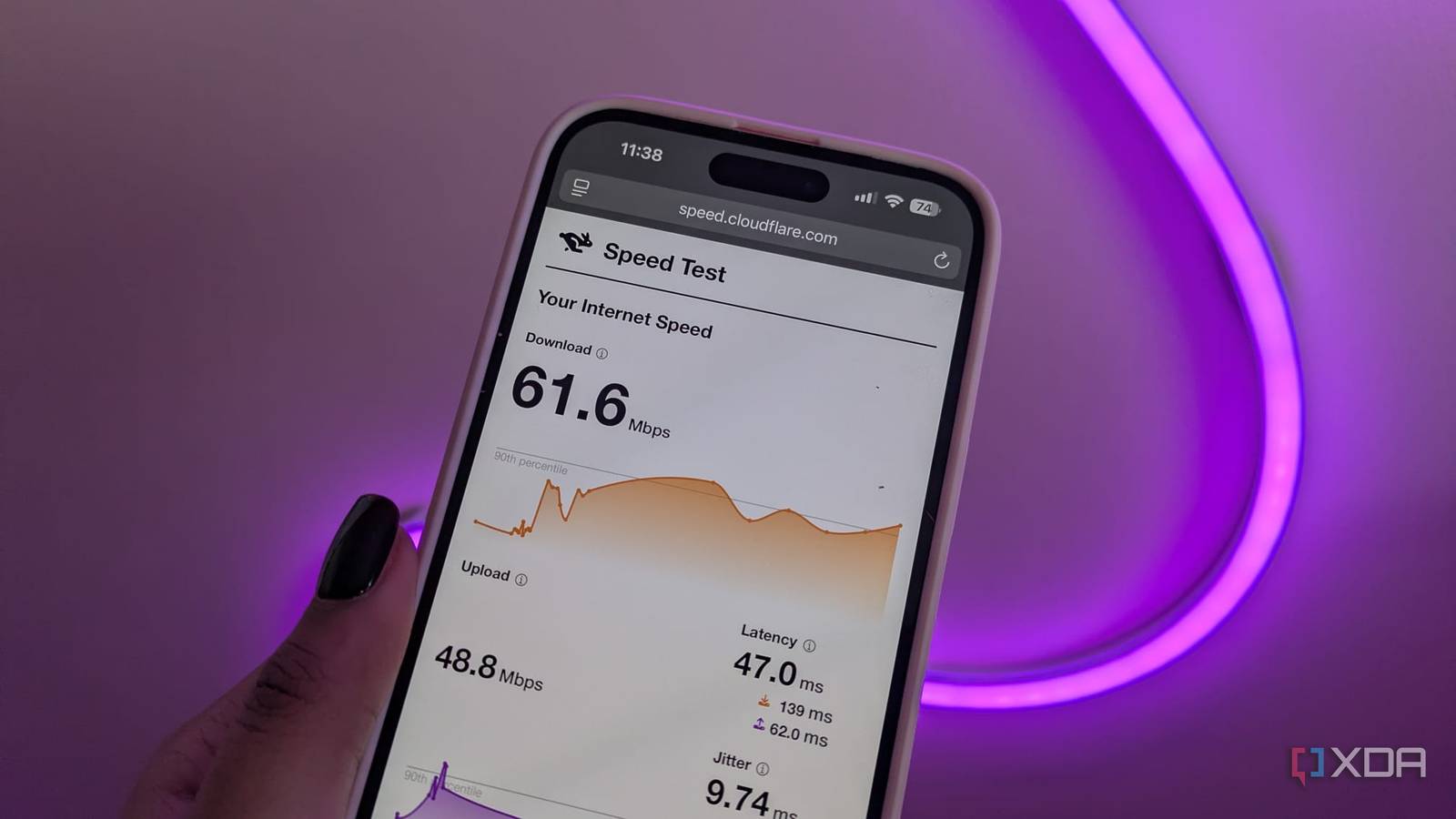
Let’s say you have a gigabit internet plan, but your speed is, say, 940 megabytes per second. When you join a Zoom call, it still freezes and when you’re in-game, you’re experiencing lag.
The problem is that basic speed tests are like checking a car’s top speed on a professional track. They don’t actually tell you how the car handles a bumpy road. That’s why I went hunting for a much better solution and came across a speed test from Cloudflare. It’s the diagnostic tool that nobody mentions because it provides raw data that most internet service providers would rather you didn’t see.

This internet speed and uptime tracker helps me keep my ISP accountable
Reliable internet is non-negotiable. Track your speed, pinpoint issues, and keep your ISP accountable with this simple, self-hosted Docker solution.
The perks of Cloudflare
It’s so much more than a standard speed test
One of the most important statistics that Cloudflare measures is jitter. Basic tests give you a single ping number, which is normally meant to be an indicator of how much latency you are experiencing. Cloudflare, on the other hand, measures jitter, which is the variation in that ping over time. This matters significantly because high jitter is likely why your voice sounds like a robot on Discord, even if your internet speed is high.
If you run a speed test and find that your download is fast, but your jitter is over 20ms, it’s likely that your Wi-Fi channel is congested, or your router is struggling with bufferbloat.
Another amazing statistic that Cloudflare provides you with is loaded versus unloaded latency. Most tests measure latency when your network is idle, meaning it’s unloaded; however, Cloudflare provides you with this and then also measures your network whilst it’s working, known as loaded. This explains why your ping spikes to 400ms the moment someone else in the house starts Netflix.
Extreme Cloudflare’s latency during download/upload metrics allow you to see exactly how much your router chokes under pressure, a phenomenon known as buffer bloat. This way, you can see if other people using the internet in your house are what’s actually causing your ping to spike and can hopefully allow you to rectify your congested Wi-Fi.
You also get information about packet loss. It provides you with a specific packet loss percentage and a network quality score. Packet loss is often a sign of physical interference, like a microwave or a wall, or even a faulty or failing Ethernet cable. Instead of just guessing if you’re experiencing packet loss, you can now move your laptop room by room and watch the packet loss metric to find the exact dead zones in your mesh system or specific devices that are interfering with your Wi-Fi network.
You also get a test of multiple file sizes. Standard tests often use one large file to test your upload and download speeds. Cloudflare tests small files (which are 100 KB), medium files (which are 10MB), and large (25MB plus) chunks. Some Wi-Fi issues only appear during bursty traffic, like loading a web page, rather than sustained long large downloads. Cloudflare’s breakdown shows you whether your network is optimized for web browsing or just raw file transfers. If you find that your speeds drop significantly during smaller downloads, then it means that loading a web page might be a difficult task on your Wi-Fi.
Cloudflare provides you with so much more information over a standard internet speed test, meaning that you can properly identify what the issue is with your Wi-Fi and rectify accordingly rather than just having to guess.
How to use Cloudflare to its full potential
Don’t just run a single test, test again and compare

The best way to use Cloudflare for real diagnostics surrounding your internet is to start off by running a baseline. Connect your device via Ethernet to your router and see what your ISP is actually delivering when on a wired connection. Once you’ve run this test, make note of the results. Then compare it to Wi-Fi. Stand next to the router and run the test again and watch the unloaded latency. See what changes so you know if the issue is to do with your wireless connection rather than your wired connection.
You can then undergo a stress test by moving to your gaming desk or sofa and then look specifically at jitter and latency during download.
See if your Wi-Fi can reach these different corners of your home and if you’re experiencing things like packet loss or latency, it might be due to interference in the room.
If you’re experiencing jitter or lagging whilst you’re trying to download or play games, analyze the load spikes. If your latency jumps more than 15ms during the download phase, it’s time to enable Smart Queue Management on your router. This should hopefully rectify the issue.
What use are high down speeds if you’re always lagging?
Time to fix your jitter
Having high download speeds is great, but sometimes you’re better off chasing zero millisecond jitter and 0% packet loss rather than a 940MB per second download speed. Being able to download large files quickly can be helpful, but it’s absolutely useless if you’re lagging every time you try to play a game or if videos stutter whenever you try to load them.
Cloudflare’s tool turns a guessing game into a technical audit, making it significantly more advanced than alternative internet speed tests. If you want a better Wi-Fi connection, then you have to measure what matters.
