

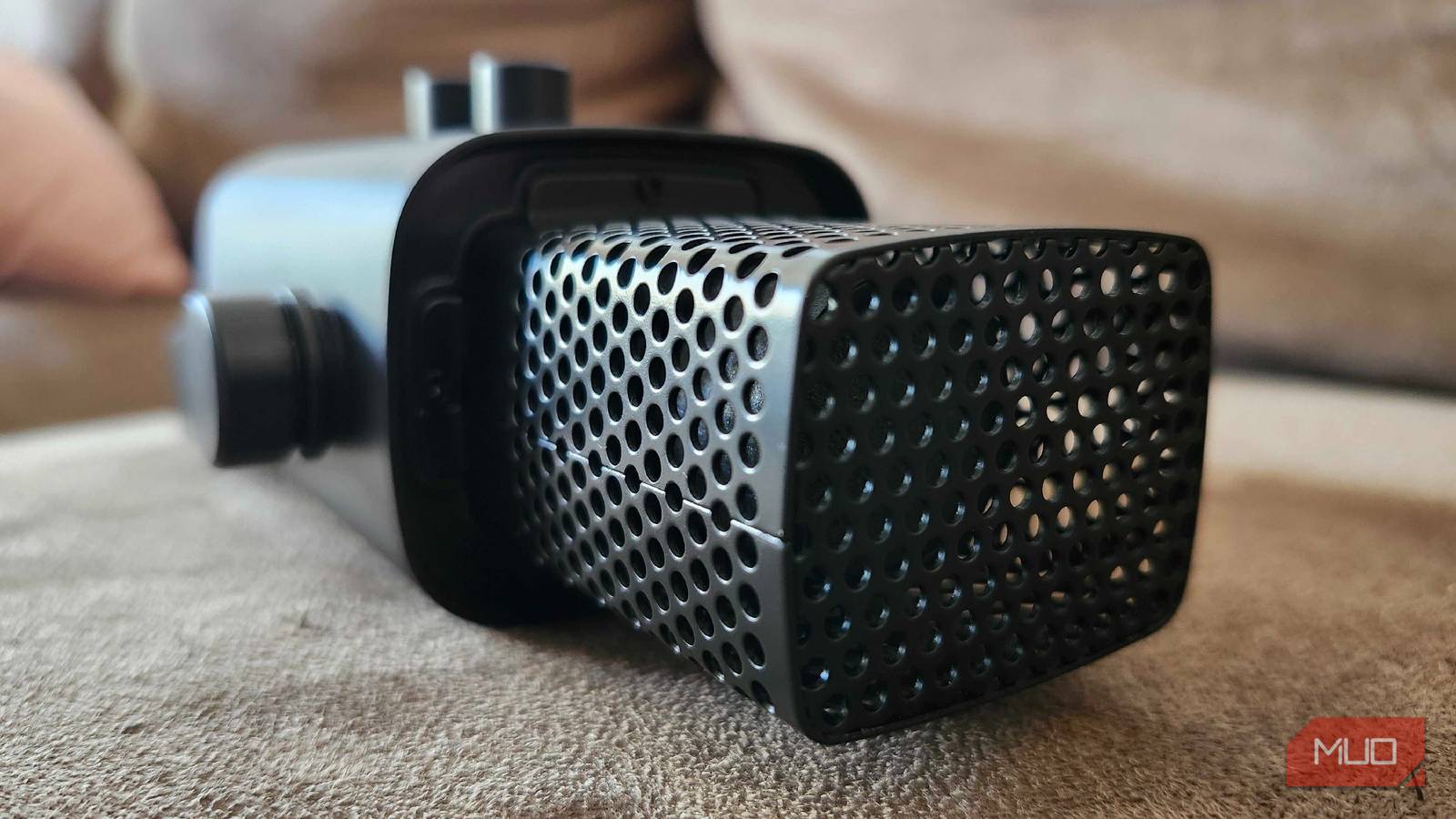
I’ve been using some form of voice communication on my desktop daily for the past few years. It doesn’t matter if I’m gaming, jumping into meetings, or just having a video call with my folks. There’s always something that I’m doing that requires me to bark at my PC in some capacity. But for whatever reason, my PC also loves to change the default communication device randomly, sometimes picking up my Meta Quest 3 as a headset and other times completely overriding my NVIDIA Broadcast setup with something else entirely.
I’m sick of it, I’m tired of it, and I need to do something about it. That’s why I was beyond stoked when I found a lightweight app that lets me swap my microphone without opening settings, has hotkeys, and can be launched natively as its own app. It makes life much easier, regardless of what I’m doing.
AudioSwitcher is a tiny, lightweight app
It’s easy to use, easier to configure, and simple enough to utilize

AudioSwitcher, as the name suggests, is an application that makes it easier to switch your audio input and output. Rather than needing to access the settings every time I need to change something system-wide, I can pop this app open and select from all of my available audio devices. Throughout the day, I’m typically wearing a pair of headphones so I can blast my favorite music, and annoyingly enough, Windows never recognizes when I turn them on. Now, I can just jump in and click the correct option and get right to work.
But, more importantly, I can immediately set my favorite audio input to be the system default via AudioSwitcher. I have a Fifine microphone running NVIDIA Broadcast for clarity in calls, and I like to use my standard mic headset for in-game chat with games like RUST, so I can yell at my friends in-game while keeping a conversation going on either Discord or TeamSpeak. Seeing as I’m running my own private server off a mini PC for the game, and we have warring groups of players, keeping my friends close and my enemies closer is a very important thing.

4 USB gadgets that every PC user should keep on hand at all times
You’ll never know when you’ll need them until you need them.
Setting hotkeys for switching audio is simple
I can swap between my headset and my stand-alone mic with a few keys
One of the most annoying parts of my PC is that it will randomly detect the Meta Quest 3 that has been sitting in its charger for months and determine that it needs to become the default audio device for my computer. The same can be said about my webcam, which also features a tinny, nasty little microphone. It’s incredibly annoying, and instead of going into settings once a week to swap it, I can set hotkeys within AudioSwitcher to automatically set a microphone as the system default.
This seems more like a Windows issue than anything, but we already know that it isn’t going to be fixed anytime soon. So we have to take it into our own hands. This hotkey feature works for both input and output audio, so if you want to set your computer speakers as the default once you’ve logged off from your favorite game for the day, you can easily do so. It’s very intuitive, very easy to use, and has become just as second nature as any of the other shortcuts I use on a daily basis.
The system tray switcher is genius
If you don’t want to remember hotkeys, AudioSwitcher has your back
I love keyboard shortcuts. They make my life simpler when I’m doing daily tasks, but for those who don’t like them or forget they exist? AudioSwitcher has you covered with another fantastic function — the ability to set a System Tray icon that lets you click and immediately change your audio source. It’s so painfully simple, and, shockingly, Windows doesn’t have an immediately easier option available to its users.
As you can see, I have many different audio options available to my PC. Anything from my Oculus Virtual Audio Device to my daily-driver ROG Pelta headphones. By clicking on this System Tray icon, I can quickly swap to any of the other available audio options or troubleshoot why my audio isn’t coming from where I expect it to be coming from. Accessibility features like this make me love a program, and I’m all in on AudioSwitcher.
If you don’t have a ton of audio options, this one may not be for you

As much as I love AudioSwitcher and what it can do for me, I know it may not be the perfect tool for everybody. But, for those who struggle with the curse of “Far Too Many Things” on their PC, it could work wonders. If you’re just a typical user and don’t have multiple microphones or audio outputs on your computer, it may not be a necessary download.
But I still suggest checking it out. Even if you only have a couple of things on your computer, this may quickly become one of your most used applications. A little bit of tinkering can ensure that you’re always properly connected when you need to be, and can save a Google Meet call from sounding terrible, due to your computer trying to use your webcam or internal microphone for the call audio instead of your higher-quality microphone or headset.
A simple solution to a silly problem
I’m glad people make niche apps for situations like this
For some folks, an application like this may be nothing. But for people like me, and plenty of others out there, this niche application is the solution to a major problem that I face regularly. It’s also inspired me to start searching for more applications of a similar variety, ones that will help my daily PC use become even better than ever before.
AudioSwitcher makes all of my audio woes melt away, and I’m sad that I didn’t know about it before. It’s beyond easy to use, and it’s made one of my biggest pain points completely melt away. If you’re anything like me and struggle with getting your PC to stick with one audio source, or you don’t want to stumble through multiple menus to change something around, I strongly suggest giving AudioSwitcher a permanent spot on your PC.

- OS
-
Windows
- Developer
-
Sean Chapman
- Individual Pricing
-
Free
- Pricing model
-
Open-Source/Free
