

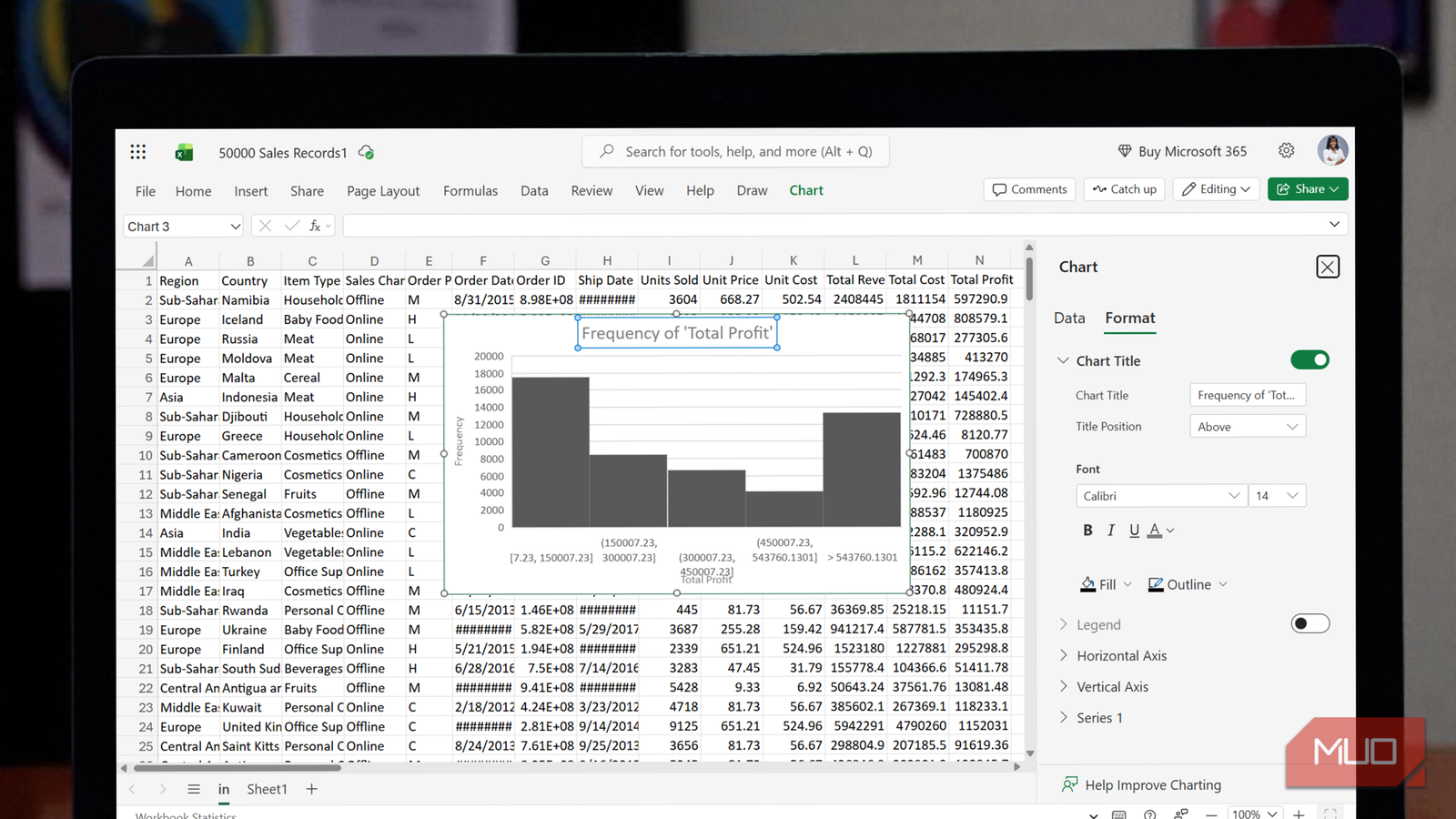
When you create a chart in Excel, you get a clean, standard design that does a decent job of presenting your data. Right after inserting the chart, the ribbon also surfaces a set of recommended, pre-styled themes that let you tweak the look and feel. These options are quite useful for quick adjustments.
That said, those presets rarely go far enough. If you want your charts to be instantly readable and tailored to the specific point you’re trying to make, you’ll almost always need deeper customization. This is where the chart format pane comes in. Whether I’m adjusting the spacing between bars, fine-tuning axis scales, or controlling how labels and grid lines behave, the Format Pane gives me the most precise control Excel offers. Best of all, it’s always just a right-click away.
The chart format pane is Excel’s real chart control center
The chart format pane isn’t immediately obvious when you create a chart. Unlike the ribbon buttons that appear as soon as a chart is selected, this pane needs to be deliberately opened. Simply right-click any chart element, such as the chart title, an axis, a data series, or the legend, and select Format …. The pane then appears on the right side of the Excel window, displaying settings that are specific to whatever element you selected.
For example, when you right-click the horizontal axis and choose Format …, the pane loads with axis-related controls like bounds, units, tick marks, and number formatting. With the pane still open, you can click a chart column and immediately switch to data series options, including fill colors, border styles, and other series-specific controls. Because the pane automatically updates based on what you click, you never have to guess which ribbon tab holds the setting you need.

How to Show or Hide Chart Axes in Excel
Tired of cluttered charts? Learn how to show or hide chart axes in Excel to make your data look clean and professional.
Within the pane, you’ll see up to five icons, depending on your version of Excel: Fill & Line, Effects, Size & Properties, Axis Options, and Series Options. While their layout may vary, most versions offer essentially the same controls. For instance, the Fill and (Out)line options control colors and borders, while Labels appear when you’re working with text elements. Axis Options is where you adjust scale-related settings; the vertical axis, in particular, allows you to set minimum and maximum bounds and choose from three major and minor tick mark types. You may also see Text Options at the top of the pane.
I typically use Excel Online because it’s lighter and better suited for on-the-go work. Its interface is different, with chart elements located at the top and these settings nested within each element. Even so, it provides nearly the same range of customization options as the desktop version.
In any version of Excel, you can select one chart element, adjust its settings, and then move directly to another element without closing the pane. This makes it much easier to apply coordinated changes across an entire chart. For instance, if you want all chart text to use Arial, you can select the title and apply the font through the pane, click the horizontal axis and do the same, and then repeat the process for the vertical axis and legend.
I can change fonts through the format pane in Excel Online, but I’m unable to do so on my desktop. Your desktop version may offer these options, so it’s worth exploring to see what’s available.
Each selection you make refreshes the pane’s contents while keeping you in the same interface. Compared to the ribbon-based approach, where you often need to re-select elements and dig through menus for each change, the Format Pane makes multi-element formatting far more efficient.
Chart elements that improve the most inside the format pane
Axes, data series, grid lines, and legends
Although the format pane works with every chart element and every chart type in Excel, some components benefit far more from its level of control than others. Take a column chart that compares Total Cost and Total Profit as an example. Under data series formatting, you get access to series-specific options for each variable, including fill colors, outline settings, and toggleable features such as data labels, error bars, and trend lines. Being able to adjust these settings on a per-series basis makes it much easier to highlight differences without overloading the chart.
Grid lines are another element that improves significantly when adjusted through the format pane. Under both the horizontal and vertical axis settings, you’ll find a Major Grid lines toggle. Grid lines help viewers map values back to the axes, but too many can introduce noise. The pane lets you enable grid lines on the vertical axis while keeping them disabled on the horizontal axis, or vice versa, depending on what best supports your data. You can also fine-tune their appearance using the same Fill and Outline controls applied to other chart elements.

How to Make a Grid Chart in Google Sheets
Are you wondering what a grid chart is and how you can create one in Google Sheets? Find out here!
Legend positioning is also more precise when handled through the Format Pane than through the ribbon’s quick commands. In addition to standard placements at the top, bottom, left, or right, the pane includes an overlay option. This setting is especially useful when chart space is limited, such as in dashboards or compact reports, because it places the legend inside the plot area without increasing the overall chart size.
The Format Pane also makes it much easier to align charts with corporate branding or publication standards. Instead of relying on Excel’s default blue-and-orange color palette, you can select each data series, open the Fill & Outline section, and apply exact RGB values or theme colors. You can also set specific font types and sizes for each text element, ensure consistent border weights across the chart, and apply subtle effects such as shadows, resulting in a more polished and professional Excel chart.
Beyond formatting, the chart format pane offers you even more control. For instance, under vertical axis formatting, you can enable logarithmic scales for exponential data and set reverse value order. The Format Code field under the Number option is set to General by default, but you could apply currency formatting, percentages, or custom number codes, all without leaving the pane or opening secondary dialog boxes.
Just right-click and fix your chart in minutes
By consolidating hundreds of formatting options into a single, persistent, and context-sensitive panel, Excel removes much of the friction that makes chart cleanup feel harder than it needs to be. There is a brief learning curve, but once you internalize the habit of right-clicking to open the Format Pane, you gain direct control over nearly every visual detail, from axis bounds and grid line styling to series colors and legend placement.
Your charts will look more professional and communicate more clearly, without spending unnecessary time wrestling with Excel’s interface just to get them there.
