


Introduction
Have you ever had friends or family over, and the first thing they asked was, “What’s your WiFi password?” If so, you’re not alone. Today, internet access is as essential as water or electricity. But sharing your home WiFi network can also create risks — like slowing down your connection or exposing your private devices to potential security issues.
That’s where a guest WiFi network comes in. Setting up a dedicated WiFi for visitors allows them to browse, stream, or connect their devices without affecting your personal network. Think of it as giving guests a separate key to your house that only opens the living room, not every room.
In this article, we’ll walk you through how to set up a guest WiFi network, why it’s important, and the exact steps you can follow, whether you’re using a modern router, a mesh WiFi system, or an internet provider’s gateway.
Why You Should Have a Guest WiFi Network
Before diving into the setup, let’s explore why it’s worth having one:
-
Protects Your Main Devices
A separate guest network keeps your personal laptops, smartphones, printers, and smart devices safe from visitors’ devices that may carry malware. -
Keeps Internet Speed Balanced
You can limit how much bandwidth the guest WiFi uses so guests don’t slow down your Netflix binge. -
Convenience for Visitors
No need to share your main password or change it later. Guests have their own simple login. -
Parental Control Benefits
If your kids’ friends visit, you can easily keep their access separate and under control. -
Professional Look
If you run a small business, guest WiFi makes your service look professional and customer-friendly.
Step 1: Check if Your Router Supports Guest WiFi
Most modern routers come with built-in guest WiFi features. But not all routers have them.
Here’s how you can check:
-
Look at the back of your router for model details.
-
Visit the manufacturer’s website and search for your router’s specifications.
-
Login to your router’s settings (usually by typing 192.168.1.1 or 192.168.0.1 into a browser).
-
Look for Wireless Settings → Guest Network or something similar.
If your current router doesn’t support guest WiFi, you might want to:
-
Upgrade to a new router.
-
Use a mesh WiFi system like Google Nest, TP-Link Deco, or Eero, which usually includes guest network options.
Step 2: Access Your Router’s Settings
To set up a guest WiFi, you’ll need to log into your router:
-
Connect your device to your WiFi.
-
Open a browser and enter your router’s IP address (commonly 192.168.1.1).
-
Enter your username and password (found on the back of the router or in your ISP’s setup guide).
-
Once inside, find the Wireless or Network settings tab.
⚠️ Tip: Change your router’s default admin password to avoid security risks.
Step 3: Enable Guest WiFi
Now that you’re in the router’s settings:
-
Find Guest WiFi or Guest Network settings.
-
Toggle it ON.
-
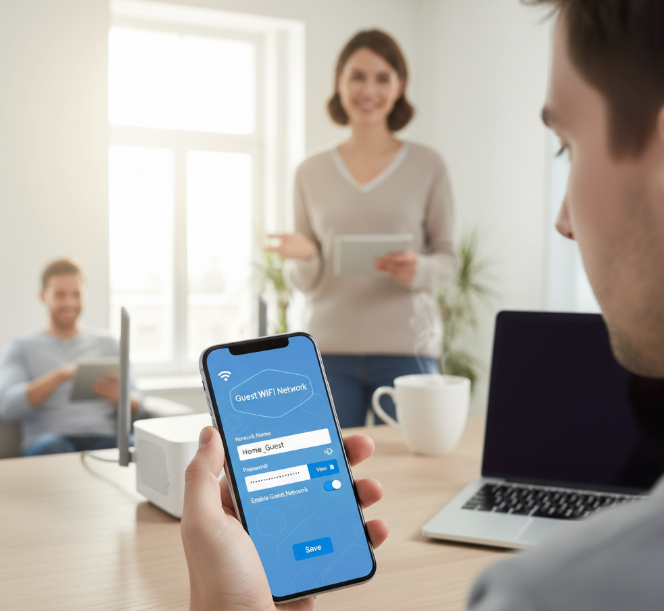
Enter a network name (SSID). For example: “SmithHome-Guest”.
-
Set a WiFi password (never leave it open — we’ll explain why below).
Step 4: Secure the Guest Network
Security is the most critical part. Here’s how to keep your guest WiFi safe:
1. Choose the Right Security Protocol
-
Always select WPA3 if available (most secure).
-
If not, use WPA2.
-
Avoid WEP — it’s outdated and easy to hack.
2. Create a Strong Password
-
Use at least 12 characters.
-
Mix letters, numbers, and symbols.
-
Example:
Coffee4Guests!2025
3. Disable Guest Access to Local Devices
-
In the router settings, ensure guests can’t access shared files or printers.
-
Look for options like “Allow guests to access local network” → turn it OFF.
Step 5: Limit Bandwidth and Usage
Guests don’t need full access to your internet speed. Limiting bandwidth keeps your connection stable.
-
Enable Quality of Service (QoS) settings if your router has it.
-
Set a speed limit for guest WiFi (e.g., 10 Mbps).
-
Restrict the number of devices (e.g., max 5 at a time).
Step 6: Customize Guest WiFi Settings
Here are some extra customization options to make it guest-friendly:
-
Schedule Access: Allow guest WiFi only during certain hours (e.g., daytime only).
-
Easy SSID Naming: Use clear names like “HomeGuestWiFi” instead of random codes.
-
QR Code Login: Generate a QR code so guests can connect by scanning instead of typing a password.
Step 7: Test Your Guest WiFi
Once everything is set up:
-
Disconnect your device from your main WiFi.
-
Connect to the guest WiFi network.
-
Test browsing, streaming, and speed.
-
Confirm you cannot access your main devices like printers or shared files.
How to Set Up Guest WiFi Network
Table: Key Differences Between Main WiFi and Guest WiFi
| Feature | Main WiFi Network | Guest WiFi Network |
|---|---|---|
| Access to devices | Full access (printers, PCs, IoT) | Restricted, internet only |
| Password security | Private, complex password | Simple, shareable password |
| Bandwidth control | Full usage | Can be limited |
| Purpose | Personal, family devices | Visitors, customers |
| Security risk | Higher if shared | Lower (isolated) |
Common Mistakes to Avoid
-
Leaving it Open (No Password): Free WiFi attracts unwanted users from outside your home.
-
Using the Same Password for Both Networks: Defeats the purpose of separation.
-
Not Monitoring Connected Devices: Check router logs occasionally.
-
Ignoring Firmware Updates: Old router firmware can create vulnerabilities.
Extra Tips for Businesses Setting Up Guest WiFi
If you run a café, salon, clinic, or office:
-
Brand Your WiFi: Name it after your business (e.g., “CafeMocha-FreeWiFi”).
-
Add Captive Portals: Show a welcome page with your logo, rules, or promotions before access.
-
Time Limits: Allow free access for 1-2 hours only.
-
Collect Insights: Some systems allow you to capture emails for marketing (with consent).
Infographic: 5 Steps to Safer Guest WiFi
(Visual Representation Idea)
-
Enable Guest Network
-
Secure with WPA2/WPA3 + Password
-
Disable Access to Main Devices
-
Limit Speed & Devices
-
Share via QR Code
Frequently Asked Questions
1. Can I set up a guest WiFi without a router that supports it?
No, but you can create a separate WiFi using an extra router or a mesh system.
2. Should I keep my guest WiFi open for convenience?
Never. Always set a password to prevent strangers from using it.
3. Will guest WiFi slow down my main internet?
Not if you set bandwidth limits properly.
4. Can I monitor who uses guest WiFi?
Yes, most routers show a list of connected devices.
Conclusion
A guest WiFi network isn’t just a luxury — it’s a smart security step. By setting one up, you:
-
Keep your personal devices safe.
-
Give visitors hassle-free internet access.
-
Control speed and usage for better performance.
Whether it’s at home or in your business, offering guest WiFi makes life easier while keeping you in control. So take a few minutes today, log into your router, and set up your separate guest network — your future self (and your guests) will thank you.
