

Introduction: Why Screen Recording Matters Today
In today’s digital world, recording your smartphone screen has become more than just a cool trick. Whether you want to capture gameplay, create a tutorial for your friends, save an online lecture, or even record a video call, screen recording makes it easy. Both Android and iPhone now come with built-in tools that make this task simple, and there are also advanced third-party apps for extra features.
If you’ve ever asked yourself, “How can I record my screen on Android or iPhone without struggling with confusing apps?”, this article will walk you through every method step by step. By the end, you’ll know exactly how to screen record on any device, when to use built-in tools, and when to switch to third-party apps.
What You’ll Learn in This Guide
-
How to use built-in screen recorders on Android and iPhone
-
Third-party apps that give you advanced recording features
-
Tips for better quality recordings (smooth video and clear audio)
-
Settings to adjust before recording
-
Common mistakes to avoid when screen recording
Screen Recording on Android
Android phones from brands like Samsung, Xiaomi, Oppo, Realme, and OnePlus now come with built-in screen recorders. But depending on your device and Android version, the steps may differ slightly.
Method 1: Using the Built-in Android Screen Recorder
Most phones running Android 11 and above have a built-in screen recorder.
Steps:
-
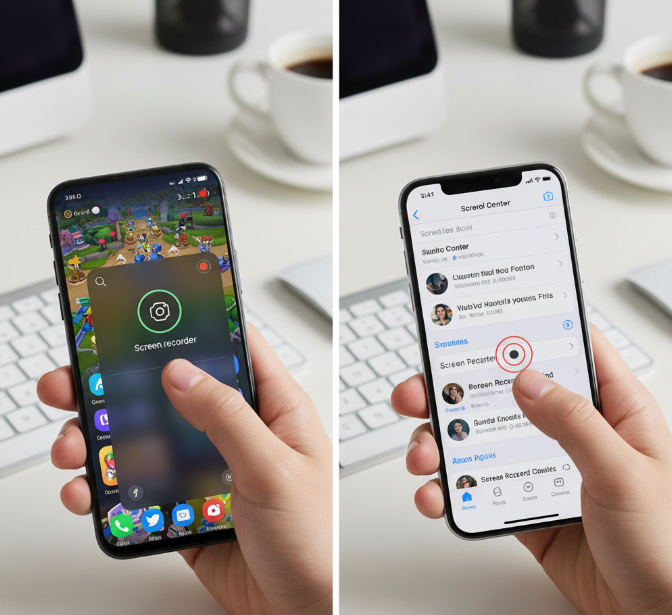
Swipe Down from the top of your screen to open Quick Settings.
-
Look for the Screen Record option (sometimes called “Screen Recorder”).
-
Tap the icon – a pop-up will appear asking if you want to record with sound or without sound.
-
Choose between:
-
No sound
-
Media sounds (only in-app audio)
-
Microphone (external sound)
-
Media + Microphone (both)
-
-
Tap Start. A countdown (usually 3 seconds) begins.
-
To stop recording, tap the red stop icon in the notification bar.
✅ The video is automatically saved in your Gallery/Photos app.
Method 2: Screen Recording on Samsung Phones
Samsung’s One UI has its own built-in recorder with extra features.
-
Go to Quick Panel > Screen Recorder.
-
Choose Sound settings (media, mic, or none).
-
Select Video quality (480p, 720p, or 1080p).
-
Tap Start Recording.
-
You can even use the front camera to show your face in a bubble while recording gameplay.
Method 3: Screen Recording on Xiaomi, Oppo, Realme & Other Brands
Most Chinese brands (Xiaomi/MIUI, Oppo/ColorOS, RealmeUI) include a dedicated Screen Recorder app.
-
Open the Screen Recorder app from the tools folder.
-
Tap the record button.
-
Adjust settings like resolution, frame rate, and orientation.
-
Start recording.
This gives you more customization than stock Android.
Best Third-Party Screen Recording Apps for Android
If your phone doesn’t support built-in recording, or you want more features, these apps are great:
| App Name | Key Features | Free / Paid |
|---|---|---|
| AZ Screen Recorder | No watermark, live streaming, high-quality recording, internal audio (Android 10+) | Free / Pro ($2.99) |
| Mobizen Screen Recorder | Facecam, video editing, GIF maker | Free |
| XRecorder by InShot | No time limit, records system audio, floating controls | Free / Paid |
| ADV Screen Recorder | Draw on screen, pause & resume option | Free |
Screen Recording on iPhone
Apple made screen recording simple with the iOS Control Center tool. No need for third-party apps unless you want editing extras.
Method 1: Enabling the Built-in Screen Recorder on iPhone
Before recording, you need to add the Screen Recording button to your Control Center.
Steps:
-
Go to Settings > Control Center.
-
Scroll down and tap the green plus (+) next to Screen Recording.
-
Now, swipe down (iPhone X and later) or swipe up (older iPhones) to open Control Center.
-
Tap the Record icon (circle inside a circle).
-
A 3-second countdown starts, then recording begins.
-
To stop, tap the red status bar at the top and select Stop.
The recording saves directly to the Photos app.
Method 2: Recording Screen with Audio on iPhone
By default, iPhone records internal audio only. To add microphone sound:
-
Long-press (or force touch) the Record icon.
-
Tap Microphone On.
-
Start recording.
Now, your voice and in-app audio will be captured together.
Method 3: Editing Screen Recordings on iPhone
After recording, you can trim or edit the video:
-
Open the Photos app.
-
Select your screen recording.
-
Tap Edit.
-
Drag the sliders to trim the beginning or end.
-
Save as New Clip or overwrite the old one.
Best Third-Party Screen Recording Apps for iPhone
While the built-in recorder is enough for most people, you can try these apps for advanced use:
| App Name | Key Features | Free / Paid |
|---|---|---|
| Record It! | Facecam reactions, easy sharing to YouTube | Free / Pro |
| DU Recorder | Livestream to Facebook/YouTube, no watermark | Free |
| TechSmith Capture | Perfect for tutorials and app demos | Free |
Comparing Screen Recording on Android vs iPhone
| Feature | Android | iPhone |
|---|---|---|
| Built-in Tool | Yes (Android 11+) | Yes (iOS 11+) |
| Audio Options | Internal, mic, both | Internal, mic, both |
| Custom Quality Settings | Available on Samsung, Xiaomi, etc. | Limited (only one resolution) |
| Facecam Option | Some brands support | Needs third-party apps |
| Editing Tools | Varies by phone | Built-in trimming in Photos app |
Pro Tips for High-Quality Screen Recordings
-
Set resolution & frame rate – For smooth gameplay, use 1080p at 60fps.
-
Enable Do Not Disturb Mode – Prevents calls or notifications from ruining recordings.
-
Keep storage free – Videos can take up large space (1 min ≈ 50–100 MB).
-
Charge your phone – Screen recording consumes more battery.
-
Use a tripod or phone stand if showing your face with facecam.
-
Edit before sharing – Remove mistakes or add text using apps like InShot or CapCut.
How to Record Screen on Android / iPhone
Common Mistakes to Avoid
-
❌ Recording in low resolution (blurry video)
-
❌ Forgetting to enable microphone when explaining something
-
❌ Not clearing notifications → they get captured in your video
-
❌ Recording with low storage → video may stop midway
-
❌ Holding the phone vertically when horizontal view is better
Real-Life Uses of Screen Recording
-
🎮 Gamers record gameplay for YouTube or TikTok.
-
🎓 Students record online lectures or tutorials.
-
👨🏫 Teachers create quick lessons to share with students.
-
📱 App developers make demo videos.
-
📞 Families save special video calls.
Quick Comparison Table: Built-in vs Third-Party Apps
| Feature | Built-in Recorder | Third-Party Apps |
|---|---|---|
| Easy to use | ✅ Yes | ✅ Yes |
| Free | ✅ Yes | Mostly |
| Advanced settings | ❌ Limited | ✅ Many options |
| Facecam recording | ❌ Limited | ✅ Yes |
| Live streaming | ❌ No | ✅ Some apps support |
Conclusion: Screen Recording Made Simple
Recording your smartphone screen has never been easier. Both Android and iPhone come with reliable built-in tools that cover basic needs. If you want more power, such as facecam overlays, live streaming, or advanced editing, third-party apps like AZ Screen Recorder or Record It! are excellent choices.
Whether you’re a gamer, a student, or just someone who wants to save important moments, screen recording is a skill you should master. With the steps and tips in this guide, you now know how to record your screen like a pro — no matter which device you use.
