

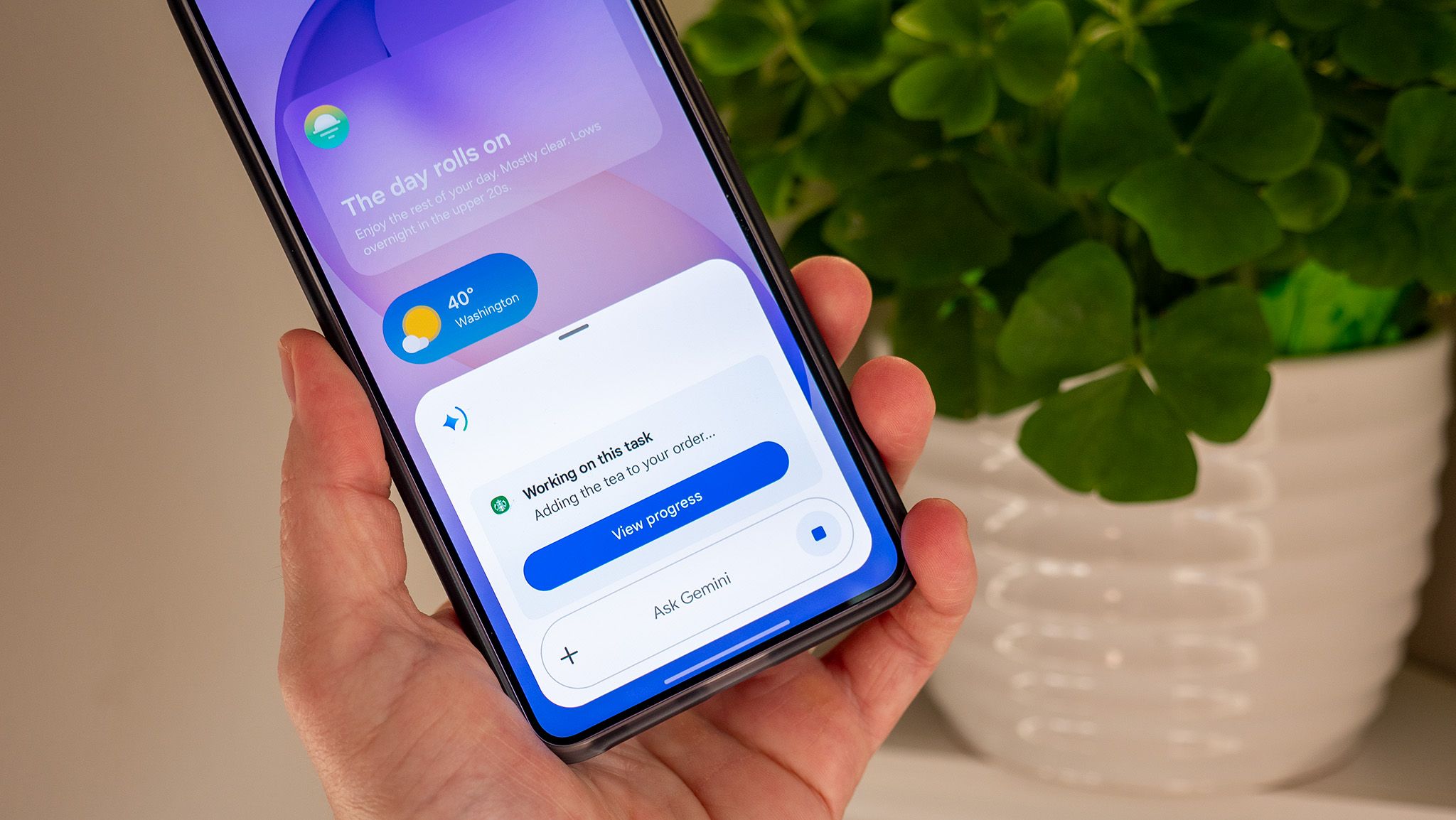
Google and Samsung announced a mind-blowing automation feature at the Galaxy S26’s unveiling that simply sounded too good to be true. In short, Gemini could automatically order things for you, from an Uber or Lyft, to entire meals at places like McDonald’s and Starbucks. That feature just launched today, and there was no way I was waiting to try it.
To test this out, I unlocked my Samsung Galaxy S26 Ultra and asked Gemini to “order a tall Medicine Ball tea from the nearest Starbucks for pickup.” I specifically used “Medicine Ball” for the name to see if I could trip it up, as that’s not the drink’s official name.
Article continues below
Next level automation is here

If Galaxy S26 Ultra is running One UI 8.5 with the February 2026 security patch, you’re all set to try out Gemini automation. To get started, you’ll just need to use Gemini to make the query and use a personal Google account. Work or school accounts don’t support automation at this time.
The Gemini app also provides a list of supported apps on your phone. As of launch, popular apps like Lyft, Uber, Grubhub, DoorDash, Uber Eats, and Starbucks are supported, and Google will regularly add to this list, with planned rollouts to services like Instacart coming soon.
How to set up screen automation in Gemini
Here’s how to make sure screen automation is enabled and check the list of supported apps installed on your phone:
1. Open the Gemini app from your app drawer or home screen.
2. Tap on your profile picture on the top right.
3. Scroll down to the bottom of the list and tap Settings.
4. Select Screen automation from the list.
5. Select your permission level for screen automation. The default is to “ask every time.”
6. Review the list of supported installed apps at the bottom of the screen automation section.

Note that the list of supported apps Gemini will show you is seemingly based on the apps you have installed on your phone.
How to ask Gemini to order food, rideshares, etc. using screen automation
Now that you know what apps can be used, you can quickly and easily order something using Gemini. What’s particularly wild is that you can chain Gemini commands together to get the job done. For example, if you have a group text going that talks about dinner options, you can ask Gemini to order food for everyone in the chat, and it’ll read the chat and ask you any follow-up questions that might be necessary to complete the order.
Here’s how the flow typically works:
1. Call up Gemini your normal way, like saying “hey Google” or holding the power button.
2. Ask Gemini to order your favorite meal, a special drink, or even have it handle a group order by asking it to order what’s on screen.
3. Gemini may prompt you for screen automation permission, depending on the permission level you previously set. Accept it to continue (if applicable).
4. From here, you can continue doing something else on your phone while Gemini works in the background. To check the status, pull down your notification bar and tap View progress on the Gemini notification.
5. If you want to stop the task or take control at any time, tap the respective buttons while viewing Gemini’s real-time progress.
6. Once the order has been finalized, Gemini will ask you to review your cart and hit confirm. This will take you to the app to finalize the purchase.

If Gemini needs more information from you at any time during the progress, it’ll pause what it’s doing and prompt you. When I was ordering tea from Starbucks the first time, I forgot to specify the size and store location. Gemini realized this after I asked it to order the tea and followed up with me before making further choices.
Limitations and preferences
While the number of supported apps is limited right now, apps like GrubHub, DoorDash, and Uber Eats can all be used far more open-endedly than Starbucks, McDonald’s, Lyft, or Uber. You can say something fairly vague like “Order me 2 dinner entrees of vegetable korma and 4 samosas from the nearest Indian restaurant in the DoorDash app and have it ready for pickup.” It’s smart enough to understand what that means.
We’ve found that some tasks are a little too complex for it at present, though. It can’t call an Uber and make multiple stops, for instance. You can only request an Uber to go to one destination right now, but that kind of even more advanced functionality is almost certainly on the way.
But what’s really cool is that you can set default preferences to prevent Gemini from making mistakes with some more nuanced options. You can add a preference to “only order the cheapest Uber fare,” “only order gluten-free items,” or “only fly Delta in economy class,” for example. Here’s how to do that:
1. Open up the Gemini app from your app drawer or home screen.
2. Tap your profile picture on the top right.
3. Select Personal Intelligence from the list.
4. Scroll down to and select Instructions for Gemini.
5. Tap the Add button and describe your preference for any default order you might make.
6. You can review each preference and manage it by tapping the three dots next to each item, or delete all with the labeled button.

These preferences are permanently stored and always referenced by Gemini for each and every order or command you might make, so these personal preferences don’t just have to be for food or taxi requests.
Now that you’ve got screen automation set up, go hog wild with your requests next time you’re ordering out and see if Gemini’s newfound automation brings a little more helpfulness to your life.

The Galaxy S26 Ultra is Samsung’s most amazing flagship yet, packing an impressive Privacy Display along with more Galaxy AI smarts than you even knew were possible. Plus, thanks to Samsung and Google’s close relationship, new Gemini features are almost always available on Galaxy before other brands.
