

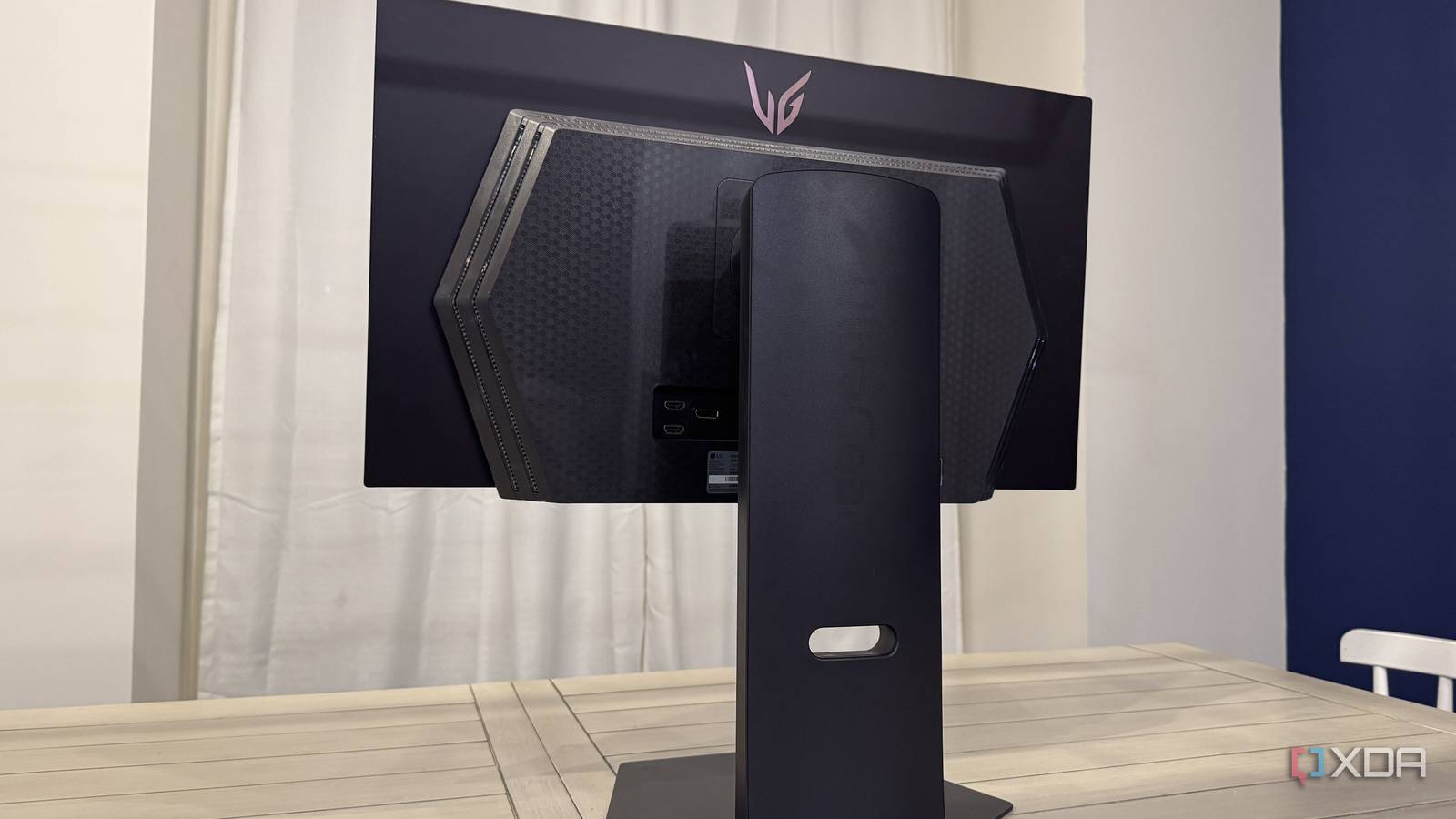
If you’re a PC gamer, you’ve probably already spent hours comparing spec sheets before deciding on a new monitor. You see manufacturers advertising the same things on the box every single time, from refresh rate and response time to HDR support and color coverage. If you’ve done it long enough, you start to feel like you can judge a monitor just by looking at those numbers. After all, a higher refresh rate means smoother gaming, and a lower response time means better clarity, right?
See, that’s the problem with gaming monitors in general. Two monitors can have identical specs, but feel completely different when you start gaming on them. That’s because the specs only tell you how fast they can go, not how consistent those pixel transitions are or how well the overdrive is tuned. And that matters a whole lot more than the advertised gray-to-gray response times on the box.

3 monitor specs that are often misleading and how to see past them
Don’t fall for marketing jargon
Pixel response matters more than “GtG” numbers
Good motion clarity is all about consistency, not peak response times

Monitor manufacturers love to advertise gray-to-gray response times. In fact, that’s usually the first thing you notice on the box. You’ll see 1ms or 0.5ms and immediately assume the panel is fast enough to handle motion well, especially at its rated refresh rate. But that number only tells you how fast the panel can be under ideal conditions, not how it actually behaves in real use. Think of it as a best-case scenario that only highlights the fastest transition the panel is capable of, which is usually a gray-to-gray transition.
The thing is, when you’re gaming, pixels aren’t just shifting between two shades of gray. They’re constantly jumping between different colors and brightness levels, and not all of those transitions happen at the same speed. Some are quick, others lag behind, and that inconsistency is what creates that slightly smeared or soft look in motion. So, for motion to look clean, those transitions need to be consistent across the board, not just fast in one specific case, and that’s something you’ll never know from the spec sheet.

Buying a gaming monitor? — Stop making these 7 mistakes
Make sure you’re buying the right display for your gaming setup
Overdrive tuning can make or break motion clarity
You need the fastest overdrive setting to get close to those advertised numbers

If you think you’re getting anywhere close to the advertised response times out of the box, you’re wrong. By default, most LCD monitors use the “Normal” response time setting, which is far from ideal if you want good motion clarity. At this setting, you’ll likely see motion blur during fast-paced scenes, which isn’t what you paid for. The fastest response time setting, however, is the most aggressive in terms of overdrive, and that has its fair share of drawbacks too.
For starters, you may notice inverse ghosting as a result of pixels overshooting their target values. So, instead of clean motion, you get visible trails behind moving objects, which is just as distracting as motion blur. What makes this even more frustrating is that an overdrive setting that works well at the monitor’s max refresh rate can fall apart the moment your frame rate drops or VRR kicks in. That’s why overdrive tuning matters so much on LCD panels. Over the years, I’ve learned to play it safe and avoid both these issues by settling for the second-fastest overdrive setting. Only a handful of LCD monitors actually make the fastest setting worthwhile.
None of this matters if you have an OLED
OLEDs already offer instant pixel response, but they have their own issues
The one thing I love about OLED monitors is that I don’t have to care about the spec sheet all that much beyond the refresh rate. OLED panels offer near-instant pixel response times (~0.03ms), and since they’re self-emitting, they’re far more consistent across transitions than even the best LCDs on the market. In fact, you won’t even find response time settings in the OSD because there’s simply no need for overdrive in the first place. Motion just looks great out of the box, which is why OLEDs are considered the holy grail of gaming monitors.
But that doesn’t mean OLEDs are perfect in every way. They have their own trade-offs that aren’t apparent from spec sheets alone too. And I’m not talking about image retention or screen burn-in, which most of you already know about. As someone who’s been using the Alienware AW3423DW since 2022, I can confidently say the biggest issue with OLEDs today is VRR flicker. It’s just as distracting as motion blur or inverse ghosting in darker scenes when frame rates aren’t stable. And it isn’t a one-off panel issue, either. I’ve experienced this across multiple OLED monitors, including the LG 27GR95QE and the Alienware AW2725DF.
It’s hard to judge a monitor by its specs alone
I’m not saying specs don’t help because they still give you a baseline for what a monitor is capable of. But two monitors that advertise the same refresh rate and response time can still handle motion very differently. You won’t know until you try them yourself, which is why I always watch in-depth monitor reviews on YouTube before making a decision. Even with OLED monitors making things easier in some ways, it still comes down to how a monitor feels in real use, not what it claims on the spec sheet.

- Resolution
-
3840 x 2160 (4K)
- Screen Size
-
27 inches
- Brand
-
Alienware
- Connectivity
-
3x USB-A 5Gbps, 1x USB-C 5Gbps
- Max. Refresh Rate
-
240Hz
- Response Time
-
0.03ms GtG
