

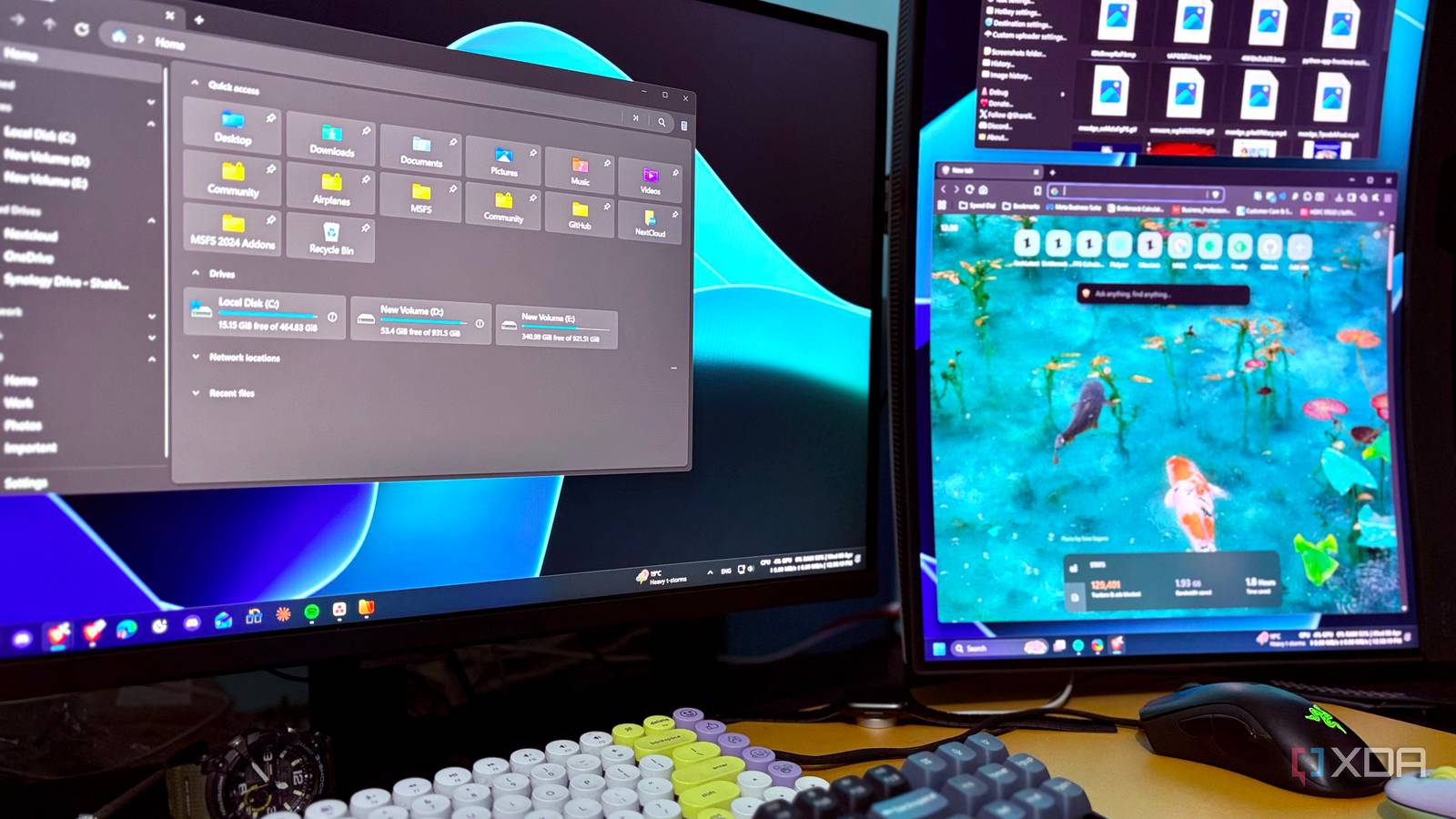
Even on capable hardware like a Ryzen 7 7700X, RTX 4070 Ti, and 32GB RAM, something always felt off. My Windows 11 PC wasn’t slow, but it didn’t feel fast either. There was always a subtle lag while opening apps and switching windows. Even opening the Windows Start menu and search functionality was responding unpredictably. The response wasn’t always consistent. The delay and lag didn’t make sense for the hardware I was using.
With my workload and dependence on my Windows PC, reinstalling the OS wasn’t an option for me. So, I decided to tweak a few default settings that were quietly affecting the responsiveness of the system. I wasn’t looking for better hardware benchmark scores, but for a snappier, more responsive experience in everyday use. The difference was immediate; nothing dramatic, but it was enough to make the system feel responsive again.

Microsoft says I can’t use my old CPU/laptop with Windows 11, but it’s actually fine
All those warnings turned out to be exaggerated
Less clutter, faster clicks

The first thing I noticed every time I opened my Windows PC was the cluttered Start menu. Many pinned apps, the recommended section, and recently added apps and games took up all the space on the screen. Most of the apps were either Microsoft bloatware or ones I didn’t use regularly. It didn’t directly affect performance, but it created friction while searching or opening an app.
The immediate solution was either to unpin all the unnecessary apps or uninstall the ones I never touched. It immediately made the Start menu more open, cleaner, and faster to navigate. Once that was done, the taskbar was the next obvious place to trim. The search bar, the Widgets, and the Resume feature all felt unnecessary to me.
Honestly, I’ve never used the search bar. If I wanted to search for something, I pressed the Windows key and started typing, and I think most people do the same. I never found the Widgets useful on the taskbar. Desktop widgets could have been a different story, but clicking on the Widgets bar just to get them felt like an extra step I didn’t need. And the Resume feature was on and off; it had its uses, but it wasn’t solving any real problems for me.
Speed isn’t always better performance; it’s also how quickly you can act. Performance-wise, it wasn’t much, but interacting with the Start menu felt better.
Windows animations were the real culprit
Looks smooth, feels slow

“I have a powerful PC, but it still sometimes lags while opening the Start menu, minimizing and maximizing windows, or switching between apps.” If this sounds familiar, you are not alone; the majority of Windows users experience the same. My system wasn’t slow in terms of raw power, but it wasn’t instant for basic Windows actions. I always felt a slight delay between actions and responses.
The issue wasn’t the raw system performance; it was the animations that were making it feel slow and laggy. Windows, by default, prioritizes visual smoothness over speed. The problem is that not every Windows user has high-spec hardware. I noticed micro-delays in tasks like opening the Start menu, switching apps with Alt + Tab, minimizing or maximizing windows, and opening apps. These micro-delays were stacking up, and every interaction felt a little bit slower with each new action.
Fortunately, Windows does give you the option to customize it. I stripped down most of the animations, turned off transparency, and only kept the essential visuals. At first, it felt a little dull, but the response time was almost instantaneous. It took a couple of days to adjust. The trade-off was worth it: instant response over visual polish, any day.
Startup apps were quietly killing responsiveness
The slowdown starts at boot

If you’ve invested good money building a Windows PC, waiting 2–3 minutes for it to boot feels like a waste. My PC wasn’t slow once it was running, but the boot time was long enough that it felt like I was always waiting. I had to wait for a few minutes every time before the PC was actually usable, because it was silently launching apps I never asked for.
Even when the system was responsive, the app opened slower than expected because the PC was busy settling down the background services. It felt like the system was busy even when I wasn’t doing anything. There were many apps that were launching; most of them weren’t something I needed right away, and a few I didn’t need at all.
Once I opened the startup apps section in the task manager, everything was clear. My system was trying to launch 40+ apps on every boot, some as a background service and others as full applications. I disabled everything nonessential and kept only 11 out of 46, the ones I actually needed on boot. On the next reboot, the system was ready to use as soon as I logged in. No more waiting for things to settle down.
Windows Search was making everything worse
Search shouldn’t feel this slow
Searching for something on Windows Search sometimes felt more tiring than just navigating to the folder myself. I was so frustrated with Windows Search that I even tried building a custom one for my PC.
The Start menu search is a centralized search functionality; it should be the fastest way to search and open anything, but in the latest versions of Windows, it is anything but that. I could never search and find something important quickly enough when I was in a hurry. The main issue I noticed was that the search now included local as well as web results, so basically, two searches were happening in a single query. This delayed the results and, at least in my experience, always prioritized web results over local ones.
Even on a fast PC, the search results were unreliable enough that I often had to search again just to be sure. There was always a pause before any results appeared, whether local or web. In older Windows editions, hitting the Windows key and typing was instant, but as Windows evolved, that habit stopped working the way it used to.
The first thing I did was disable the web results by adding a simple registry entry for Explorer (DisableSearchBoxSuggestions) to let Windows Search focus on local results only. And the difference was night and day. It felt different right away, but Windows being Windows, it didn’t stay consistent. The results were never constant. So I decided to move away from Windows Search entirely and installed Everything, which handled most of my searches. For day-to-day file and folder hunting, I kept using my custom-built search tool. Everything’s UI wasn’t modern, but it actually worked, and at that point, that was all that mattered.
The search was now more predictable and reliable and, most importantly, immediate. With search working instantly, the whole OS felt much faster.

Windhawk makes Windows 11 beautiful, but at a great cost
System stability is invaluable until you realize its fragility.
Small tweaks, big difference in feel
The difference after these small, quick tweaks was immediate. It didn’t make my PC faster on paper, but it cleared out the small delays that had been quickly stacking up and made everything feel more responsive. The animations and visuals do look modern, but Microsoft applies the same default settings across all hardware; it doesn’t matter whether you are on a budget build or a high-end rig.
The system felt cleaner and quicker, not because it was powerful, but because it was no longer holding itself back.

- Individual pricing
-
Free
- Platforms
-
Windows
Everything indexes all the files on your computer within seconds, and you can find any file or folder you are looking for quickly.
