

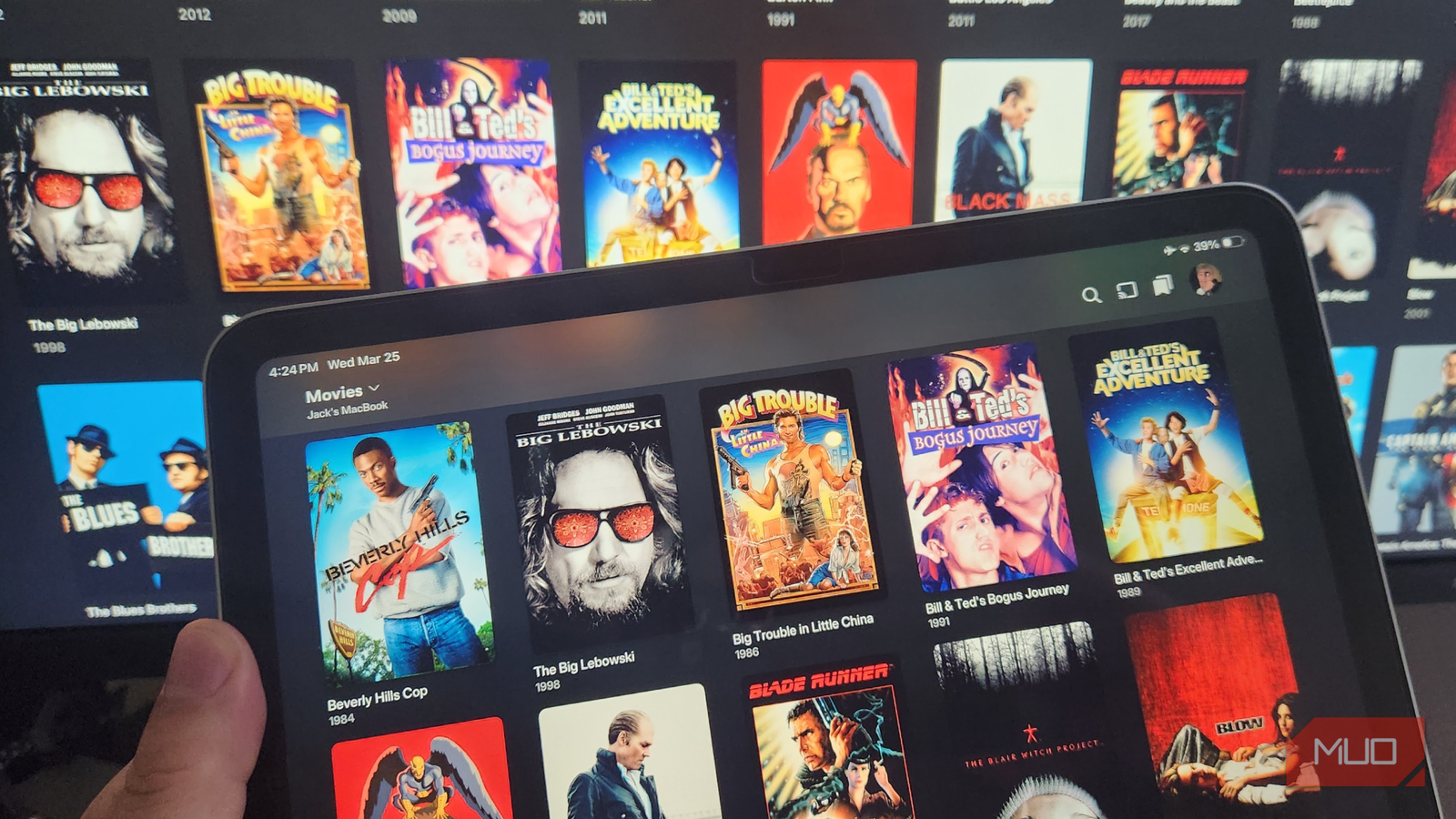
In the past, I’ve sat down to watch something on Plex, only to be met with endless buffering — and it turns out I’m not alone. A quick check on Reddit revealed scores of posts dating back years seeking help with this very issue. It’s especially annoying, as streaming apps are supposed to “just work” straight out of the box with minimal tweaking, regardless of the device or network conditions (although a few handy setup tips never hurt). However, as I found out, this lies at the root of the problem.
It turns out that, by default, my Plex server seemed overly cautious by lowering quality, forcing unnecessary transcoding, or using safe network settings, so while my hardware was perfectly capable and my internet was fast enough, my streams still stuttered. Thankfully, with a few small tweaks to the settings, I saw an immediate difference, with smoother playback, faster start times, and no buffering.

- OS
-
MacOS, Linux, Windows, iOS, Android
Plex is a powerful media management and streaming service that centralizes your personal media—like movies, music, photos, and TV shows—into one easy-to-access library. It also offers free streaming of movies, TV, and live channels, making it a versatile entertainment hub for all your content.
Adjust streaming quality limits
Changing remote and local quality caps can instantly reduce buffering
I found that Plex automatically lowered streaming quality to stay “safe” by default. However, setting streaming limits conservatively can lead to unnecessary transcoding (which converts media files into a format that’s playable in real time), even though the network can handle more.
To fix this, open Plex Web, go to Settings -> Remote Access, and enter your upload speed (I ran a speed test and set it slightly below my maximum). Then go to Settings -> Quality and set Remote streaming quality to a higher value or Original.
Then, on each playback device, open the Plex App, go to Settings -> Video & Audio, and set Local Quality and WiFi Quality to Original or Maximum.
Fixing the bandwidth in this way allows for direct play, so Plex doesn’t have to convert your media on the fly. This reduces strain on the server and makes your setup more efficient and stable.

7 Plex Apps Everyone Should Try Once
All you need to do is use these apps with Plex once to understand their value.
Manage transcoding behavior
Forcing direct play or direct stream can eliminate unnecessary buffering

Every time Plex converts a file into a different format or bitrate, transcoding (that same old culprit) adds processing overhead that can potentially cause buffering. In many cases, your playback device can already handle the original files—you just need to let it convert them directly.
To do this, go to your playback device and open the Plex app. Then, go to Settings -> Advanced -> Player, or Settings -> Video & Audio (this can vary by device). Next, ensure that Allow Direct Play and Allow Direct Stream are enabled.
Then, on the Plex server, go to Settings -> Transcoder and avoid using any unnecessarily restrictive settings.
You can also check the playback info during a stream to confirm whether it’s Direct Play, Direct Stream, or Transcoding. The more you avoid transcoding, the less likely you are to experience buffering.
Optimize network settings
Small Plex network tweaks can dramatically improve streaming stability

Plex includes a handful of network-related settings that are easy to overlook but can significantly impact its stability. The following tweaks help Plex connect directly rather than through slower relay servers, improving stream reliability and reducing buffering:
Go to Settings -> Remote Access and ensure it shows Fully accessible outside your network.
If not, enable port forwarding on your router (the default port is 32400) and assign your Plex server a static local IP.
You can also review Settings -> Network -> Secure connections and set it to Preferred rather than Required when troubleshooting.
This felt like the final piece of the puzzle, and after adjusting my network settings, I found that Plex started behaving itself, even when streaming high-resolution videos and when asked to operate outside my home network. I was now 100% happy with my Plex setup and no longer considering switching to an alternative media player.
If problems persist, try reviewing your advanced network settings to make sure Plex isn’t introducing unnecessary overhead. Oftentimes, it’s simply a case of trial and error, but it can be well worth the effort.
Making the changes stick so that your streams stay buffer-free
What surprised me most wasn’t just how much changing these settings improved Plex’s performance, but also how quickly the difference showed. Within minutes of making these quick changes in Plex, the buffering disappeared, and streams became far more reliable.
The key takeaway is that Plex’s defaults are designed for general efficiency rather than achieving optimal performance. If you’re willing to spend a few minutes fine-tuning your settings, you will see far better results using the same hardware and connection. Once these are squared away, try taking some time to check your playback settings are also optimized.
Once you’ve made these few simple adjustments, it’s worth testing a few different files (and devices, if you use more than one) to confirm that everything is working smoothly. If issues persist, you can always revert to default settings and start your troubleshooting afresh, but based on my experience, you won’t have to anytime soon.
