

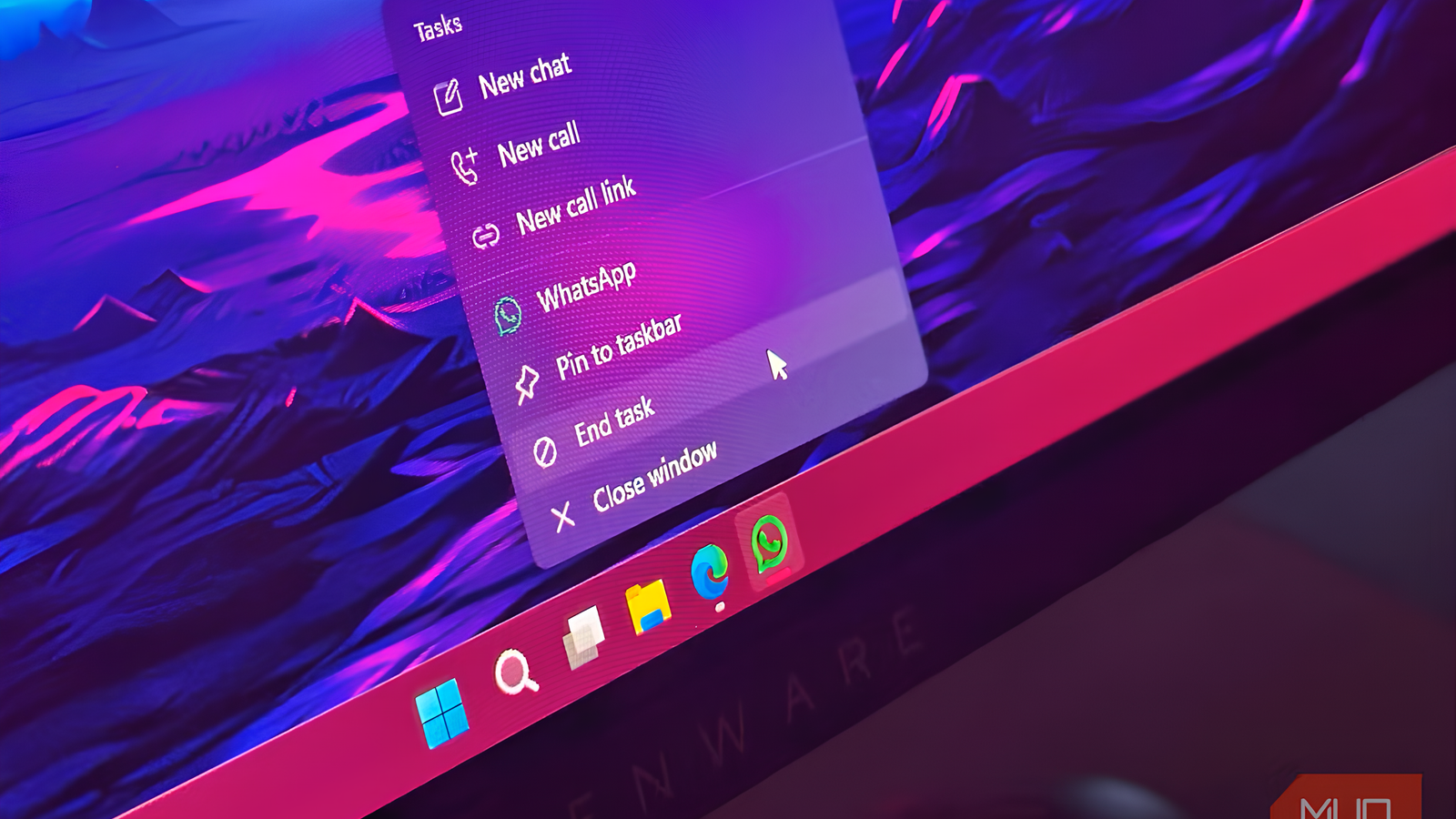
Almost everyone using a PC clicks the X button to close apps. It’s accessible and conspicuously marked and naturally has become second nature. However, after using the X button, the app you closed may still have running processes somewhere in the background and use system resources.
It’s fine for some apps, but a waste of resources for others you need to be completely closed. The taskbar has a hidden way to shut down apps. Once you enable it, you’ll be able to close apps and conserve system resources for what really counts. Like the secret God Mode folder, it’s become one of my favorite hidden Windows settings.
The X button’s hidden behavior
Closing a window and closing an app are not the same thing

Here is exactly what the X button does. It closes the app’s window and removes that instance from your taskbar (unless the app is pinned to the taskbar). Once this happens, your brain marks this as completed. This holds for some apps, but in some cases, that X button is more of a suggestion than an actual command because the app lurks in the background, waiting to be called.
It’s more common with apps in your system tray. For instance, closing Spotify only minimizes it to the system tray, where it keeps playback ready. It applies to Discord and Slack, which continue to deliver notifications after closing. It’s the same pattern for Teams, OneDrive, and Steam. One reason these apps remain running is to avoid a slow restart process.
One issue here is that, over time, you may build a very large stack of background apps. As a result, your computer will have so much work to do, and older computers can start to feel sluggish. Even though you have not explicitly agreed to keep these apps running, you have also not truly dismissed them.
There are several close options in Windows, and this is how they compare:
|
Method |
Closes window |
Stops background process |
|---|---|---|
|
X button |
✅ |
❌ for tray-aware apps |
|
Alt + F4 |
✅ |
⚠️ Varies by app |
|
Taskbar Close Window |
✅ |
❌ for tray-aware apps |
|
End Task (taskbar) |
✅ |
✅ |
|
Task Manager |
✅ |
✅ |
Windows 11 hid the fix in plain sight
End Task lives on the taskbar — once you turn it on
The fix is a setting buried in Windows and should first be enabled so that it becomes a constant part of your taskbar options. To enable it on the current Windows build, open the Settings app and navigate to System -> Advanced, then toggle on Enable end task in taskbar by right-click.
Once enabled, whenever you right-click the taskbar icon of a running app, you will get an End Task option. This is added to the default options: Close windows, Pin to taskbar, and Settings. It doesn’t simply ask an app to close, but takes a more direct approach by ending the running processes for that app without first going through the Task Manager.
It’s worth noting that Windows specifically protects certain processes and prevents you from ending them directly, even after this setting has been enabled. File Explorer is an example. Right-clicking its taskbar icon doesn’t allow you to end the process.
End Task forces termination
It waits, then forces the issue

Typically, closing an app asks Windows to send a polite signal to wrap things up. Certain apps will cooperate. They save their state and cleanly shut down. But this polite request doesn’t trigger any further action if an app lingers or becomes unresponsive.
When a program hangs or ignores the close request, End Task skips prolonged waiting and force-terminates it more aggressively than a standard X‑button close. This makes it a smarter option to close apps that linger in the background as well as those that simply refuse to close.
It’s also an all-in-one solution. Rather than deciding if an app is frozen or lingering, use End Task, and it takes care of it. However, there is a big trade-off you must be aware of. If the app is already frozen when you use End Task, Windows skips straight to force-terminating it. So, when used on a document editor or creative tool, it can cause you to lose unsaved changes. I would caution against using it blindly, even though in most cases it works just fine for me.
I didn’t replace the X button — I stopped relying on it
The best part of using End Task is that it wasn’t a drastic change in habit. I still use the X button a lot because it’s quick, familiar, and works for everyday use. But the moment something feels off, I have a smarter close option that instantly handles the problem.
I use the End Task option to close Microsoft Teams because I rarely use it, and I’m OK with not getting any notifications until I need to open the app. The same goes for Zoom, which leaves a helper process running after the main window is shut down. For Slack, I still use the traditional close because important messages pop up daily that I can’t ignore. Some experts will even argue that End Task is a faster option to close apps, but I’m content knowing it’s smarter and more efficient.

These Hidden Windows Tricks Instantly Close Any Frozen App
Next time your screen freezes or an app decides to go rogue, you’ll know exactly what to do.
