

Windows 11 isn’t exactly the most seamless operating system out there. It would be unusable if not for third-party developers fixing everything wrong in it. From debloating Windows and replacing the file explorer to disabling services to speed up operation, users need to go through a lot to make Microsoft’s latest OS usable. I’m not the definition of a power user, but even I can’t stand Windows 11 without relying on several third-party programs. These programs aren’t even replacements for built-in apps; they are simply adding basic functionality that Microsoft is too ignorant to add to Windows. A suboptimal equalizer, half-baked RGB lighting software, non-existent support for live wallpapers, and no way to set custom fan curves are just a few reasons I can’t use Windows without these third-party tools.

Windows 11 feels heavier than it should, and these defaults are part of the problem
For all it does right, Windows 11 could stand to lose plenty of weight
WizTree
“Yer a wizard, WizTree”
Having tons of storage on your PC doesn’t really make losing free space any better. Before I found WizTree, I used to scan for space- hogs manually. This was naturally less than ideal, and I didn’t even know which culprits to look for. I used to delete cache and temporary files, uninstall old games I hadn’t touched in years, and empty software setup files that had no use on the system. However, I still couldn’t figure out how my SSD was losing free space every week. Using Windows storage settings to get answers led me nowhere, so when I discovered others recommending WizTree, I knew I had to try it.
WizTree is undoubtedly the fastest program for scanning your storage drives and building a visual map of everything that occupies space on your PC. It scans partitions in a few seconds and shows you the biggest space hogs in bright colors. Besides files like hiberfil.sys, pagefile.sys, and browser cache, I was surprised to see old CapCut videos, Cinebench files, and game cache files that I had totally forgotten about. Thanks to the visual treemap, I even found around 20GB of compressed photos that I had downloaded from Google Takeout, and never bothered to remove. Now that I’m used to scanning my SSD once a quarter to clean it up, I can never go back to the old ways.

5 easy PC maintenance tasks that keep your system running like new
They’re quick, easy, and ensure your PC feels like new for longer
FxSound
A free upgrade to Windows audio
You probably have access to an equalizer of sorts if you’re using Realtek drivers on Windows, but it falls short in terms of powerful features to enhance audio depth and spatial separation. The built-in audio enhancements in Windows 11 are still surface-level, and do little to noticeably improve the audio experience. Whether I’m using my soundbar or headphones, I want a consistent audio signature without investing in enthusiast hardware or an expensive soundcard. This led me to consider software alternatives like Equalizer APO and FxSound. While the former packs a ton of features and works as advertised, it’s too complicated for my use case.
FxSound, on the other hand, seems to be made exactly for my kind of user, someone who needs a simple tool to improve their Windows audio experience. Its UI is deceptively simple, it allows me to customize the presets easily for multiple audio outputs, and it isn’t a drain on system resources. Setting FxSound as the default output in Windows audio settings was an instant upgrade. I noticed a richer and more immersive sound on both my soundbar and headphones. After a few days, I didn’t even notice FxSound was running in the background. It integrated seamlessly into my setup, solving my core problem of overcoming poor Windows audio without spending money.

6 popular PC programs you can survive without
While there’s always a new productivity tool around the corner, you can get by without most of them
MacType
Text legibility on my OLED isn’t the best
I bought my first OLED monitor a few months back, which was a huge upgrade for gaming. However, the first-gen QD-OLED panel has a trianglt subpixel layout which doesn’t work well with Windows ClearType. This isn’t an issue in games, but I spend around 6–8 hours writing every day, and the text fringing on the screen is extremely noticeable. With ClearType not being of any help, I started looking for alternatives, and discovered MacType on a Reddit post. It overrides Windows’ native rendering to achieve a macOS look as far as text legibility is concerned. It trades a bit of the text sharpness for superior clarity, and I’ve decided to keep it permanently enabled on my system. It makes working on my OLED monitor more bearable, and is the best ClearType altrnative I’ve used to date.

5 PC settings I had to change after buying a QD-OLED monitor
Your QD-OLED monitor might look terrible without these changes
Fan Control
BIOS could never
While you can set custom fan curves in the BIOS/UEFI, it doesn’t feel like the most optimized solution once you’ve used Fan Control. This free program allows me to customize every single fan curve on my PC in an intuitive UI. The best part is that I can make multiple fan curves talk to each other, so that I’m not forced to link a curve to just a single sensor. I can instead configure them in a way that they respond to different sensors in different temperature ranges. This gives me a degree of control over the cooling and noise profile of my PC that is simply not possible with the BIOS/UEFI. While there are other third-party programs I can use on Windows, including one from my motherboard manufacturer, they’re inferior in every way. Besides, Fan Control is a free and open-source tool that doesn’t hog syste resources in the background.

5 changes I made to make my PC run as silent as possible
Building a silent PC doesn’t have to be complicated
Wallpaper Engine
My desktop can’t live without it
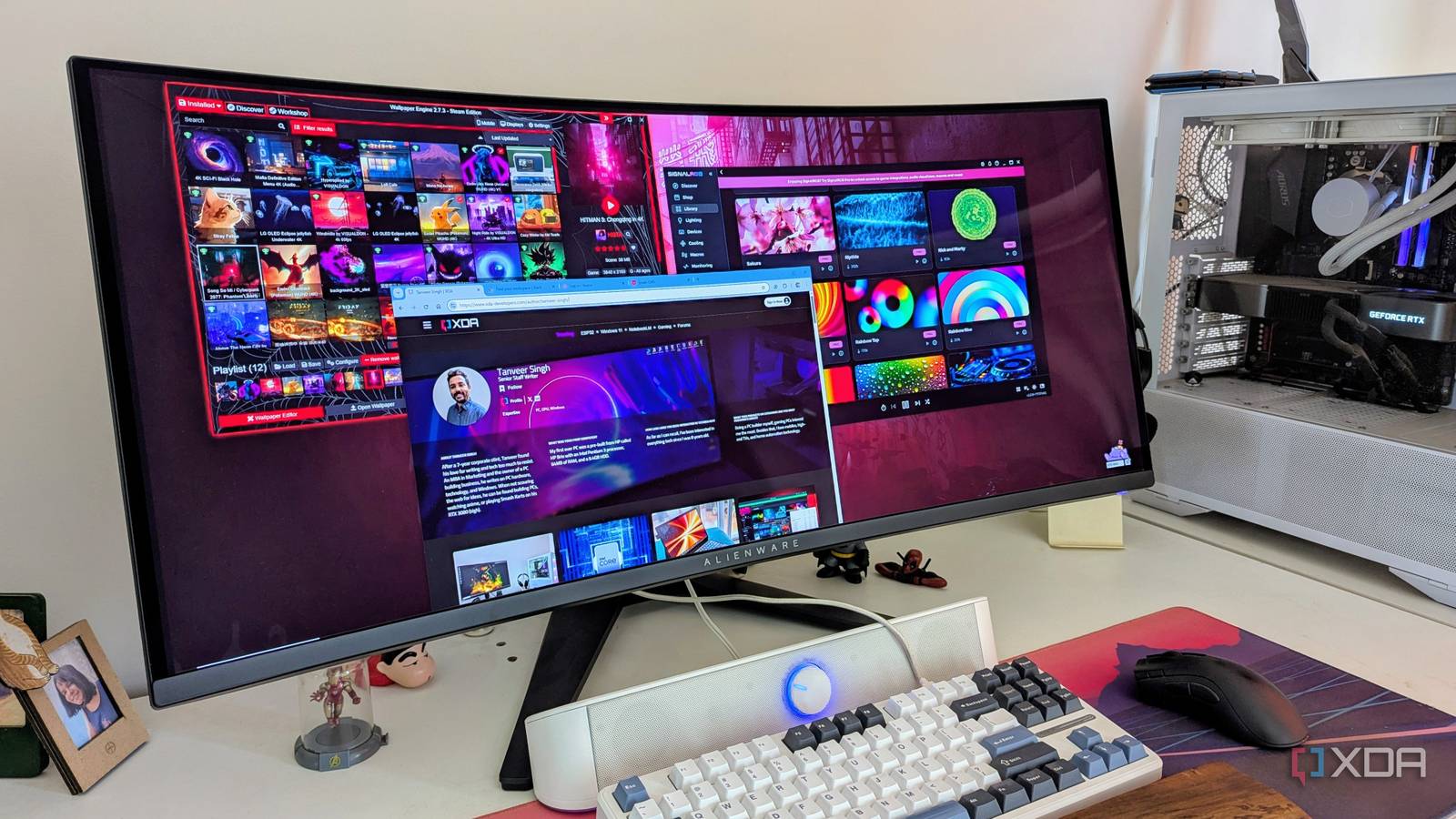
Windows has wallpapers, but there are wallpapers and then there are wallpapers. Once you’re used to animated/live wallpapers, you can’t go back to the bland stuff Windows ships with. Even third-party static wallpapers don’t compare to the dynamic wallpapers available in Wallpaper Engine. This $4 program on Steam is one of the most value-packed tools you can buy for your PC. It has countless live wallpapers contributed by an active community, spanning generes from anime, abstract, sci-fi, and landscape to gaming, pixel art, technology, and everything in between. I never get bored as I switch between wallpapers belonging to Cyberpunk 2077, Godzilla, Spider-Man, Firewatch, Red Dead Redemption 2, and anime, just to name a few. While Microsoft is bringing back DreamScene to Windows 11 for video wallpapers, the feature is still in beta and will most probably not be anywhere close to Wallpaper Engine.

I tested the 5 highest-rated free live wallpaper apps on Steam — here’s how they stack up
I went through the 5 highest-rated live wallpaper tools on Steam that are free. Here’s the verdict.
SignalRGB
Bringing everything together
Wallpaper Engine is only half the story when it comes to enhancing my PC’s esthetics. While it takes care of my monitor, SignalRGB takes things to another level by syncing all the RGB components of my build. It’s a free program that replaces all the individual RGB programs on your PC. The polish and effects library of SignalRGB is the best I’ve seen, and even open-source RGB program like OpenRGB aren’t as easy to use. Even without paying for the Pro version, I have more than enough RGB effects to cycle through without getting bored. To be honest, I just use one effect most of the time because it’s just that good – it syncs my PC to whatever it’s happening on the screen. So, whether I’m playing a game, waching a movie, or working on an article, the “Screen Ambience” effect makes my PC experience feel way more immersive. SignalRGB also supports almost all RGB devices you may have inside and outside your PC.

RGB isn’t just for show — here’s how I use it practically
RGB can be more than just eye candy
Some third-party tools will always be better than native Windows features
Windows is good at many things, but some functions will always be better-served by third-party programs dedicated to addressing a specific problem. I’ve used the programs on this list for years, and can’t imagine using my Windows PC without them. Whether it’s beautifying my desktop and PC, improving text legibility on my OLED screen, customizing fan curves, or enhancing the audio quality, some things are better left to third-party applications.
