

Cats are one of my favorite things ever to exist. They’re soft, cuddly, and incredibly adorable, and I love them more than words could properly describe. But did you know that they’re also incredibly good at telling you how your computer is running? Well, not your real-life cat. If I talk to Dale, Dougie, or Dipsy, my three furbabies, they’re just going to meow at me and tell me that they’re hungry.
I’m talking more about RunCat365, a diagnostic program that is minimized in my system tray and gives me up-to-date information about how my PC is running. Don’t worry, if you’re not a cat person, there is a horse and a parrot available, too. But keep an eye on how quickly they’re running; if they’re running like a marathon, it may be time to close some programs.
RunCat 365 hangs out on my taskbar
The faster it runs, the higher my CPU or GPU usage is

The premise of RunCat 365 is simple. Rather than opening an additional program or opening Task Manager to check my CPU/GPU/RAM usage, I can watch a little cat run on my taskbar. If my digital feline friend is running slowly, I know that everything is moving along smoothly. But if I start to notice that this cat is moving at blazing speeds, then I should start investigating further.
Yes, the whole point of the program is to have another way to monitor my CPU and GPU usage without needing additional applications open in the background. It’s simple, lightweight, and open-source, so new features can be added by dedicated community members who love RunCat 365 as much as I do.

Here’s how I deep clean my Windows PC
I spend one day each year to keep my Windows PC running like new.
It’s easy to understand for all users
You don’t need a computer science major to understand what it does

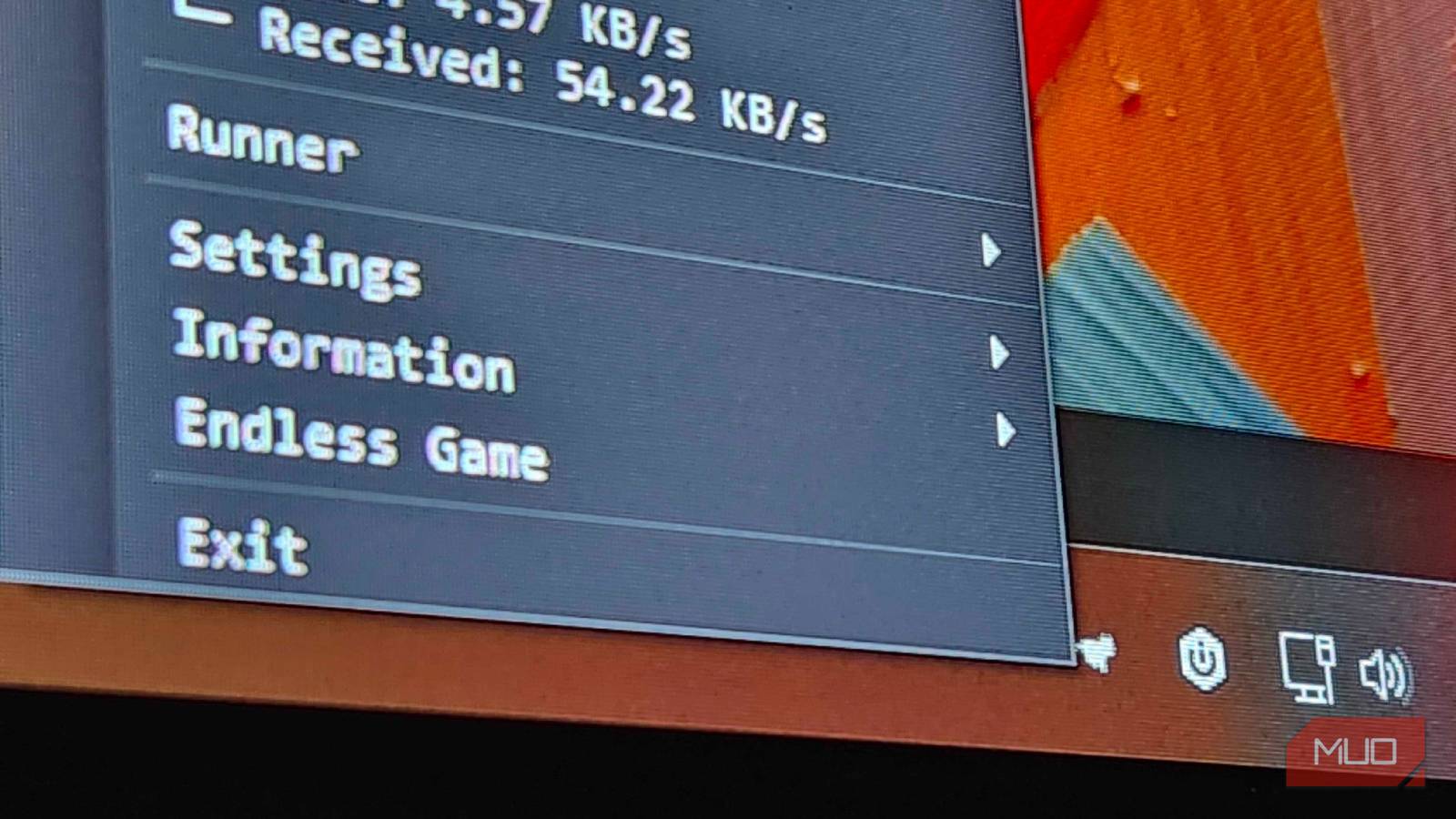
I’m all for programs and applications that make the act of using a computer easier and more accessible to users of all skill sets. That’s one of the nicest parts about RunCat 365, in my eyes. It doesn’t overcomplicate things. It just makes accessing valuable information about your computer easier to understand than ever before. Hovering over the little guy on my taskbar shows me exactly how much CPU/GPU/RAM I’m currently using, and right-clicking brings up additional information about my device.
This secondary menu displays information about my network, RAM usage, and storage. Rather than making it impossible to decipher, it lists everything simply and shows all the necessary details without spilling into too much of it. There are plenty of other programs out there for power-users to get their feet wet with, but this is that perfect blend of useful, informative, and adorable.
There are even little games here, too
You know that Google dinosaur game? Yeah, it’s here in cat form now

While I’m doing my best to track what I’m doing on my computer to avoid getting too distracted when I need to focus, I’ll be the first to admit that my mind still wanders. Rather than doomscrolling through social media, I can keep myself busy by slamming down on my space bar as often as I’d like to make this adorable little kitty jump over obstacles.
Is it useful to the program? No, not at all. But sometimes, you need to give your mind a break from the doom and gloom of the real world. Having a little game like this built into the program isn’t a necessity by any means, but I can think of plenty of bored people stuck in the office that would love to have a discreet way to do something fun while stuck at the 9-5 grind, you know? Plus, it’s a good way to keep your brain feeling sharp and improve your reaction time. Maybe I’m just telling myself that so I don’t feel so bad for spending too much time playing this.
Other programs can show way more info
But this one is so cute and fun, I can’t stop checking it out
With the rising cost of computer components, it’s more important now than ever to keep an eye on your equipment. The last thing that you want to happen is for something in your PC to fail you when prices are getting out of hand for the average user. Using something like RunCat 365 is a great way to monitor your equipment at a glance, but if you want to keep an even closer eye on everything? You’ll need some more “advanced” programs.
Programs like HWMonitor, or motherboard-specific programs like MSI Afterburner, are going to give you complete and total access to every facet of your device. Using these in tandem can ensure that you’re always on-top of things if something starts going south in your build, or even using a keyboard with an OLED display can help you monitor your internal temperatures while you’re working, gaming, or anything in between.
I love silly little programs like RunCat 365
Is it necessary? No, but do I love it? Absolutely
Passion projects like RunCat 365 give me life. Seeing somebody come up with a simple way to monitor your hardware with something so simple, and charging nothing for it? They have all my respect, and it’s something that I’ve been looking to add to my PC for the longest time. Some folks will love the ability to check on all of their stuff with just a click, but I do know that it’s also rather niche.
But that’s one of the many reasons why I love open-source applications like this. They fill in the gaps that are often forgotten about by larger companies. They’re also an incredibly simple way to replace some of the subscription services that you’ve found yourself locked into. Windows does give you all the tools you need to start checking your temps and usage, but they have never made it this incredibly easy to do. Now, just let the kitty do all the heavy lifting for you.

- OS
-
Windows, macOS
- Developer
-
Kyome22
- Individual Pricing
-
Free
- Useage
-
CPU/GPU/RAM Monitoring
