

Did you know your Android phone can automatically lock if someone snatches it? Google has included many such anti-theft protections in its Android operating system and across OEMs to not only make it easy to locate your phone, but also make it more and more difficult to access, unlock, or format your phone when it’s stolen.
However, most of the advanced anti-theft protections are disabled by default. This is often because some of these features need you to log in with your OEM account, have biometric authentication enabled, and add a safe place like your home or office before you can turn them on. But once you enable them, stealing your phone becomes almost pointless.
Device protection
Android 16’s bundled security suite that hardens your phone
The latest device theft protection feature added to Android is the Device Protection option under Advanced Protection. Google bundled several existing security tools into one place with Android 16, and turning it on enables multiple protection features together.
Starting with Inactivity Reboot. If your phone stays locked for three days, it automatically restarts and goes into a fresh, encrypted state. That means a thief who keeps your phone powered off and tries to extract data later will hit a wall since it requires a PIN or biometric to access anything. It also enables intrusion logging, which stores encrypted activity logs on Google’s servers so you can review them later if your phone is compromised.
On top of that, Device protection keeps Google Play Protect always on and completely blocks app installs from unknown sources. It also blocks 2G connections to prevent downgrade attacks from fake base stations, enables Android Safe Browsing for live malicious-site blocking, and adds stronger spam filtering in Google Messages.
To enable it on Android 16, go to Settings > Security & privacy > Advanced Protection, turn on Device protection, confirm, and restart your phone. On Samsung devices with One UI 8, it’s under Settings > Google > All services > Advanced Protection. The only trade-off is that you can’t sideload apps while it’s active, so if you rely on apps from outside the Play Store, keep that in mind. For everyone else, I’d say it’s worth turning on Android 16’s Advanced Protection right away.
Identity Check
Biometric verification for sensitive settings outside your trusted locations

Identity Check solves a specific problem: what happens if a thief knows your PIN? Without Identity Check, they could change your lock screen settings, disable theft protection, or even take over your Google account. With it enabled, your phone requires biometric authentication for any sensitive changes whenever you’re outside a trusted location.
During setup, you define one or more trusted locations like your home or office. At these places, your phone behaves normally. But the moment you step outside those zones, anyone trying to change the device PIN, modify biometrics, disable theft protection, or access passkeys will need to pass a fingerprint or face unlock check. A PIN alone won’t cut it.
This feature is available on Pixel devices running Android 15 and Samsung Galaxy phones with One UI 7. On Samsung, it also adds enhanced protection for your Samsung Account, making account takeover significantly harder. The feature names and exact settings may vary slightly depending on your OEM, but the core functionality is the same.
To enable it on Samsung, head to Settings > Security and privacy > Lost device protection and look for Identity Check. You’ll need to be signed into your Samsung account and have fingerprint authentication set up before it lets you turn it on.
Theft protection
Automatic locks that kick in when your phone is snatched or taken offline

Beyond Device protection and Identity Check, Android also has three dedicated features under Theft protection that protect your phone from thieves by locking the screen in different scenarios.
Theft Detection Lock uses motion sensors and machine learning to recognize snatch-and-run movements. If someone grabs your phone while you’re using it and runs, the phone detects that sudden motion and locks the screen immediately. It also checks Bluetooth and Wi-Fi to see if you’ve moved away from trusted places. On Samsung phones running One UI 7.0 or above, you can enable it from Settings > Security and privacy > Lost device protection > Theft protection > Theft detection lock. Turning it off later requires PIN or biometric authentication, so a thief can’t simply disable it.
Offline Device Lock handles the common scenario where a thief kills your phone’s internet connection right away. Without connectivity, you can’t use Find My Phone or send remote commands. When this feature is enabled, your phone monitors its network status and automatically locks if it stays offline for an extended period. It also blocks attempts to turn off Wi-Fi or enable Airplane mode while locked. If your Wi-Fi goes off by accident, just unlock your phone as usual, and you’re fine. This feature is limited to two automatic locks per day.
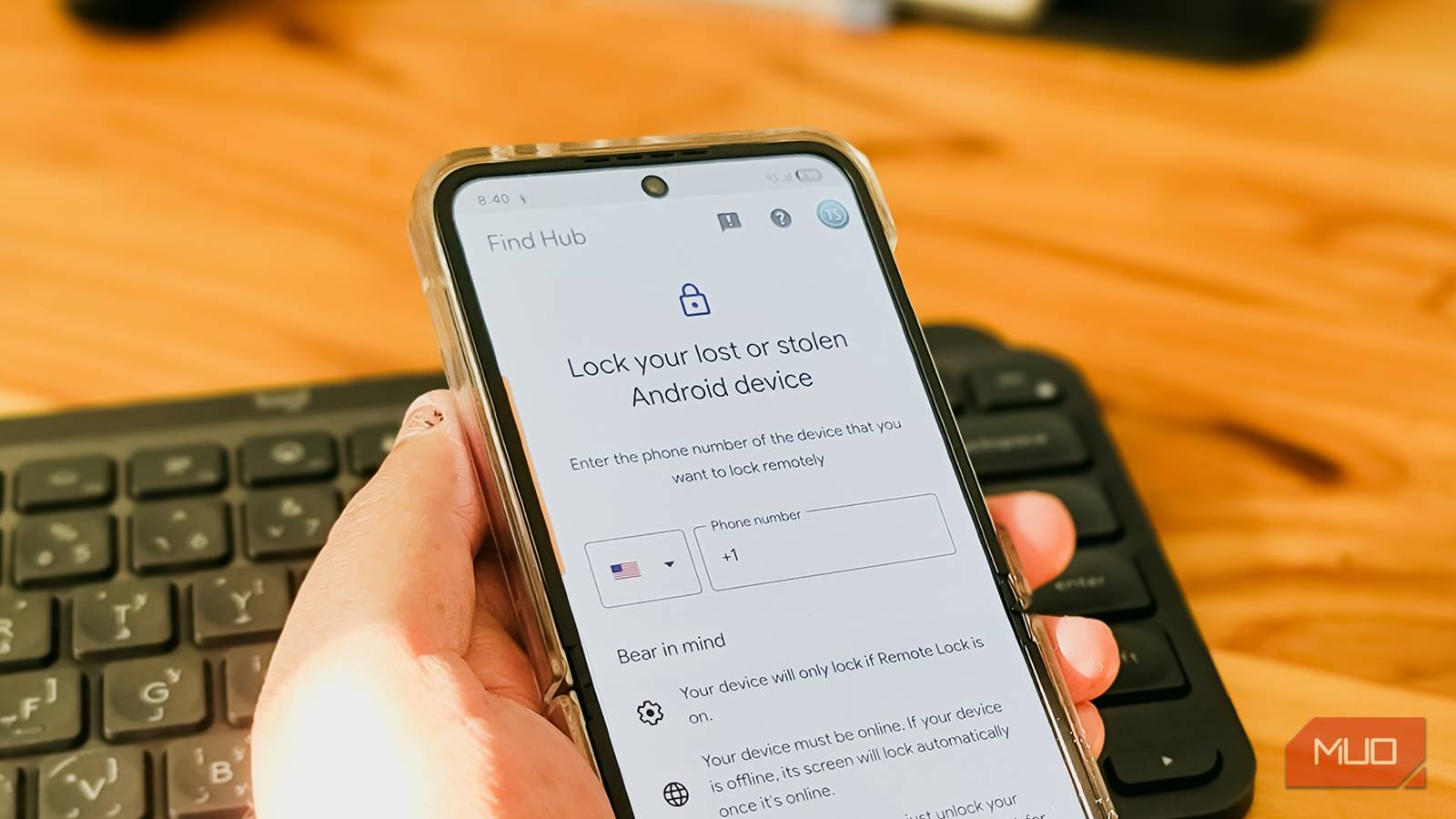
Remote Lock gives you a quick way to lock your phone without signing into your Google account. After enabling it and setting up an associated phone number and security question, you can visit android.com/lock, enter your number, answer the question, and trigger a lock. It’s faster than Find My Device because it only needs your phone number and the security question, which is helpful when you’re stressed and don’t have time to go through a full account sign-in.
These features won’t stop every thief, but they raise the bar significantly
Sure this settings won’t make your phone theft-proof. A determined thief with enough time and technical know-how can still find ways around some of these protections. Identity Check, for example, only works on Pixel and Samsung devices for now, and Device protection’s sideloading restriction might not sit well with everyone.
But for most real-world theft scenarios, these three layers of protection make a stolen Android phone far less useful to whoever takes it. I enabled all of them on my phone, and the whole process took less than ten minutes. If you haven’t touched these settings yet, it’s worth spending a few minutes on them. Your phone already has the tools to help you find it when it’s lost and turned off, and these features make sure there’s very little a thief can do with it even before you get to that point.
