


Google Play Store differs depending on where you live, from varied release dates to limitations on what apps are available. In fact, China blocks most Google services with its Great Firewall, making them inaccessible by default. Fortunately, it is possible to change the location of your device with a virtual private network (VPN), granting you access to every app on day one.
Things you need to know before changing country on Google Play
Sadly, changing your Google Play region is not quite as simple as connecting to a VPN server in a foreign country. Google Play makes a record of where you are when you sign up, assigning you to that region on a permanent basis.
As a result, you must physically change the region within your settings – which Google only permits you to do once a year. So, if you do change your Play Store region and later realize that you want to change back, you won’t have the option for 12 months. This can have some unintended drawbacks, which means it is probably best to leave your real Google account logged into your genuine region.
What we recommend
A better option is to create a brand new Google Play account, using a new Gmail address. This will allow you to set up your Google Play account while connected to a VPN server, so that you receive the foreign catalog of apps automatically every time you access the Play Store with that account. This is a much better idea but will require you to begin by removing your old account so that you can set up a new one.
No matter which method you decide to use, it is important to understand that you will need a valid payment method for the country you are pretending to be in (if you want to download more than just free apps). You can do this by getting a virtual online card.
How to change Google Play Country?
If you do decide to follow our recommendation and create a new Google account, then the first step is to:
-
Delete your old account from your device
-
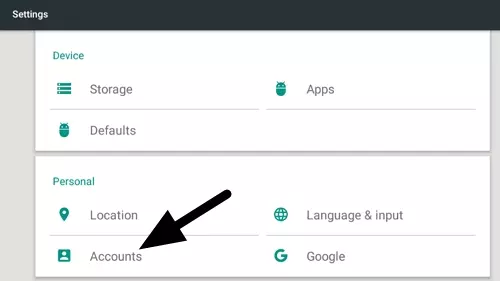
Go into your phone’s Settings and tap the Accounts icon.
-
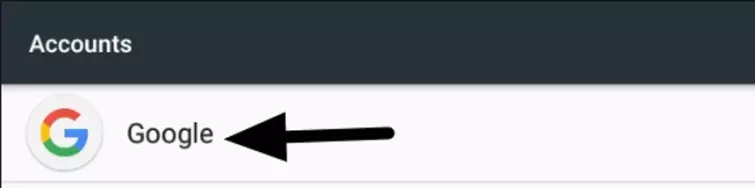
Locate the Google icon and tap on it.
-
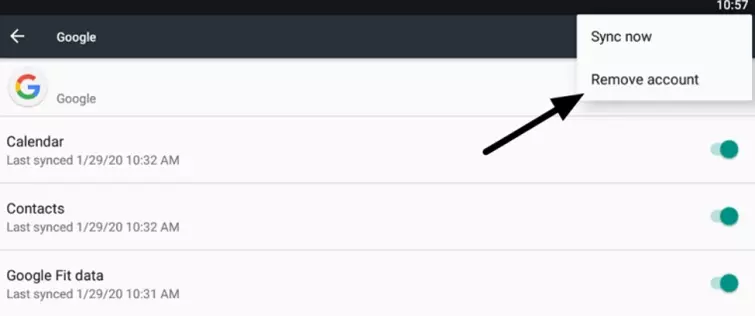
Now, tap the drop-down bar in the top right and tap Remove account.
-
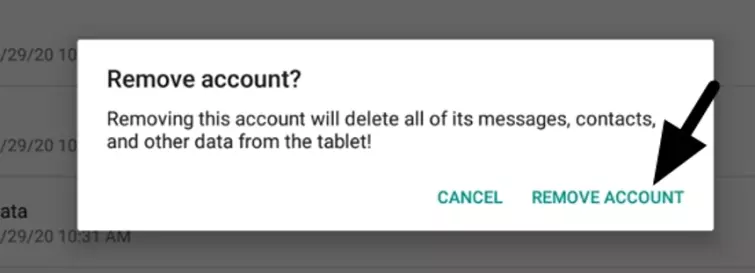
Your Android device will now explain that removing this account will delete all your messages, contacts, and other Google data from the phone or tablet. Confirm by tapping Remove Account and then enter your passcode to continue.
-
Now that you have deleted your account, we strongly recommend that you also clear your Google Play cache. This isn’t usually necessary, but it does sometimes cause problems – which is why we recommend that you do it at this stage, anyway.
How do I clear my cache? Please scroll down to the Troubleshooting part of this guide for details on how to clear your Google Play cache.
-
-
Connect to a VPN server
Now that you have successfully removed your old Google account, it is time to create a new one in your desired country.
To do this, you must choose an Android VPN and connect to a server in that country. Since it has the largest selection of Android apps, we chose to use a US server provided by PrivateVPN.

As soon as the VPN connects, your IP address will appear to be in the USA (or whichever country you prefer).
-
Set up a new Gmail account
Once you’re connected to the VPN, it’s best to create a new Google Play account through a new Gmail account. This ensures that your old Gmail account is still registered to your old Google Play account and can be returned to at any point.
Top tip: Setting up a new Gmail account also ensures that your dual-factor authentication number does not conflict when setting up your new account in a new country. If you haven’t set up two-factor auth on your Gmail account, we implore you to do this as soon as possible – preferably by app rather than SMS.
Another top tip: When you do create your new Gmail account, remember not to enter a phone number. Adding a phone number is optional and entering your phone number could alert Google to the fact that you aren’t really in the country you are trying to pretend to be in.
-
Log in to Google Play using your new Gmail account
Now it is time to log back in to Google Play. Follow the steps below to set it up:
-
Make sure your VPN is still connected successfully to the region of your choice. We opted for the US.

-
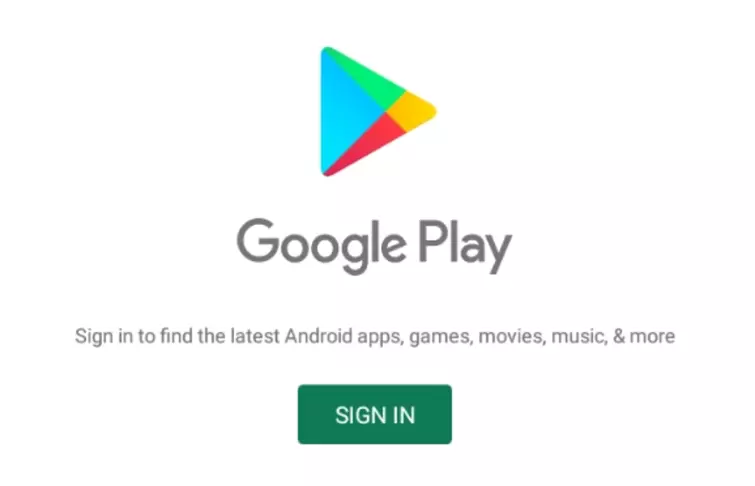
Open the Google Play Store app on your device. You will be prompted with a message that asks you Sign in.
-
Tap the green button to enter your newly created Gmail address and password.
-
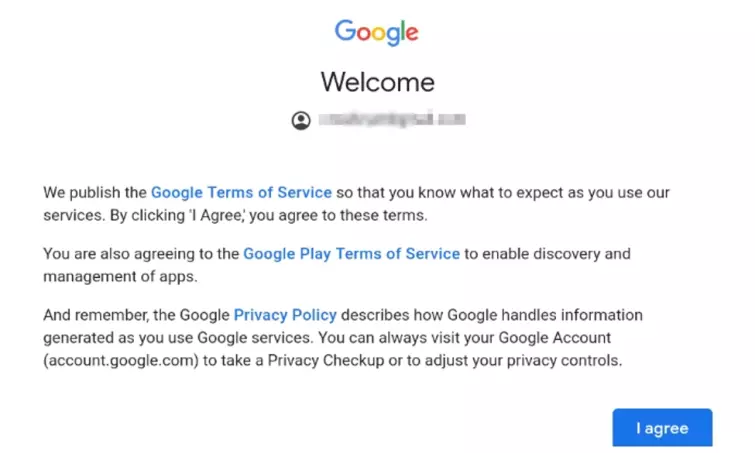
Next, you will need to agree to the Terms of Service. Read them and click I agree to continue.
-
Google will now check the new Network and analyze your IP address to decide where you are and what Google Play Store to serve you. This may take a minute or two.
-
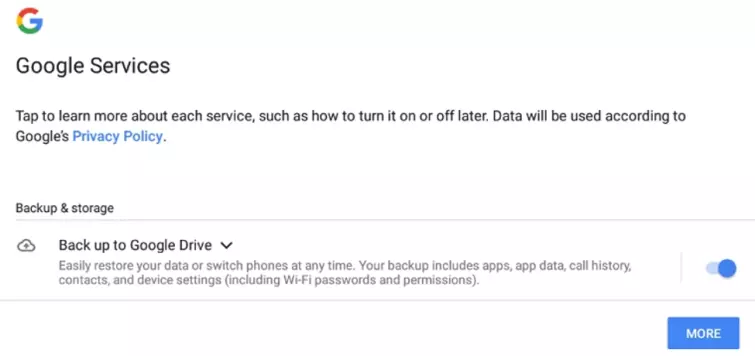
Google will now ask you if you want to back up your data as you go along. Click More and then Accept.
-
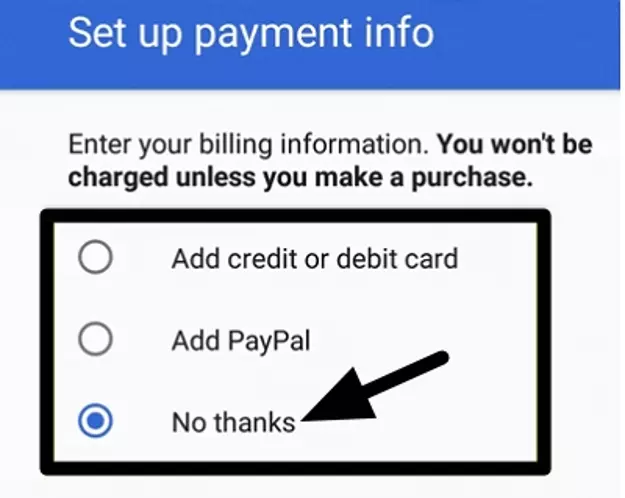
Now, Google will ask you for a payment method. If you don’t wish to purchase any apps simply select No thanks and click Continue to open the app store.
-
How to tell if it has worked
If everything has been done correctly, the app store will now launch with the Google Play Store located in the country of your choice.
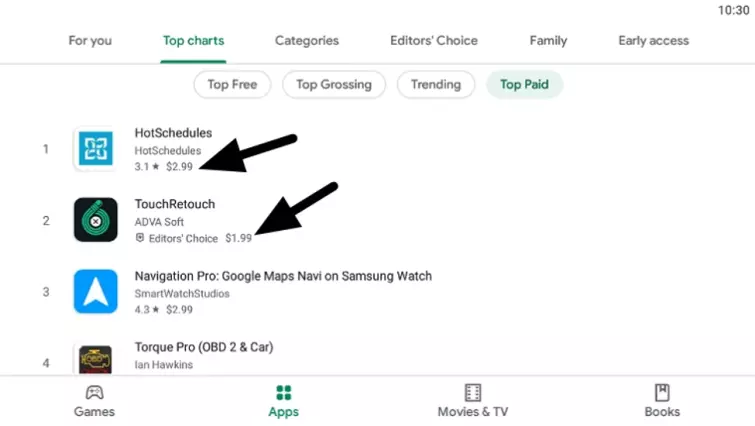
Our original location is based in the UK, but we set up our new Google Play account in the USA. As you can see in the screenshot below, the prices are now shown in US dollars because our VPN successfully created our new Google Play account in the USA.
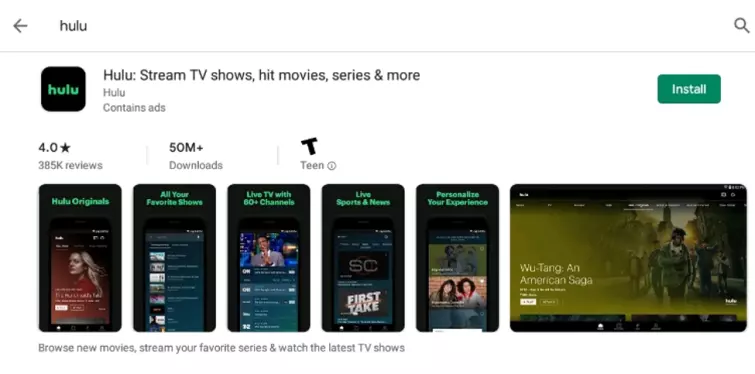
Finally, we decided to install the Hulu app – because this application is only available in the USA. As you can see in the screenshot below, we were able to access and install it without issues:
Having issues?
If you have followed the steps above and are experiencing problems there could be a number of things that have gone wrong. Here are some fixes to common problems that people encounter:
Update your Google Play Store app
If you are running a very old version of the Google Play Store it is possible that you are getting some sort of conflict. So please update the app before you sign in using your new Gmail account. To do so; open the Play Store app, tap Settings in the top left, and scroll down to Google Play Store Version. Now, click it, and if a more recent version is available – download it.
Clear your Google Play Store app cache
On some occasions, people experience issues changing regions due to their Google Play app cache. If you have problems try clearing your cache after deleting your old Google Play account from your device (Step 1 of this guide).
Clearing your Cache
-
Go to Settings on your device and tap Apps.
-
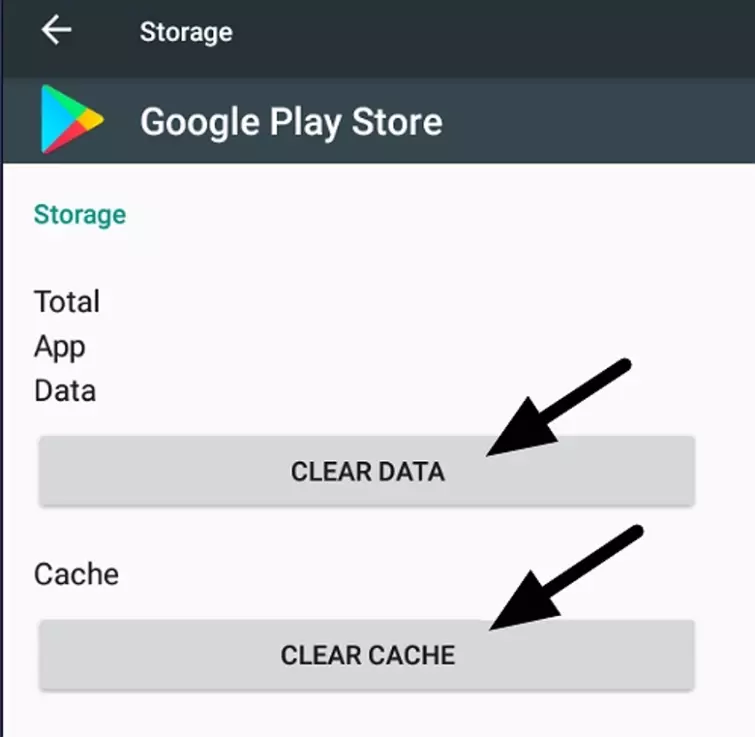
Tap the Google Play Store app and long press on Storage.
-
A new screen will appear showing you the ‘Clear Cache’ and ‘Clear Data’ options. Select both to clear any outstanding data.
A note on Google Play payments when changing country
When you set up a Google Play account for a different region, you are no longer be able to use your regular local payment method. If you want to buy an application, you will need to get a valid payment method for the country you are pretending to be in. To do this, you will need to sign up for a virtual card service.
Virtual card services allow you to create a digital card for the country of your choice. Once the virtual card is set up, you can transfer some money onto the card via the internet and use that money to purchase apps on Google Play.
