

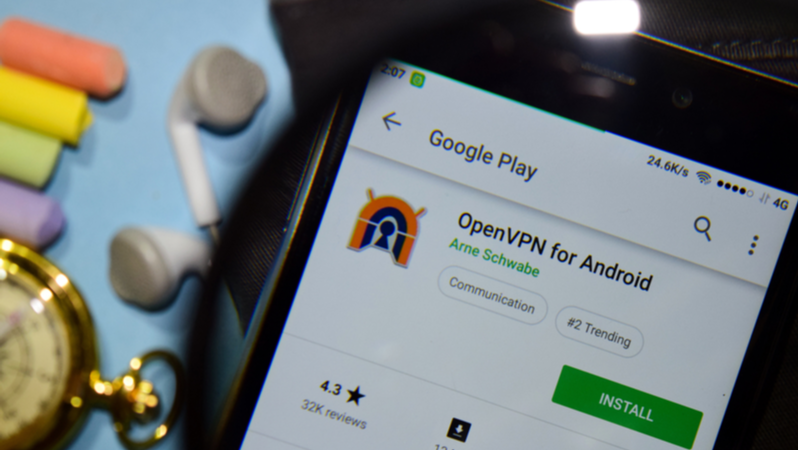
OpenVPN for Android by Arne Schwabe is a free and open source app that uses any standard OpenVPN configuration files to allow Android users to connect to any VPN service which supports the OpenVPN protocol. This means it’s a great alternative way to install a VPN on Android if you cannot or do not want to use the Google Play Store. In this guide we’ll show you how to set up a VPN through OpenVPN for Android.
What are the benefits of OpenVPN for Android?
OpenVPN for Android is based on the community version of OpenVPN and uses the latest OpenVPN 2.x source code. This means it offers the following key features:
- Open source
- Full Domain Name System (DNS) leak protection – both Internet Protocol version 4 (IPv4) and Internet Protocol version 6 (IPv6)
- Full IPv6 routing
- Web Real-Time Communication (WebRTC) leak protection
- Uses the most up-to-date version of OpenVPN (and therefore the most secure)
- Can be configured to act as a kill switch
How to use OpenVPN for Android
Using OpenVPN for Android is not hard, but the need to import third-party OpenVPN configuration files does make setup a little more involved than with pre-configured “off-the-shelf” VPN apps.
-
Download the OpenVPN configuration files from your VPN provider’s website.
If you cannot find the config files on your provider’s website, drop them a message through live chat. All our recommended VPNs for Android all provide live chat for quick answers.
-
Unzip the config files (if required) and store them in a folder on your Android device.
If you download them to your PC< transfer them over using a USB or SD card. Alternatively, download them directly to your Android device and unzip them with an app such as ZArchiver.
-
Download, install and run OpenVPN for Android.
-
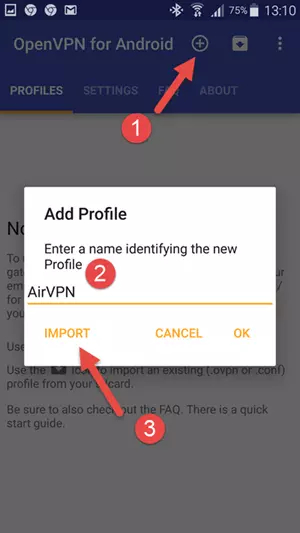
Touch the + icon in the top right of the screen to Add Profile.
Give the profile a suitable name, then hit “Import.”
-
Navigate to the unzipped OpenVPN config file(s), and choose a server (.ovpn file).
Once imported, touch the tick ✔ icon to continue.
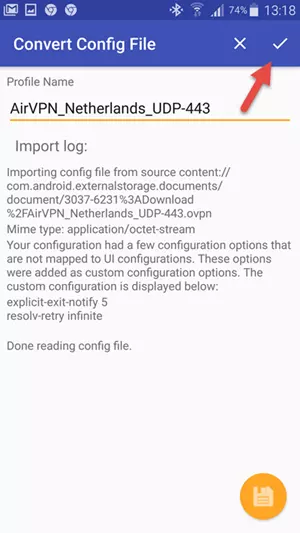
Please note: Many providers include all necessary keys and account information in customized .ovpn files, so no further configuration is needed. Others may require that you enter your account information and other details. Please see your provider’s documentation for specific instructions.
-
Once done, you’ll see the server name under the Profiles tab.
To start the VPN, just touch it. You can import .ovpn files for as many servers as you like, and they will show up here.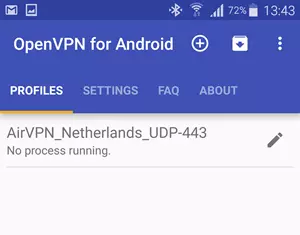
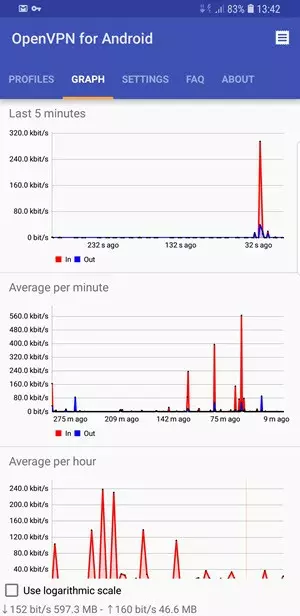
A rather natty set of graphs allows you to monitor your VPN bandwidth usage.
-
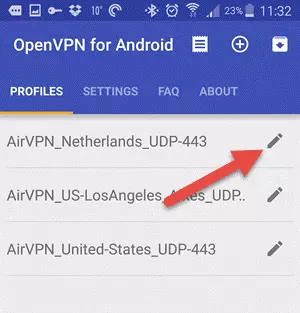
Next you will want to protect against IPv6 leaks by editing your specific VPN connection in the “Profiles” tab.
-
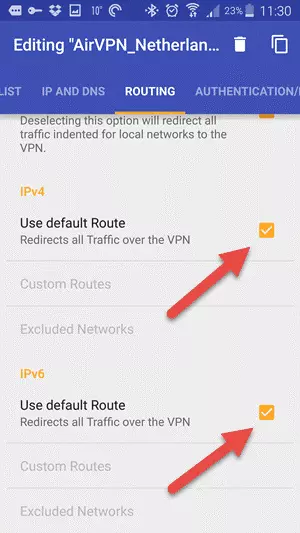
Ensure that IPv6 -> Use default Route and IPv4 leak protection is checked.
Enable a kill switch on Android
Kill switches are a useful feature in VPNs. If for any reason your VPN connection fails, it will cut all access to the internet, thereby protecting your real IP address – very helpful for tasks such as torrenting. To configure OpenVPN for Android to act as a kill switch:
-
Edit the specific VPN connection in the “Profiles” tab (see above).
-
Go to the “Advanced” tab and check “Persistent Tun” and set “Connection retries” to Unlimited.
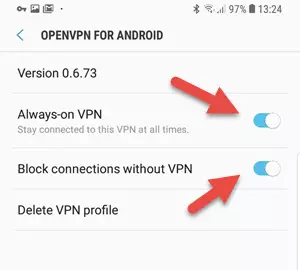
Ta-da! You now have an OpenVPN kill switch for Android.
Update
Android Nougat 7+ includes a built-in kill switch that works with any VPN. This includes OpenVPN for Android. This built-in kill switch is almost certainly more robust than the persistent TUN method described above, so if you have more recent Android device we recommend using this instead. We cover set up of Android’s built in VPN kill switch in our install a VPN on Android guide.
OpenVPN Connect
Other than custom VPN apps, OpenVPN for Android’s main rival is OpenVPN Connect. Like OpenVPN for Android, this is a generic OpenVPN client that can use regular OpenVPN configuration files to connect to any VPN service that supports OpenVPN.
OpenVPN Connect is the “official” client from OpenVPN Inc. and is designed to be very user-friendly for the casual VPN user without any technical skills. It is therefore less fully featured than OpenVPN for Android, which is aimed at more advanced users.
Another important difference is that OpenVPN for Android is open source while the official OpenVPN Connect app is not. For this reason, OpenVPN for Android is regarded as being the “semi-official” app by many in open source OpenVPN community.
Conclusion
It may seem a little counterintuitive, but with full IPv6 routing, bandwidth usage graphs, and the ability to configure as a kill switch, OpenVPN for Android is more fully-featured than almost any custom Android VPN app I have yet reviewed. It is also more fully featured than its desktop equivalents.
Add in the fact that OpenVPN for Android is open source and always uses the latest version of OpenVPN, and we have a compelling case for preferring it over custom Android VPN apps.
