

We may earn a commission from links on this page.
The Apple Watch has a built-in sleep tracker, but it can be hard to find. Here’s how to access it, how to set it up so that it properly records how much sleep you’re getting, and how to understand the results.
Does my Apple Watch support sleep tracking?
Sleep tracking was introduced with WatchOS version 7 (released in 2020). That version of WatchOS works on watches from Series 3 and newer, paired with an iPhone 6S or newer, with iOS 14 and newer.
In other words: The oldest devices that will work are a 2015 phone, a 2017 watch, and 2020 releases of the software that run on them. As long as your Apple Watch isn’t truly ancient, it should support this. (If you’re looking to buy a new Apple Watch, though, the Series 11 is the newest.)
Where to find the Apple Watch Sleep app
You’ll need to navigate to four different places to access all of the sleep-related features of your Watch and iPhone. (Three of them are on the phone.)
On the Apple Watch

Credit: Beth Skwarecki/Apple
On your Watch, look for a bed icon with a greenish-blue background. (Pro tip: You can change this screen to use the names of apps, alphabetized, rather than having to play hide and seek with little icons.) When you open the Sleep app, scroll down to check (or set) your sleep schedule. That’s all you need to do with this app for setup; the Apple Watch will track your sleep automatically even if you never open this app again.
In the Health app

Credit: Beth Skwarecki/Apple
On your iPhone, the sleep functions are part of the Health app. (There is no dedicated Sleep app.) Open the Health app, tap Browse, then tap Sleep. From here, you can view data on recent nights of sleep, and set your sleep schedule for the future.
At the bottom of this screen, you can edit your next sleep schedule or your full sleep schedule (the one that repeats daily and weekly). This tells your phone when you’re planning on sleeping. Tap Full Schedule & Options to set that schedule, and scroll down to the bottom for the next step.
In the Watch app

Credit: Beth Skwarecki/Apple
To make sure your watch will track your sleep, you need to configure your Watch-specific sleep settings in the Watch app. The easiest way to access this from the Health app (tap Full Schedule & Options from the Sleep screen), and at the bottom of that screen, there’s a link to Manage Sleep in the Apple Watch App. Tap that, and you’ll go straight to those Watch settings.
Turn on “Track Sleep with Apple Watch” to enable tracking, and turn on “Charging Reminders” so the Watch can notify you to charge it before bedtime if your battery is low in the evening.
In the Settings app
We’re not quite done. In the Settings app, you can set up your Sleep Focus. To get to it, you can go into the Health app, then Sleep and Full Schedule & Options, as above. You can also get to it from the focus modes in the Settings app. The sleep focus is optional for tracking, but it gives you access to specialized home screens and notification settings that will turn on at bedtime.
What do you think so far?
How to set up your Apple Watch to record your sleep
You can fully explore all the sleep-related features through the apps I mentioned above, but here is the short version. Do these things and you’ll have your Watch recording your sleep tonight:
-
Set up a Sleep schedule (Health app > Sleep > Full Schedule & Options).
-
Tap Manage Sleep With Apple Watch at the bottom of that screen. (This sends you to the Watch app.)
-
Turn on Track Sleep with Apple Watch.
-
Wear your Apple Watch to bed. It should be unlocked, and if you have a passcode, you’ll want wrist detection turned on.
The Apple Watch will use the sleep schedule (or Sleep Focus, which you can turn on manually) to know when you might be sleeping. During this time, it uses your movements and your phone use, to detect whether you’re sleeping, and to estimate when you are in each stage of sleep.
How to read your results from the Apple Watch sleep app
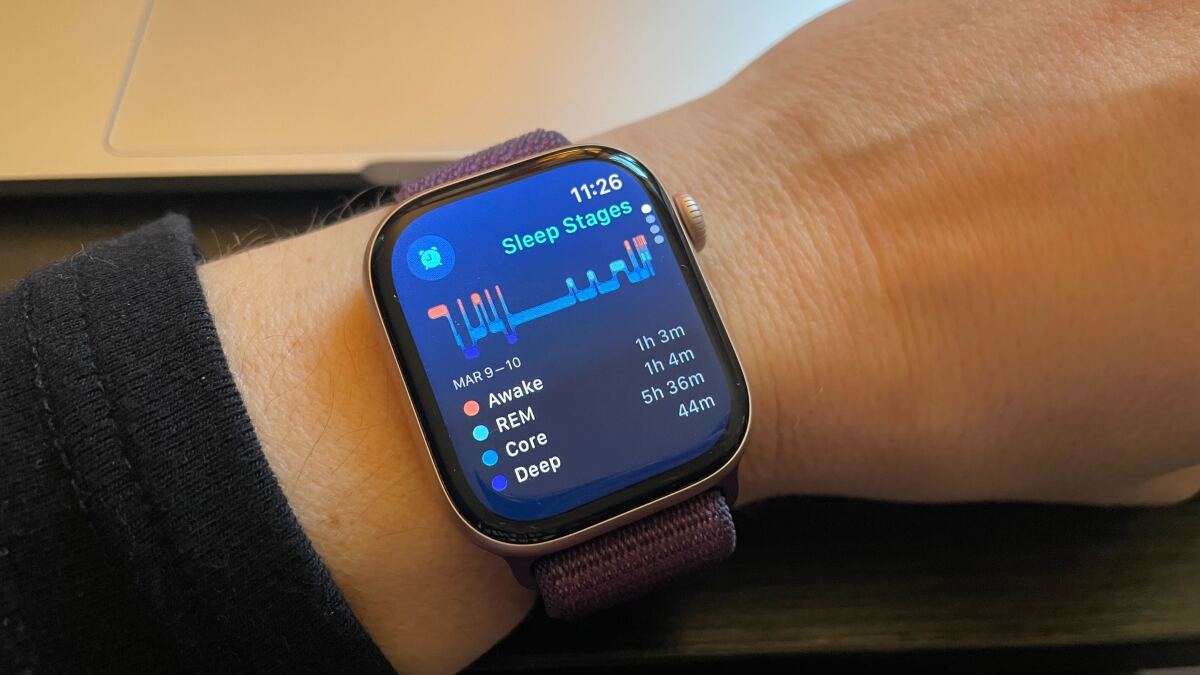
To see your sleep on your watch, scroll down from the main watch face (using the digital crown, or swipe up with your finger) and you’ll see a card in your Smart Stack with the previous night’s sleep. Tap this to open the Sleep app, which will show you your sleep stages, time asleep, last 14 days’ sleep, and your sleep schedule settings.

Credit: Beth Skwarecki
You can also see this information anytime you visit the Sleep app on your watch, or the Sleep section of the Health app on your phone. (If you wake up before your sleep schedule ends, you may need to wait until your scheduled sleep time is finished before the data becomes available.)
Your sleep data, on either the watch or phone, will show your sleep stages represented with deep sleep at the bottom in purple, “core” (that is, light) sleep in the middle in blue, REM higher up in lighter blue, and awake in orange at the top. (That said, no wearable is going to be completely accurate when it comes to sleep stages, so don’t read too much into these.)
The app will also show you your heart rate during the night, your sleep trend (mine says “You slept an average of 7 hr 22 min over the last 7 days”), and monthly and yearly highlights showing whether you’re getting more or less sleep than in the past.
