

Introduction: Why Your WiFi Keeps Dropping
You’re watching a movie, playing an online game, or trying to attend an important video call when suddenly—your WiFi starts lagging or disconnects. Frustrating, right? Most of the time, the real culprit behind poor wireless connectivity is WiFi interference.
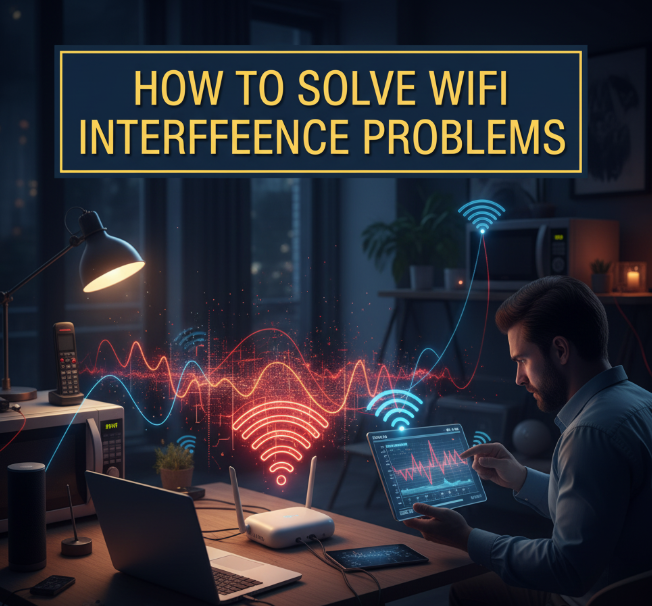
WiFi interference happens when signals from other devices, networks, or obstacles disrupt your router’s signal. Instead of smoothly traveling to your phone, laptop, or smart TV, the signal gets weakened, blocked, or mixed up with other frequencies.
The good news? WiFi interference is fixable. By learning how to spot it and apply smart solutions, you can dramatically improve your internet speed, stability, and coverage at home or in your office.
This article will walk you through step-by-step solutions to WiFi interference problems in a simple way that anyone—even a beginner—can follow.
What is WiFi Interference?
Think of your WiFi signal like a radio station. If two radio stations are broadcasting on the same frequency, you’ll hear static or mixed voices. Similarly, WiFi interference occurs when other signals, walls, or electronic devices disturb the flow of your wireless connection.
Main Causes of WiFi Interference
WiFi signals use two main frequency bands: 2.4 GHz and 5 GHz. Both can be affected by different factors. Here are the most common causes:
1. Competing WiFi Networks
-
If you live in an apartment building, your router is competing with dozens of nearby WiFi networks.
-
Multiple routers on the same channel create congestion, slowing everyone down.
2. Physical Obstacles
-
Thick walls, floors, and furniture can block or weaken WiFi signals.
-
Materials like concrete, brick, and metal are especially bad for signal strength.
3. Household Devices
-
Microwaves, cordless phones, baby monitors, Bluetooth speakers, and even some smart home devices operate on the 2.4 GHz frequency, interfering with WiFi.
4. Outdated Equipment
-
Old routers don’t support modern standards like WiFi 5 or WiFi 6.
-
Slow or weak routers can’t handle interference efficiently.
5. Signal Overload
-
Connecting too many devices at once (phones, laptops, TVs, cameras) can cause drops in speed.
How to Identify WiFi Interference
Before fixing interference, you need to detect where the problem is coming from. Here are some simple methods:
Use Router Admin Settings
-
Most routers show a list of connected devices and channel usage.
-
Check if your channel is overloaded with other nearby networks.
Mobile Apps and Tools
-
Apps like WiFi Analyzer (Android) or NetSpot (Windows/macOS) can show overlapping networks.
-
Look for signal strength heat maps to see where interference is strongest.
Test Different Devices
-
If your laptop has poor WiFi but your phone works fine, the issue may be with the device, not the router.
Practical Ways to Solve WiFi Interference
Here’s where the real fixes come in. Let’s go through proven methods to reduce interference and boost your WiFi speed.
1. Change Your WiFi Channel
Routers broadcast WiFi on channels. Just like highways, if too many cars (networks) are on the same lane, traffic slows down.
-
For 2.4 GHz WiFi: The best channels are 1, 6, and 11 because they don’t overlap.
-
For 5 GHz WiFi: You have more channels available, so interference is less common.
How to do it:
-
Open your router’s admin page (usually
192.168.1.1or192.168.0.1). -
Login with your credentials.
-
Look for Wireless Settings > Channel Selection.
-
Switch to a less crowded channel.
2. Switch to 5 GHz Band
-
The 2.4 GHz band is like a crowded street—everyone’s on it.
-
The 5 GHz band is faster and less crowded, making it great for gaming, streaming, and video calls.
Tip: Use 2.4 GHz for long-range coverage (like connecting in another room) and 5 GHz for speed and stability (close to the router).
3. Relocate Your Router
WiFi works best when the router is in an open, central spot.
✅ Best locations:
-
Middle of the house
-
Elevated (on a shelf or table)
-
Away from thick walls and electronics
❌ Worst locations:
-
Inside cabinets
-
Near microwaves, cordless phones, or large metal appliances
-
In corners of the house
4. Limit Interfering Devices
-
Move devices like baby monitors, microwaves, and cordless phones away from your router.
-
Use wired Ethernet for devices that need a stable connection (like gaming PCs or TVs).
5. Upgrade Your Router
If your router is more than 4–5 years old, it may not support newer WiFi standards.
-
WiFi 6 routers handle interference much better and provide faster speeds.
-
Dual-band and tri-band routers let you separate devices across multiple frequencies.
6. Reduce Connected Devices
If too many devices are connected, your router struggles.
Solutions:
-
Disconnect unused devices.
-
Set up guest networks for visitors.
-
Prioritize bandwidth with Quality of Service (QoS) settings for gaming or streaming.
7. Use Wired Connections
For devices that don’t need to be wireless (like PCs, smart TVs, or gaming consoles), use an Ethernet cable. This reduces WiFi traffic and improves reliability.
8. Add WiFi Extenders or Mesh Systems
-
WiFi Extenders: Boost signal to dead zones, but may cut speed.
-
Mesh WiFi Systems: Multiple routers working together, providing seamless coverage across your home.
9. Enable Automatic Channel Selection
Some modern routers can automatically pick the best channel based on interference. Check your router’s auto channel setting to let it optimize itself.

10. Update Firmware
Router companies regularly release firmware updates to fix bugs and improve performance.
-
Log in to your router settings.
-
Check for firmware updates.
-
Apply updates for better stability and reduced interference.
Extra Tips for Special Situations
WiFi in Apartments
-
Use 5 GHz band for less interference.
-
Place your router near windows or open areas for better coverage.
WiFi for Gaming
-
Use Ethernet if possible.
-
Set QoS to prioritize gaming traffic.
-
Avoid peak hours when neighbors’ WiFi is busiest.
WiFi for Smart Homes
-
Smart devices usually run on 2.4 GHz.
-
Dedicate 2.4 GHz for IoT (smart bulbs, cameras) and 5 GHz for personal use.
Comparison Table: Common Problems and Fixes
| Problem | Cause | Solution |
|---|---|---|
| Slow speed in certain rooms | Walls blocking signals | Move router, add WiFi extender/mesh |
| Random disconnections | Competing networks | Change channel, switch to 5 GHz |
| Weak signal near kitchen | Microwave interference | Move router away from kitchen |
| Lag in online games | Too many devices connected | Use Ethernet, enable QoS |
| WiFi drops during calls | Outdated router firmware | Update firmware or upgrade router |
Simple Checklist to Improve WiFi
-
✅ Place router in a central, open location
-
✅ Use 5 GHz for faster devices
-
✅ Switch channels to avoid congestion
-
✅ Limit interference from household devices
-
✅ Upgrade to a modern router if needed
-
✅ Use wired Ethernet for critical devices
-
✅ Keep firmware updated
Visual Infographic: WiFi Do’s and Don’ts
WiFi Do’s
-
Central location
-
5 GHz for speed
-
Updated router
WiFi Don’ts
-
Hiding router in a cabinet
-
Keeping it near microwaves
-
Using outdated hardware
Conclusion: Take Back Control of Your WiFi
WiFi interference is one of the biggest reasons for slow speeds, weak signals, and constant buffering. But the solutions are often simple—moving your router, changing channels, using 5 GHz, or upgrading your equipment.
By following the steps in this guide, you’ll transform your WiFi from a frustrating headache into a fast, reliable, and interference-free connection.
Your internet should work for you, not against you. Apply these fixes today, and enjoy smooth streaming, gaming, and browsing without the constant battle against poor WiFi.
📌 Final Word: A little effort in reducing WiFi interference can double your internet speed, extend coverage, and make your online experience stress-free.
