

Introduction
Imagine this: your internet feels slow, videos keep buffering, and your favorite game lags every second. You check the connected devices list on your WiFi router, and surprise—your neighbors or strangers might be using your network! That’s why changing your WiFi password and securing your connection is more than just a technical step—it’s about protecting your privacy, your speed, and your data.
This article will walk you through how to change your WiFi password step by step, and also explain how to secure your home network against hackers, freeloaders, and cyber risks. Don’t worry, the guide is written in simple, easy-to-follow language—even if you’re not tech-savvy, you’ll be able to do it on your own.
Why Changing Your WiFi Password is Important
Your WiFi password is the first line of defense for your home internet. Without a strong password, anyone nearby can connect to your network, which can lead to:
-
Slower internet speeds due to unwanted devices consuming bandwidth.
-
Security risks like hackers trying to steal your personal information.
-
Illegal activities—if someone uses your WiFi for harmful or unlawful actions, it can trace back to you.
-
Device attacks such as spreading malware or spying on your smart devices (CCTV, Alexa, smart bulbs, etc.).
👉 That’s why experts recommend changing your WiFi password every few months to keep it fresh and secure.
Step-by-Step Guide to Change WiFi Password
Let’s break it down into simple steps. The exact process can vary slightly depending on your router brand (TP-Link, Netgear, Huawei, PTCL, Zong, etc.), but the basics remain the same.
Step 1: Find Your Router’s IP Address
The router’s IP address is like its “doorway.” You need it to access the settings.
-
On Windows:
-
Press
Windows + R. -
Type
cmdand hit Enter. -
Type
ipconfig. -
Look for Default Gateway (usually something like
192.168.1.1or192.168.0.1).
-
-
On Mac:
-
Go to System Preferences > Network.
-
Select your WiFi and click Advanced.
-
Find Router IP.
-
-
On Mobile:
-
Open WiFi settings, tap your connected WiFi, and check Gateway or Manage Router option.
-
Step 2: Log In to the Router Dashboard
-
Open your browser (Chrome, Firefox, Edge).
-
Enter the IP address you found (e.g.,
192.168.1.1) in the address bar. -
A login page will appear.
🔑 Default credentials are often:
-
Username:
admin -
Password:
adminor1234
⚠️ If you’ve changed them before and forgot, press the reset button on your router for 10 seconds to restore defaults.
Step 3: Navigate to Wireless Settings
Every router has a menu, but you’ll usually find it under:
-
Wireless
-
WiFi Settings
-
Security
-
Network > WLAN
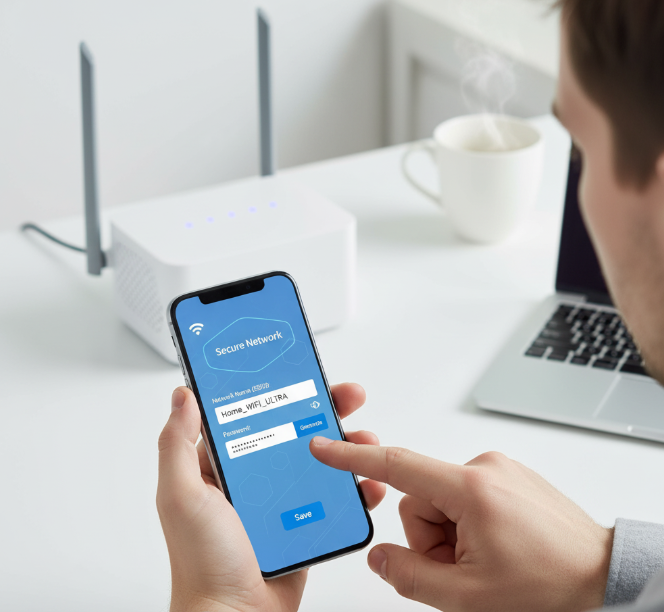
Step 4: Change the WiFi Password
-
Look for fields like:
-
WPA-PSK Key
-
WiFi Password
-
Network Key
-
-
Delete the old password and type a new one.
✔️ Tips for a strong password:
-
At least 12 characters long.
-
Use a mix of uppercase, lowercase, numbers, and symbols.
-
Avoid personal details like your name, phone number, or “12345678.”
-
Example:
House@1234Net!
Step 5: Save and Reconnect
-
Click Save/Apply.
-
Your router will restart or refresh the WiFi.
-
Reconnect all your devices (laptop, phone, smart TV) with the new password.
📌 Pro Tip: Write down the new password in a safe place so you don’t forget it.
How to Secure Your WiFi Network Beyond Just a Password
Changing the password is the first step, but let’s take things further. Here are proven ways to secure your WiFi so no one sneaks in.
1. Change Your Router’s Admin Password
-
The default login (admin/admin) is public knowledge.
-
Go to System Settings > Admin and set a unique password.
2. Use WPA3 or WPA2 Encryption
-
Check if your router has WPA3 (the latest and safest).
-
If not, choose WPA2. Avoid WEP—it’s outdated and easy to hack.
3. Hide Your Network (SSID)
-
Disable “SSID Broadcast” so your WiFi doesn’t appear in the list of available networks.
-
Only people who know the exact name can connect.
4. Limit Device Connections
-
Some routers allow you to set a device limit.
-
Example: only 5–10 devices max.
5. Enable MAC Address Filtering
-
Every device has a unique ID (MAC address).
-
You can whitelist only your family’s devices to connect.
6. Keep Router Firmware Updated
-
Just like your phone, routers need updates.
-
Log in to the admin panel and check for firmware updates.
7. Disable Remote Management
-
Turn off the option that allows accessing your router from outside your home network.
How to Change WiFi Password & Secure Network
Common Mistakes to Avoid
Here are don’ts when securing your WiFi:
-
❌ Don’t keep the default password (hackers know them).
-
❌ Don’t use simple passwords like
password123or your birthday. -
❌ Don’t ignore firmware updates.
-
❌ Don’t share your WiFi password with everyone—create a Guest Network instead.
-
❌ Don’t leave WPS (WiFi Protected Setup) on—it makes it easier to hack.
Quick Comparison: Secure vs. Insecure WiFi Setup
| Feature | Insecure WiFi | Secure WiFi Setup |
|---|---|---|
| Password Type | Short, simple, personal info | Strong, random mix |
| Router Login | Default admin/admin | Custom strong password |
| Encryption Mode | WEP or none | WPA2 or WPA3 |
| Network Visibility | Visible to all | Hidden SSID (optional) |
| Updates | Never updated | Regularly updated |
| Guest Access | Shared main password | Separate guest network |
FAQs About Changing WiFi Password
Q1: How often should I change my WiFi password?
👉 Every 3–6 months is a good practice, or immediately if you suspect someone unauthorized is connected.
Q2: Will changing my WiFi password disconnect all devices?
👉 Yes, all devices will be logged out and you’ll need to reconnect them with the new password.
Q3: Can I change WiFi password from my phone?
👉 Absolutely! Just open your browser, enter the router’s IP, log in, and follow the steps.
Q4: What if I forget my new WiFi password?
👉 Log back into the router’s settings, or press the reset button to restore default credentials.
Conclusion
Changing your WiFi password and securing your network is not just about speed—it’s about safety, privacy, and peace of mind. With just a few steps, you can lock out freeloaders, protect your personal data, and keep your internet running smoothly.
Here’s a quick recap of what you should do:
-
Regularly change your WiFi password.
-
Use WPA2/WPA3 encryption.
-
Set a strong admin password.
-
Update router firmware often.
-
Create a guest network for visitors.
Remember, your WiFi is the gateway to your digital world. Treat it like the lock on your front door—keep it strong, updated, and private.
