

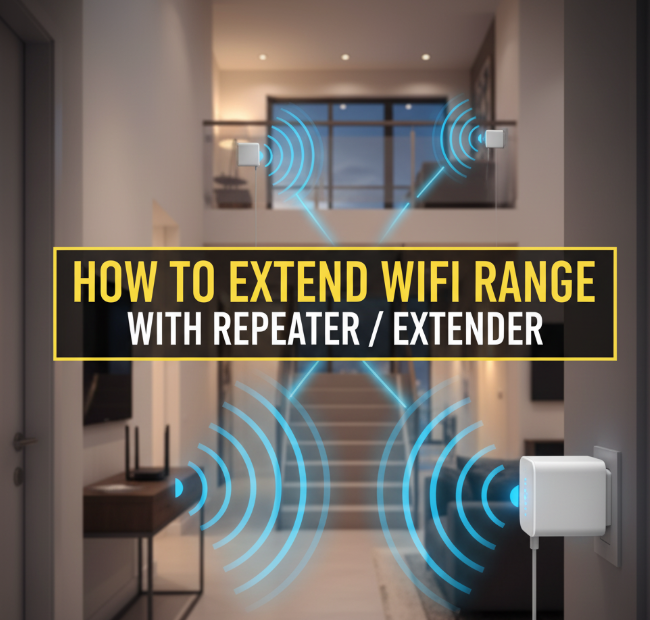
Introduction: The Frustration of Weak WiFi
Imagine streaming your favorite show, playing an online game, or attending an important video call—only for your WiFi to freeze. Weak signals, dead zones, and buffering issues are problems nearly every home or office faces. With more devices than ever relying on WiFi—smartphones, laptops, TVs, smart home gadgets—it’s crucial to have strong, reliable coverage everywhere.
One of the easiest and most cost-effective ways to solve this problem is by using a WiFi repeater or extender. These devices boost your wireless signal, pushing internet access into areas your router can’t reach.
This guide will show you step by step how repeaters and extenders work, how to set them up properly, and extra tips to maximize your coverage.
What Exactly Is a WiFi Repeater or Extender?
Although people often use the words “repeater” and “extender” interchangeably, there are small differences worth noting.
-
WiFi Repeater
-
Captures the existing WiFi signal from your router.
-
Rebroadcasts it as a new signal.
-
Acts like a “mirror,” repeating what your router sends.
-
-
WiFi Extender
-
Connects directly to your router through WiFi or an Ethernet cable.
-
Expands the signal range by creating a second network.
-
Usually offers a stronger connection because it extends rather than only repeating.
-
👉 Bottom line: Both devices serve the same purpose—to push WiFi coverage into hard-to-reach places like basements, garages, or upstairs bedrooms.
Why Do You Need a Repeater or Extender?
You might wonder, “Isn’t my router enough?” The truth is, routers have limitations. Factors like walls, furniture, distance, and even household electronics can weaken WiFi strength.
Here are common situations where repeaters and extenders are life savers:
-
Large homes or offices where the router can’t cover every corner.
-
Multi-floor houses where signals struggle to move between levels.
-
Outdoor use—if you want WiFi in your backyard, garage, or balcony.
-
Smart devices—security cameras, smart TVs, or gaming consoles in far rooms.
-
Thick walls or concrete barriers blocking the signal.
How WiFi Repeaters and Extenders Actually Work
Think of your router as a radio station. It broadcasts a signal (WiFi), but the further you move, the weaker it becomes.
-
A repeater acts like a second radio tower—it picks up the weak broadcast and amplifies it.
-
An extender works more like adding a second speaker—it’s directly linked to the source and passes the signal along with less distortion.
📊 Table: Quick Comparison Between Repeater and Extender
| Feature | WiFi Repeater | WiFi Extender |
|---|---|---|
| Connection Type | Wireless only | Wireless or wired (Ethernet) |
| Signal Strength | Moderate | Stronger, more stable |
| Network Name | Usually same SSID or new SSID | Can create a second SSID |
| Best Use Case | Small homes, weak corners | Larger homes, multi-device setups |
Step-by-Step Guide: How to Extend WiFi Range with a Repeater/Extender
1. Choose the Right Device
Not all repeaters/extenders are created equal. Consider these factors:
-
Speed Support: If you have high-speed internet (like 300Mbps+), choose a device that supports at least AC750 or higher standards.
-
Dual-Band vs Single-Band: Dual-band devices (2.4GHz + 5GHz) offer better performance and less interference.
-
Brand Compatibility: While most are universal, check compatibility with your router.
💡 Popular brands include TP-Link, Netgear, Linksys, and D-Link.
2. Pick the Perfect Location
Placement is everything.
-
Place the repeater midway between your router and the weak signal area.
-
Avoid placing it too far from the router (it can’t amplify a signal it doesn’t receive well).
-
Keep it away from appliances like microwaves, cordless phones, or thick walls.
📍 Pro tip: Use a WiFi analyzer app to find signal strength spots in your home.
3. Plug In and Power On
Most repeaters/extenders plug directly into a wall outlet. Once connected, wait for the LED lights to power up.
4. Connect to Your Repeater/Extender
-
On your phone or laptop, search for new WiFi networks.
-
Look for something like “TP-Link_EXT” or “Netgear_Extender”.
-
Connect to it temporarily.
5. Configure the Device
There are two common setup methods:
-
WPS (WiFi Protected Setup):
-
Press the WPS button on your router.
-
Within 2 minutes, press the WPS button on your repeater.
-
They pair automatically.
-
-
Web/App Setup:
-
Open a browser and enter the device’s IP (like 192.168.0.1).
-
Log in using the default credentials.
-
Select your main WiFi network, enter the password, and save settings.
-
6. Test Your Extended WiFi
Once setup is complete:
-
Disconnect and reconnect to your WiFi.
-
Walk to the dead zones—check if the signal is stronger.
-
Use an online speed test tool (like Ookla) to confirm performance.
7. Fine-Tune for Best Performance
-
Rename the extended network (example: “Home_WiFi_EXT”) for easier recognition.
-
Place repeaters strategically—sometimes two devices are better for big houses.
-
Regularly update firmware for improved stability and speed.
Tips to Maximize WiFi Range Beyond Just Repeaters
Even with a repeater, other tweaks can make a big difference:
-
Upgrade Your Router Antennas
Many routers allow antenna upgrades that boost coverage. -
Switch to Less Crowded Channels
Neighboring WiFi networks can interfere. Use tools to find the least busy channel. -
Use Mesh WiFi Systems
If you have a very large home, consider upgrading to a mesh system instead of multiple extenders. -
Ethernet Backhaul
If possible, connect your extender to the router via Ethernet for maximum speed.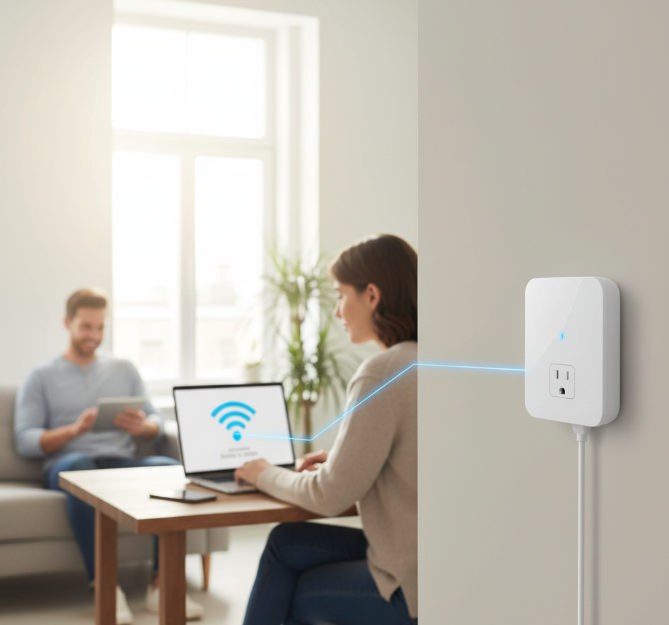
How to Extend WiFi Range with Repeater / Extender
Common Mistakes to Avoid
-
Placing the repeater too far from the router (weak signal = poor performance).
-
Using multiple extenders without planning—can create interference.
-
Ignoring firmware updates—leads to security issues and bugs.
-
Expecting faster speeds—extenders improve coverage, not the actual internet speed.
Troubleshooting WiFi Extender Problems
| Problem | Possible Fix |
|---|---|
| Extender not connecting | Reset to factory settings and reconfigure. |
| Slow internet speed | Place closer to router or switch to 5GHz band. |
| Frequent disconnections | Update firmware, reduce interference, change channel. |
| Device not showing on list | Reboot extender and check power source. |
Real-Life Examples: Where Repeaters Work Best
-
Apartments: Extend WiFi to balconies or side rooms.
-
Multi-story houses: Strengthen upstairs bedrooms or basements.
-
Small businesses: Keep internet running in storage rooms, conference areas, or outdoor seating spaces.
-
Outdoor lovers: Enjoy WiFi in your garden, poolside, or garage gym.
Infographic: WiFi Repeater Setup in 5 Steps
-
Plug in your repeater.
-
Place it halfway between router and dead zone.
-
Connect to repeater network.
-
Configure via WPS or browser.
-
Enjoy extended coverage.
(Imagine a simple house diagram with arrows showing the router signal extending via repeater.)
FAQs About WiFi Repeaters and Extenders
Q1: Do repeaters slow down WiFi?
Yes, some models cut speed by about 50%. Extenders with Ethernet backhaul or dual-band minimize this.
Q2: How many repeaters can I use?
Technically, you can chain multiple repeaters, but 1–2 is usually enough. More may cause interference.
Q3: Do I need to buy the same brand as my router?
No, most repeaters are universal. However, same-brand devices sometimes integrate better.
Q4: What’s better—repeater, extender, or mesh WiFi?
-
Repeater: Best for small fixes.
-
Extender: Good for bigger homes.
-
Mesh: Best for large properties with many devices.
Conclusion: Boosting WiFi the Smart Way
Dead zones and weak WiFi signals don’t have to be a daily struggle. By adding a WiFi repeater or extender, you can enjoy strong, consistent internet in every corner of your home or office.
Remember:
-
Pick the right device for your needs.
-
Place it strategically for maximum coverage.
-
Combine with extra tips (better router placement, channel optimization, or mesh systems) for the ultimate experience.
With just a small investment and simple setup, you’ll finally be able to stream, game, and work without interruptions—whether you’re upstairs, downstairs, or even in your backyard.
