

The best part about Windows is the abundance of third-party apps. Its simplified approach to software availability is a luxury for other tight-knit OS ecosystems. Native Windows tools often lack features that most users can benefit from, and this is one of the reasons for the success of third-party tools. But not all included Windows tools are bad, and some of them outshine third-party alternatives even now.
I’m a minimalist when it comes to using third-party apps unless absolutely necessary. Tools like Disk Cleanup and Resource Monitor aid me in my daily OS management tasks rather than relying on popular third-party alternatives. Let’s discuss some more native tools that you can use on Windows.
Disk Cleanup
Purge system clutter

Microsoft introduced PC Manager a couple of years back as an all-in-one cleanup and memory boost tool. But before that, Disk Cleanup was the tool every Windows user comfortably used without any complaints.
Most of the time when I’m stuck with my Windows 11 virtual machines during updates, the tool helps me free up more storage. Windows updates tend to take up a lot of space, and old files and logs can slowly build up to a staggering amount.
You can manually empty the recycle bin, but other hidden files won’t show up that easily. I prefer to run disk cleanup because it loads faster than the Settings app storage section tools and offers a simplified way to deal with storage clutter.
I can either choose to perform basic cleanup or opt for a deep clean by removing system files, system restore points, and more. Thankfully, Microsoft hasn’t deprecated it and instead integrated some of its features into the settings app.
It’s much better than using third-party alternatives like AVG Cleaner that cost money and do exactly what this native tool does.
Control Panel
Access all settings
The Control Panel has been in a phase-out mode for several years. Settings app is its successor, but it is still in a transitional phase. I don’t like the slow-loading nature of the Settings app, and the Control Panel is a lifesaver.
For instance, I regularly use appwiz.cpl shortcode to launch the apps and features page of the Control Panel. Even when the settings app misbehaves, Control Panel offers a respite from abrupt crashing or consistency issues.
I don’t hate the appearance of the Settings app, but the Control Panel route is simple yet fast. No need to juggle between page-long options or hunt through several menus just to see the installed app list. Control Panel does everything related to the OS and doesn’t falter like the Settings app. Sadly, the legacy app now redirects some option controls to Settings app, and there’s no escaping from that.
Robocopy
Faster file transfers
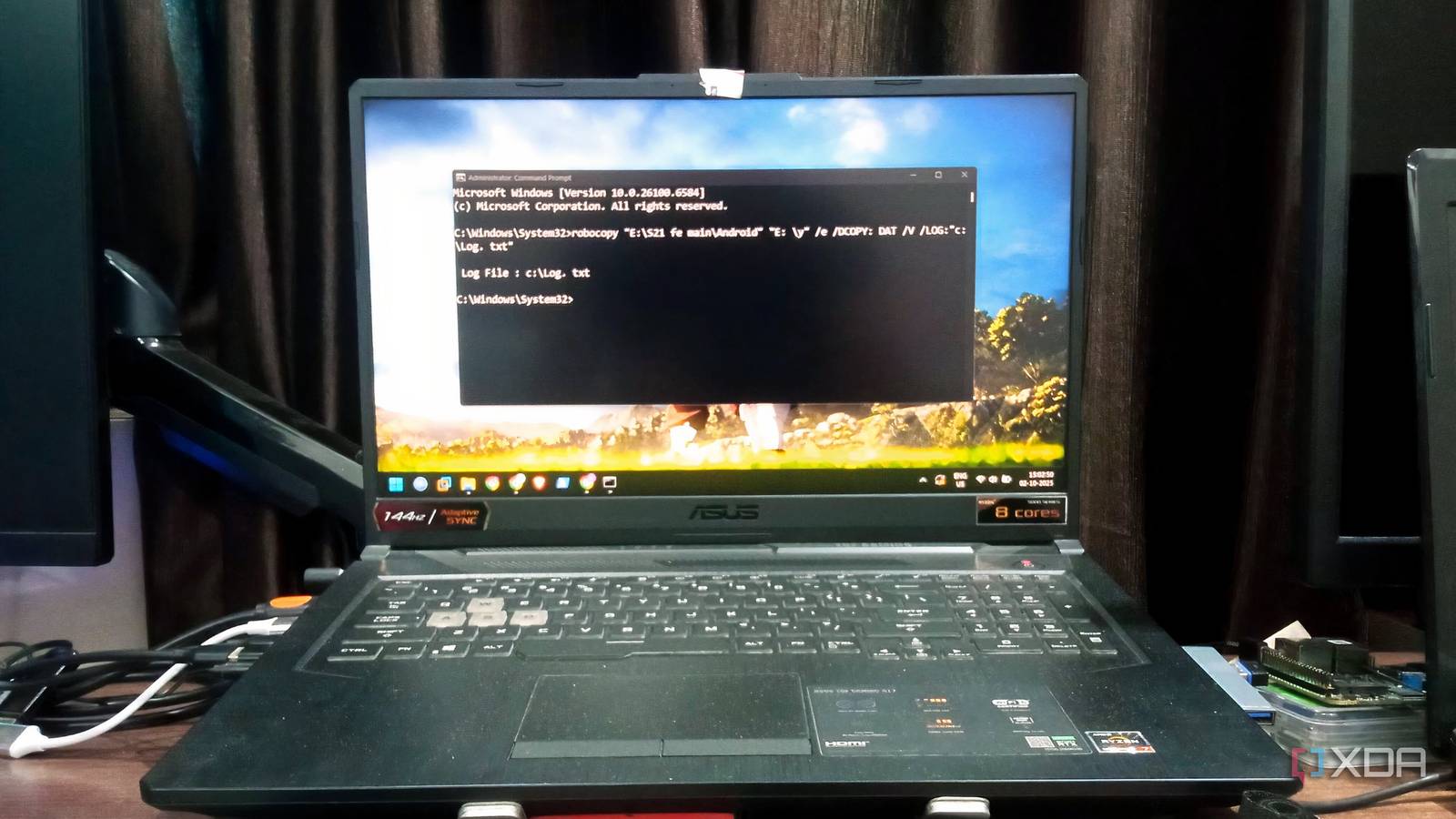
A terminal copy tool is usually the last thing on anyone’s mind, but I still like it. Robocopy is for power users, and you can use it to create file copy operations from one location to another. It’s faster than the regular copy option and works best when you need to do large transfer jobs.
Tera Copy used to be a popular third-party tool, but I stopped installing it a few years back. But when I deal with huge folders like games or drive-level copy jobs, the CLI tool becomes invaluable. It’s a neat way to implement backups if you prefer copying everything to an external drive, once in a while.
I combine Robocopy jobs with the task scheduler to run a copy of my downloads and games folder, and it automatically checks for file changes. So, it copies only necessary files and doesn’t overwork the storage.
Resource monitor
Precise hardware monitoring

Resource Monitor is a less-used tool on my system, but it comes in handy when the Task Manager is inept at finding what I need. It’s incredibly simple to find associated processes and services, and it shows basic graphs with real-time monitoring.
Microsoft hasn’t upgraded the GUI yet, so the graphical monitoring feels very outdated. You can easily find out what services are gobbling up your CPU or memory, and can find the correct path to the exact DLL file. It’s not meant for the basic user, but it can at least help with troubleshooting rather than downloading something from the Sysinternals suite.
Backup and restore
Full system backups

Windows has multiple backup tools now, with a heavy focus on cloud storage. You can use OneDrive to back up your files, but it’s evident that you can’t save everything on a server with an expensive subscription. There are several local disk backup options, and Microsoft is deprecating some of them, like File History.
I find the legacy Backup and restore tool purposeful because it can create a full system image backup. It’s simple to restore to a previous state using the image, especially when your system breaks. Windows has several recovery tools, like System Restore, but nothing like backup and restore.
There are third-party tools like Macrium Reflect, which do a better job, but the native tool didn’t disappoint me in my Windows 7 and 8 years. Microsoft plans to deprecate the tool in the coming years, but you can use it until then if you don’t want to pay for a disk image tool.
Old but relevant
Windows 11 has a fresh GUI, but the above-mentioned legacy apps and tools still pack some punch. My favorite is Robocopy, but I also have a soft corner for Disk Cleanup. Robocopy is a CLI program for fast transfers and automated copy jobs if you don’t want to use the paid counterparts. Some tools are nearing their retirement date, and you might have to use another open-source or paid alternative later on.
